
Microsoft Word (.docx) is a required format in many workplaces, academic institutions, and client workflows. Google Docs stores files in its own cloud-based format by default, so documents are often converted to .docx to ensure full compatibility with Microsoft Word and other Office tools.
In this tutorial, you will learn how to convert Google Docs to Word using 4 different methods, along with guidance on when to use each one.
- Using the File → Download menu
- Using File → Email Menu
- Using Google Drive bulk download
- Using the Google Docs mobile app
Converting a Single Google Doc to Word Using Built-in Google Docs Methods
You can convert a single Google Doc to Word using two built-in options in the File menu, available from any Google Docs document.
These built-in workflows handle quick exports and direct email delivery from the Google Docs editor.
File → Download - Exports the document as a .docx file to your local Downloads folder.
File → Email - Sends the document as a .docx attachment to a recipient without saving it locally.
Both approaches run directly in the browser without navigating to Google Drive.
Converting a Google Doc to Word Using the File → Download Menu
When to use: Use this when you need a local Word file from a single document on a desktop browser.
Steps:
Go to Google Docs and open the document you want to convert.
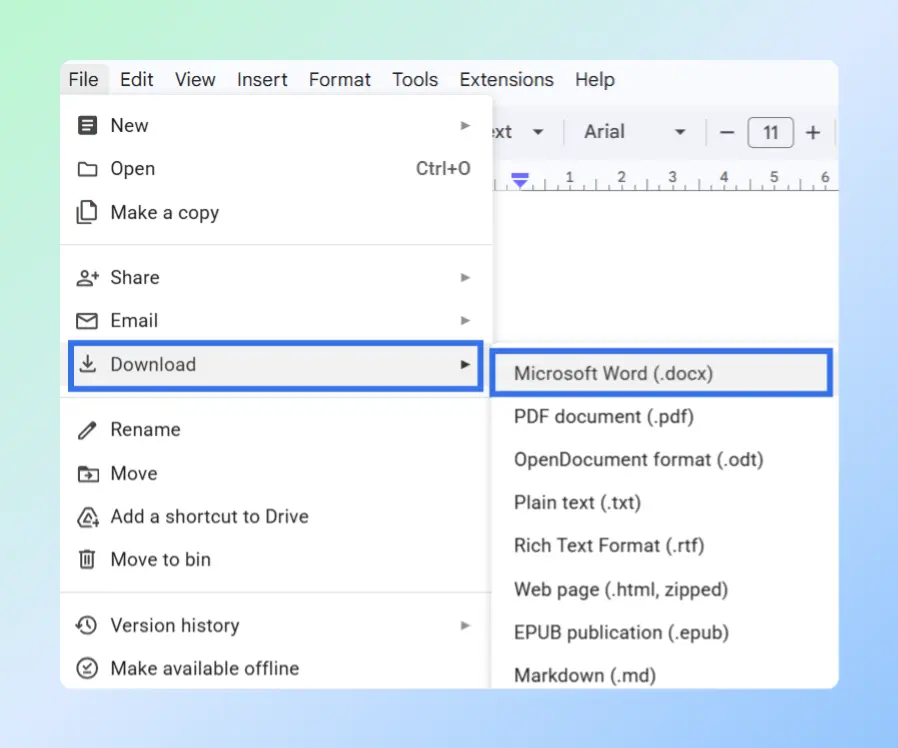
Click File → Download → Microsoft Word (.docx). The download starts automatically.
If your document has multiple tabs, a dialog appears instead of downloading immediately:
Select Current Tab to export only the active tab.
Select All Tabs to combine all tabs into one Word file.
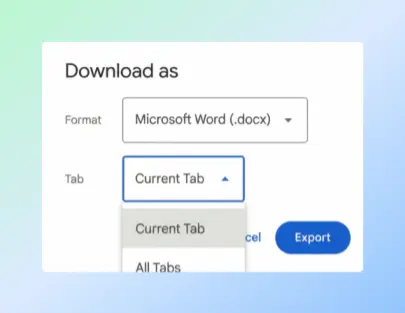
Click Export.
Result: A .docx file saves to your Downloads folder with the same name as the Google Doc. If you exported all tabs, they are combined into a single file in the order they appear in the document.
Limitations:
- If the document contains multiple tabs and you export All Tabs, Google Docs inserts each tab’s title as a standalone page before the content of that tab in the Word file. This helps separate sections but will add extra pages to the exported document. For more details about how tabs are structured in Google Docs, see the Google Docs tabs documentation.
- Some formatting elements, such as custom fonts or complex table borders, may not transfer to Word accurately. Open the file in Word to verify the output before sharing it.
- The file saves to your local computer only. There is no option to save it directly to Google Drive.
Sending a Google Doc as a Word Attachment Using File → Email Menu
You can send a Google Doc directly as a Word file using File → Email → Email this file without downloading the document first.
The Email this file option converts the document and sends it as a .docx attachment in one step. This removes the need to download the file and attach it manually to an email.
When to use: Use this when you need to send a Word file to a recipient directly from Google Docs without saving a local copy.
Steps:
Open the Google Docs document in a desktop browser.
Click File → Email → Email this file. An email dialog opens inside Google Docs.
Open the format dropdown inside the dialog and select the Microsoft Word (.docx) option.
Type the recipient’s email address in the To field. Add an optional subject and message.
Click Send. Google Docs converts the document and delivers it as a .docx email attachment.
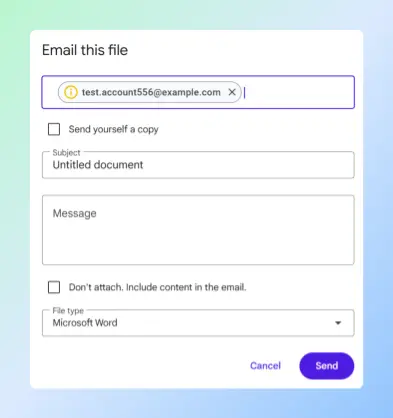
Result: The recipient receives an email with the document attached as a .docx file. If you enable Send youself a copy option, you will also receive the same email in your inbox. No file is saved to your computer or Google Drive.
Limitations:
- The Word file is not saved locally. If you also need a local copy, use File → Download → Microsoft Word (.docx) separately.
- You can send only one document at a time. There is no option to send multiple files in a single action.
Converting Multiple Google Docs to Word Using Google Drive
You can convert multiple Google Docs as Word files directly from Google Drive using right-click → Download, without opening any file.
Google Drive converts each selected Doc to .docx format automatically before the download begins. No document editor is needed. This works for a single file or a multi-file selection. For more details, see the Google Drive download documentation.
When to use: Use this when you need to convert more than one Google Doc to Word without opening each file individually.
Steps:
Go to Google Drive and navigate to the folder containing your files.
Hold Shift and click to select a range of files, or hold Ctrl (Windows) / Cmd (Mac) and click to select individual files. A checkmark appears on each selected file.
Right-click any highlighted file and click Download. Google Drive displays a Preparing download message as it converts the selected files to .docx format.
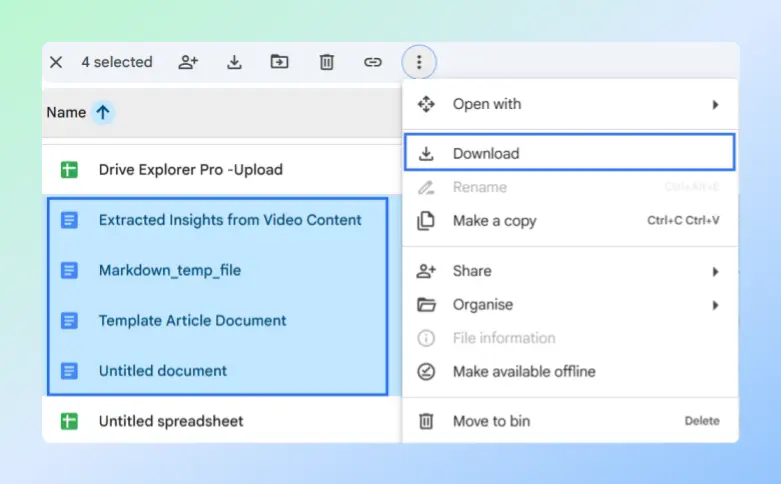
Drive packages the converted files into a ZIP archive. The archive downloads automatically to your Downloads folder when ready. Large selections may take additional time to process.
Open the ZIP file and extract its contents. Each Google Doc is now a separate .docx file inside the archive.
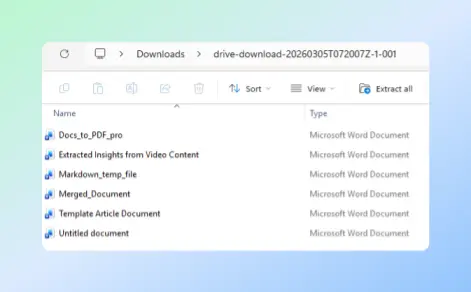
Note: The same right-click → Download method works for a single file too. Right-click any Google Docs file in Drive and click Download to convert and save it as a Word file without opening it.
Result: A ZIP archive containing one .docx file per selected Google Doc saves to your Downloads folder. The files are not merged, and each document keeps its original name.
Limitations:
- The files are not merged. Each Google Doc becomes a separate Word file. To combine them, merge the files using Merge Docs Pro online tool.
- ZIP extraction is required before you can open or share the files.
- You cannot control which tabs inside a document are exported. All content from each document is included.
Converting a Google Doc to Word Using the Google Docs Mobile App
The Google Docs mobile app for Android and iOS lets you convert a document to Word directly from your phone or tablet.
The app includes a built-in Share & export → Save as option that converts and saves the document as a .docx file. You can save it to your device or share it through another app without needing a desktop browser.
When to use: Use this when you need to export a Word file from a phone or tablet.
Steps:
Open the Google Docs app and tap the document you want to convert.
Tap the ⋮ (three-dot) menu in the top-right corner of the screen.
Tap Share & export in the menu that appears.
Tap Save as from the list.
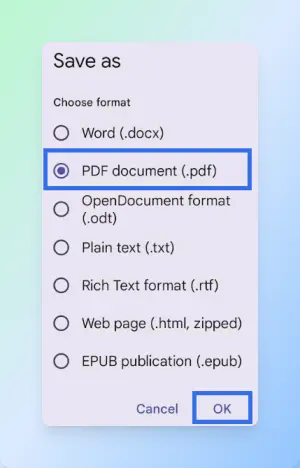
Select the Word (.docx) option.
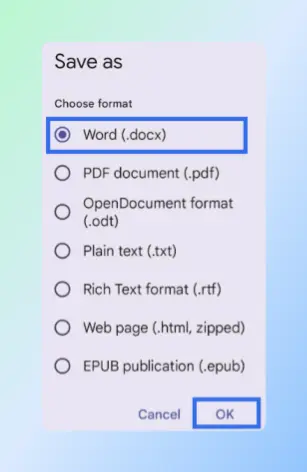
Click OK
Result: The document is converted and saved as a .docx file. You can open it from your device’s local storage or share it through another app such as email or a file manager.
Limitations:
- Formatting control is limited compared to the desktop export. Complex formatting elements may not transfer correctly to Word.
- You can convert only one document at a time. The mobile app does not support bulk conversion.
Comparing Methods for Converting Google Docs to Word
The four methods differ primarily in output destination, the number of files processed at once, and the device you are working on.
All four methods use Google’s native conversion and require no third-party tools. Knowing where they differ helps you pick the right method before starting.
| Feature | File → Download | Email this file | Google Drive bulk download | Google Docs mobile app |
|---|---|---|---|---|
| Output destination | Local .docx file | Email attachment | ZIP of .docx files | Device storage |
| Converts multiple files | ❌ No | ❌ No | ✅ Yes | ❌ No |
| Works without opening files | ❌ No | ❌ No | ✅ Yes | ❌ No |
| Saves file to device | ✅ Yes | ❌ No | ✅ Yes | ✅ Yes |
| Multi-tab export support | ✅ Yes | ❌ No | ❌ No | ❌ No |
| Delivers by email | ❌ No | ✅ Yes | ❌ No | ❌ No |
| Works on mobile | ❌ No | ❌ No | ❌ No | ✅ Yes |
Choosing the Right Method to Convert Google Docs to Word
Use File → Download for quick single-document exports and Google Drive bulk download when you need to convert more than one file at once.
Use the table below to identify the right approach for your situation:
| Method | Best For |
|---|---|
| File → Download Menu | Quick single-document Word export |
| File → Email Menu | Sending a Word file directly to a recipient |
| Google Drive bulk download | Converting multiple documents at once |
| Google Docs mobile app | Exporting from a phone or tablet |
Once the document is downloaded as a Word file, you may need to merge it with other reports or convert it back later for cloud collaboration:
- To go the other way and import a .docx file into your Google account, see how to convert Word to Google Docs.
- To combine several Word reports into a single file, see how to merge multiple Word documents into one.
Conclusion
You can convert Google Docs to Word using four different methods, each suited to a different file count, output destination, or device.
Whether you need a local file, a direct email attachment, a batch export, or a mobile conversion, all four options are available without third-party tools. Review the comparison table above to confirm which method matches your situation before starting the conversion.