
This route suits Chromebooks, shared drives and anyone without a Word licence. If you do have the Word desktop app, you can merge Word files offline with Insert > Text from File instead.
- Upload the Word files to Google Drive
- Merge them from Google Sheets (ordered list, repeatable)
- Merge them from Google Docs (quick, one step)
- Download the result as Word, PDF or EPUB
Preparing Word documents in Google Drive
Use this step first: the add-on reads files from your Drive, or uploads them from your computer when you start the merge.
- Go to Google Drive and click New > File Upload.
- Select your .doc or .docx files and wait for the upload to finish. Google’s upload help covers folders and drag-and-drop.
- Install Merge Docs Pro from Extensions > Add-ons > Get add-ons in Google Docs or Sheets.
You don’t need to convert the files to Google Docs first. To see what changes when they are converted, read how Word files convert to Google Docs.
Merging Word documents from Google Sheets
Use this when the order matters, you merge many files, or you will repeat the merge later. Each file is a row you can reorder or skip.
Open a new Google Sheet and click Extensions > Merge Docs Pro > Merge Google Docs.
Click Add Column Headers to Get Started to create the input sheet.
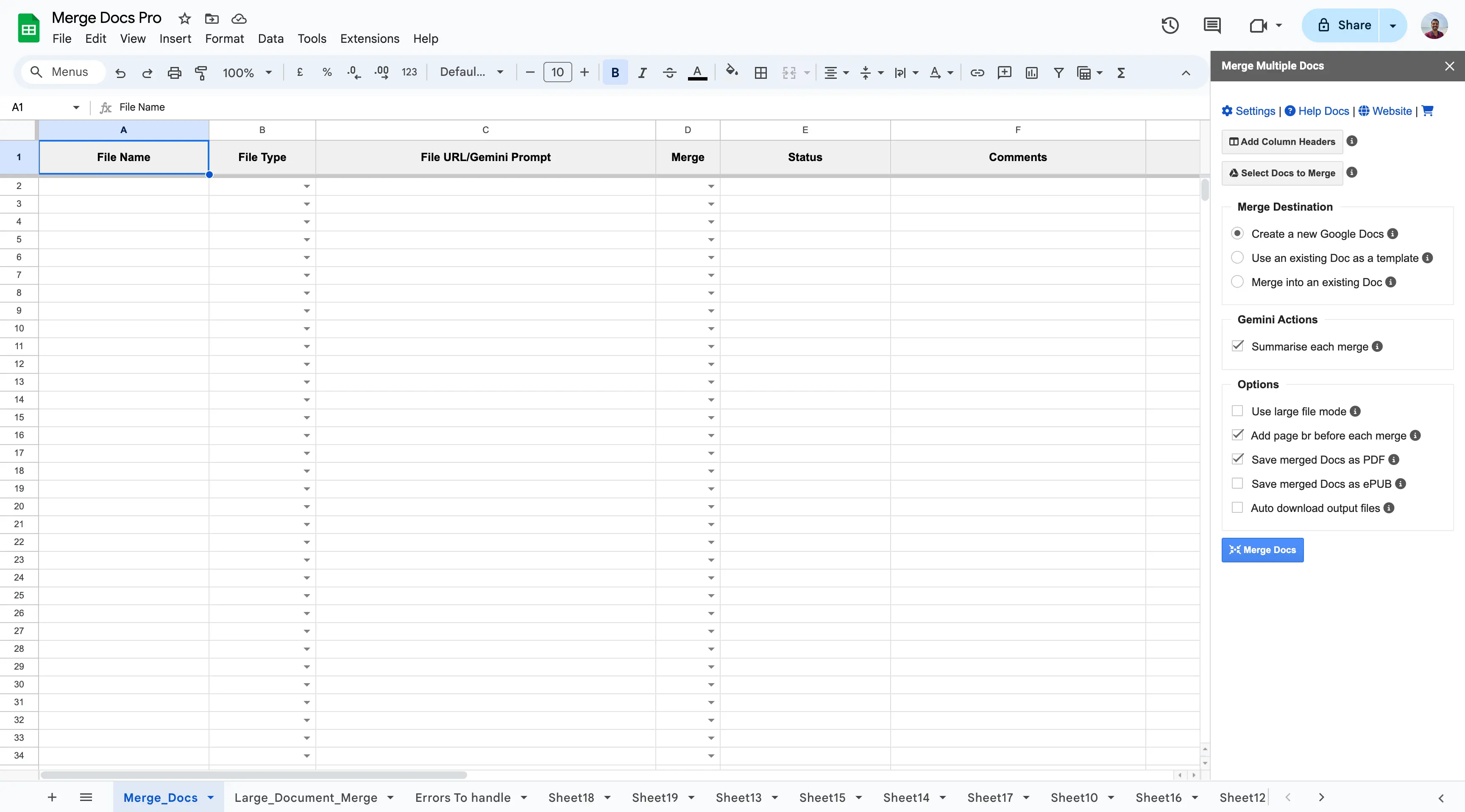
Click Select Google Docs or Drive Files to Merge and pick the Word files. Use Upload Local Files to Merge for files still on your computer.
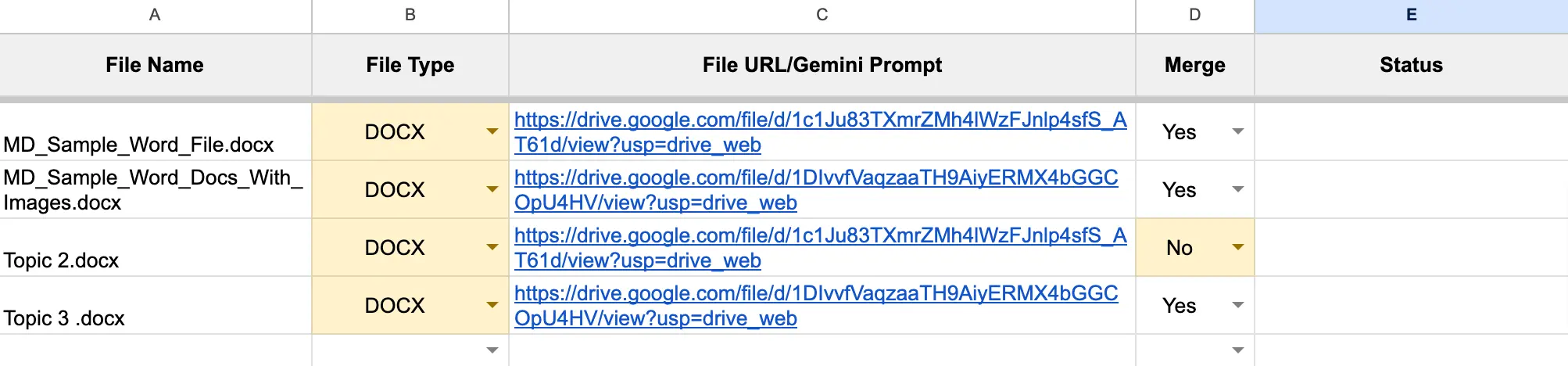
Drag rows into the merge order. Set Merge to No for any file you want to leave out this time.
Under Merge Destination, choose one option:
Option What it does Use it when Create a new Google Doc Puts everything in a new Doc A standard one-off merge Use an existing Doc as a template Creates a new Doc with the template’s headers, footers, sharing settings and language Every merge needs the same branding or sharing Merge into Existing Doc Appends the files to a Doc you choose Adding sections to a master document 
Tick Add page break before each merge so each Word file starts on a new page.
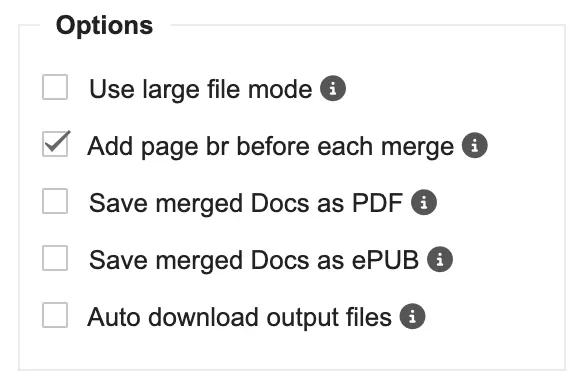
Click Merge Docs.
Result: One Google Doc with every Word file marked Yes, in sheet order.
Note: The screenshots come from an earlier version of the sidebar, so some labels are shorter. The Merge Docs Pro help for Google Sheets lists the current ones.
Merging Word documents from Google Docs
Use this when you just want to combine a few files quickly, without setting up a sheet.
- Open a Google Doc and click Extensions > Merge Docs Pro > Merge Multiple Docs into One.
- Choose Merge into current document or Merge into a new Google Doc.
- Under Merge Options, tick Add page break before each merged document and any exports you need.
- Click Select Google Docs or Drive Files and Merge, or Select Local Files and Merge for files on your computer.
- Select the Word files, holding Ctrl (Windows) or Cmd (Mac) to pick several, and click OK.
Result: The files are merged at once into the current Doc or a new Doc in your Drive.
Downloading the merged file as Word, PDF or EPUB
Use this when the people you share with need a file rather than a Google Doc link.
- Before merging (Sheets): tick Save merged Docs as Word, Save merged Docs as PDF or Save merged Docs as ePUB. Tick Auto download output files to download them straight away.
- Before merging (Docs): tick Save merged document as Word or Save merged document as PDF.
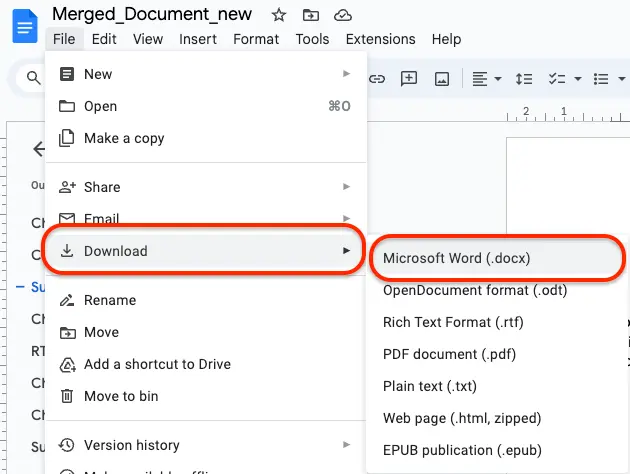
- After merging: open the merged Doc and click File > Download > Microsoft Word (.docx).
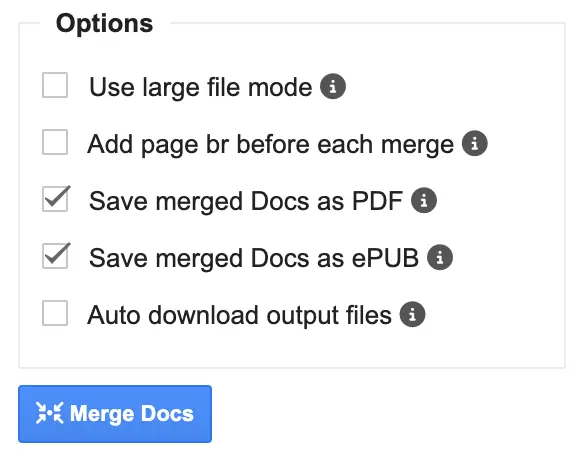
For e-readers, see how to convert the merged file to EPUB and what to check first.
Merge Docs Pro limits
- Merges Word (.doc and .docx), Google Docs, Markdown, HTML, TXT, RTF and ODT into one Google Doc, so you can merge Word files together with Google Docs.
- Word comments can be copied, with replies, using Copy comments from source documents (BETA) in the Google Docs add-on. Document tabs can be preserved or flattened.
Comparing the methods
| Method | Best for | Works on |
|---|---|---|
| Merge Docs Pro from Google Sheets | Many Word files, fixed order, repeat merges | Google Sheets in a desktop browser |
| Merge Docs Pro from Google Docs | A quick merge of a few files | Google Docs in a desktop browser |
| Browser-based .docx merger | Up to 15 .docx files, no Google account | Any modern browser |
| Word’s Text from File | Keeping full Word formatting | Word desktop for Windows or Mac |
Troubleshooting
- A Word file doesn’t appear in the picker. Check that the upload finished and that the file is .doc or .docx. An old .wps file must first be converted from WPS to .docx in Word.
- Tables or spacing look different. Word formatting is converted to Google Docs formatting. Google’s Work with Office files help explains what converts.
- Documents run into each other. Turn on the page-break option and merge again.
- The merge stops on very large files. Split the files into two merges, then combine the results.
- Headers and footers are missing. Use Use an existing Doc as a template in the Sheets method to apply a standard header and footer.
More ways to combine files are in the merge documents guides.