
Most merges come from modular writing: chapters, reports or help articles kept in separate Docs. Pick a method by how many files you have and whether you need to repeat the merge.
- Copy and paste into one Doc (2–3 files, free)
- Paste each Doc into its own tab (keeps sections separate)
- Merge Docs Pro from Google Docs (quick one-off merges)
- Merge Docs Pro from Google Sheets (ordered, repeatable merges)
Merging Google Docs with copy and paste
Use this when you only have two or three short Docs and don’t mind a few minutes of manual work.
- Open the Doc you want to keep as the destination, or create a new one with File > New > Document.
- Open the first source Doc and select everything with Ctrl + A (Windows) or Cmd + A (Mac).
- Copy it with Ctrl + C or Cmd + C.
- In the destination Doc, click where the content should go and paste with Ctrl + V or Cmd + V.
- Insert a page break before the next Doc with Ctrl + Enter or Cmd + Enter.
- Repeat steps 2–5 for each remaining Doc.
Result: One Doc containing the body text of every source. Headers, footers and comments from the source Docs are not carried over.
Tip: If pasted text clashes with the destination’s styles, paste with Ctrl + Shift + V (Windows) or Cmd + Shift + V (Mac) to drop the source formatting.
Combining AI chats? First export each ChatGPT chat to Google Docs, then merge the Docs.
Merging Google Docs into one document with tabs
Use this when you want one file but still want each source to stay a separate, navigable section.
Google Docs supports document tabs, and each tab works like a separate page set inside one file.
- Open the destination Doc.
- At the top left, click Show tabs & outlines.
- Click Add tab to create a tab for each source Doc. To rename one, click Tab options > Rename, for example to use the chapter title.
- Copy each source Doc (step 2–3 of the copy-paste method) and paste it into its own tab.
- Drag tabs in the left panel to change their order. Drop a tab onto another to make it a subtab.
Result: A single Doc with one tab per source. A document can hold up to 100 tabs.
To turn the tabbed Doc into a single file for sharing, use File > Download > PDF document (.pdf) and choose All Tabs. The guide to combining Google Docs into one PDF covers that route in detail.
Merging Google Docs with Merge Docs Pro from Google Docs
Use this when you are already in a Google Doc and want to pull other files into it, or into a new Doc, in one step.
Merge Docs Pro is a Google Docs and Google Sheets add-on. Install it once from Extensions > Add-ons > Get add-ons, then:
- Open a Google Doc and click Extensions > Merge Docs Pro > Merge Multiple Docs into One.
- Under Merge Destination, choose Merge into current document or Merge into a new Google Doc.
- If you chose a new Doc, decide whether to Add current document contents at the beginning, at the end, or Don’t add current document contents.
- Under Merge Options, tick what you need: Add page break before each merged document, Save merged document as Word, Save merged document as PDF and Auto download output files. To keep review notes, also tick Copy comments from source documents (BETA).
- Click Select Google Docs or Drive Files and Merge. To use files from your computer instead, click Select Local Files and Merge.
- Select the files. Hold Ctrl (Windows) or Cmd (Mac) to pick several, then click OK.
Result: The add-on merges the files straight away. The content appears in the current Doc, or in a new Doc saved to your Google Drive.
Copying comments into the merged Doc (Beta)
Use this when reviewers’ comments must survive the merge, for example when assembling chapters that are still being edited.
- What’s copied: every comment thread from the source Google Docs and Word, ODT or RTF files, with its replies. Resolved threads stay resolved, and you can still find resolved comments in Google Docs afterwards.
- Where it lands: each comment is anchored to the same text in the merged Doc.
- Who wrote it: the copied comment is posted by you, so it starts with “Originally by [name] on [date]” to keep the original author.
- Text that no longer exists: if the commented text wasn’t merged, the comment goes to the start of that document’s section with the original quote.
- Not copied: suggested edits, and comments in files you can only view. Accept all suggestions in Google Docs before merging to keep those changes.
- Step by step: see how to merge Google Docs without losing comments.
Note: Copy comments is a Beta option in the Google Docs add-on. It is off until you tick it, and the merged content is the same either way.
The full option list is in the Merge Docs Pro help for merging from Google Docs.
Merging Google Docs with Merge Docs Pro from Google Sheets
Use this when the order matters, you merge many files, or you rebuild the same document regularly. Each file is a row, so you can reorder, skip and reuse the list.
Open a new Google Sheet and click Extensions > Merge Docs Pro > Merge Google Docs.
In the sidebar, click Add Column Headers to Get Started. The sheet gets columns such as File Name, File Type, File URL/Gemini Prompt, Merge and Status.
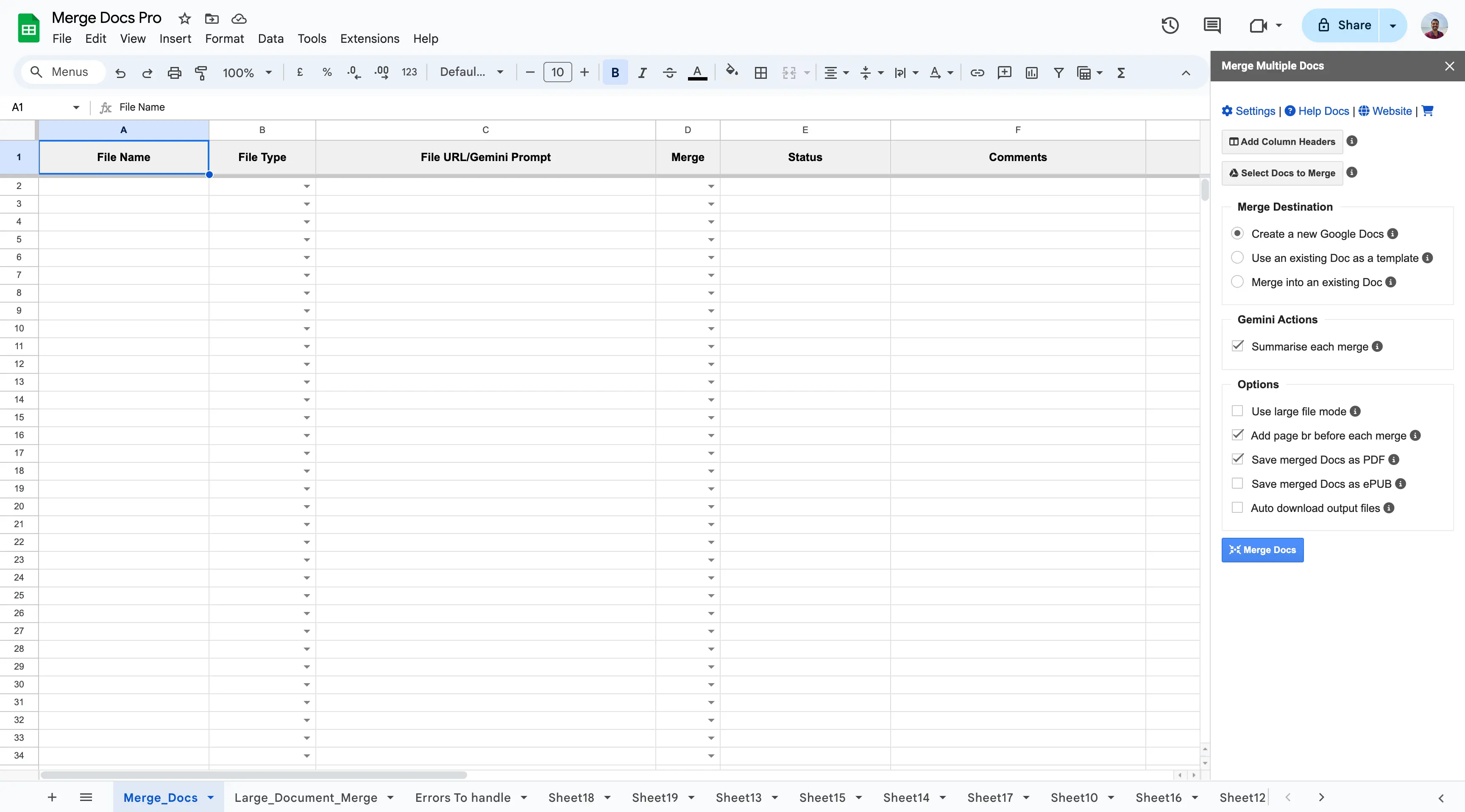
Click Select Google Docs or Drive Files to Merge and pick your files in the Google File Picker. Use Upload Local Files to Merge for files on your computer.
Reorder the rows into the merge order. Set Merge to No on any row you want to skip; new rows default to Yes.
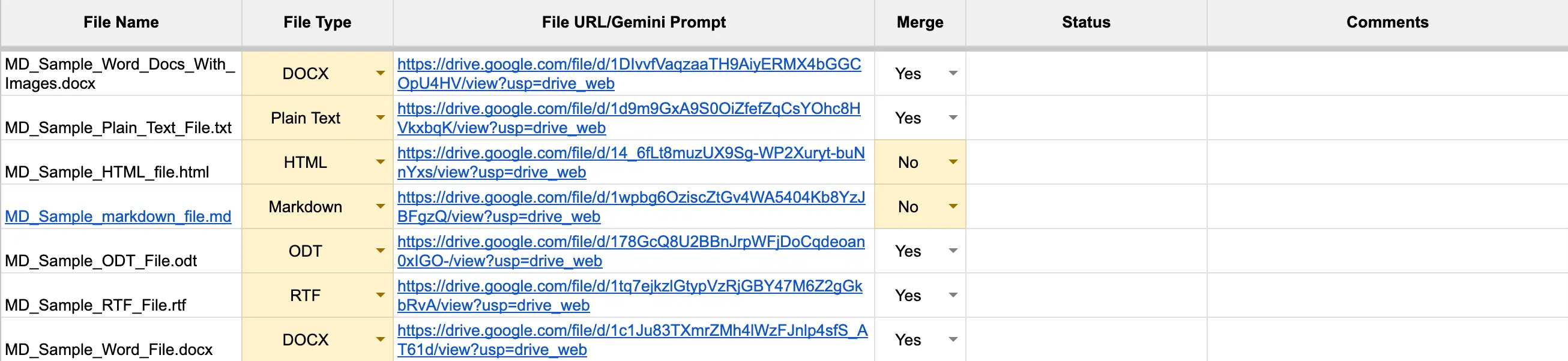
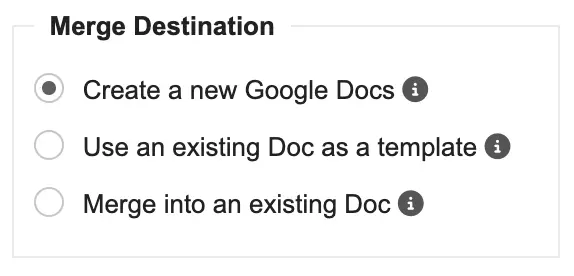
Under Merge Destination, choose Create a new Google Doc, Use an existing Doc as a template (copies its headers, footers, sharing settings and language), or Merge into Existing Doc.
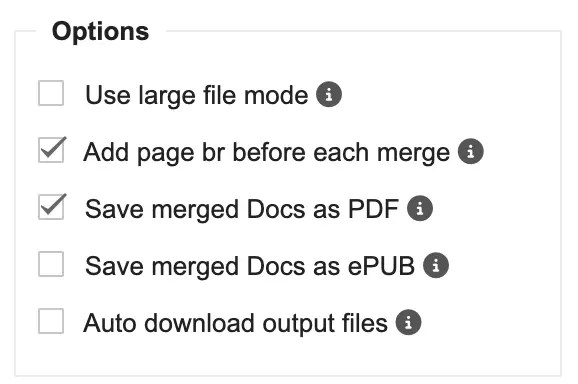
Under the output options, tick Add page break before each merge and any exports: Save merged Docs as Word, Save merged Docs as PDF or Save merged Docs as ePUB.
Click Merge Docs.
Result: A new or updated Google Doc with every row marked Yes, in sheet order, plus any PDF, Word or EPUB copies you selected.
Note: The screenshots show an earlier version of the sidebar, so a few labels are shorter (for example “Select Docs to Merge”). The steps are the same. See the Merge Docs Pro help for merging from Google Sheets for the current labels.
Merge Docs Pro limits and facts
Note: What to expect before you merge with Merge Docs Pro:
- Inputs: Google Docs, Word (.doc and .docx), Markdown, HTML, TXT, RTF and ODT, merged into one Google Doc.
- Optional exports: PDF, Word and EPUB.
- Document tabs: can be preserved or flattened into one continuous document.
- Comments: copied with replies and resolved state when you tick Copy comments (Beta, Google Docs add-on). Suggested edits are not copied.
Mixing formats is common. If most of your files are Word documents, see how to merge Word documents in Google Drive. For Markdown sources, see how to merge Markdown files and convert them to PDF.
Comparing the methods
| Method | Best for | Works on |
|---|---|---|
| Copy and paste | 2–3 short Docs, one-off | Docs on web and mobile |
| Document tabs | Keeping each source as a separate section | Google Docs on the web |
| Merge Docs Pro from Google Docs | Quick merges into the open Doc or a new Doc | Google Docs in a desktop browser |
| Merge Docs Pro from Google Sheets | Many files, fixed order, repeat merges, templates | Google Sheets in a desktop browser |
Platform differences
- Add-ons need a computer. Run Merge Docs Pro in Google Docs or Google Sheets in a desktop browser on Windows, Mac, Linux or ChromeOS.
- Tabs vs flat output. Copy-paste always produces one continuous body. The tabs method keeps sections apart. Merge Docs Pro can do either.
- Pageless Docs. A pageless Doc scrolls continuously without page breaks or headers. Switch to pages in File > Page setup if each source should start on a new page, then delete any blank pages in Google Docs left between sources.
Troubleshooting
- Headers and footers are missing. Copy-paste only moves body content. In the Sheets method, choose Use an existing Doc as a template to give the merged Doc a set header and footer.
- The merge stops on a very large set. Split the files into two merges, then combine the two results.
- A file doesn’t appear in the picker. Only supported formats are listed. Convert PDFs or other formats first.
- Word formatting shifts. Word files are converted to Google Docs formatting, so check headings, tables and spacing after the merge.
- Comments are gone. Copy-paste and tabs never bring comments across. In Merge Docs Pro, tick Copy comments from source documents (BETA) in the Google Docs add-on and merge again.
After merging
Once everything is in one Doc, add a table of contents to the merged Doc so readers can jump between sections. To hand the file to Word users, save the merged Doc as a Word file.
For other formats and output types, browse the merge documents guides.