
A password protects the PDF file, not the Google Doc. Anyone who still has edit or download access to the Doc can export a fresh, unprotected copy, so check sharing too.
- Encrypt the PDF offline on a Mac with Preview
- Export a protected PDF with the Docs to PDF Pro add-on
- Use an online PDF password tool
- Restrict the Doc instead of encrypting it
Encrypting the PDF offline with macOS Preview
Use this when you are on a Mac and the document is confidential, because nothing leaves your computer.
- In Google Docs, click File > Download > PDF document (.pdf).
- Open the PDF in Preview.
- Choose File > Export. To keep the original unprotected, enter a new name.
- Click Permissions.
- Select Require Password To Open Document, then enter and confirm the password.
- Optionally, set an Owner Password and untick printing or changes to restrict them.
- Click Apply, then Save.
Result: A copy of the PDF that asks for the password when opened. Apple’s Preview password guide covers editing permissions later.
Tip: On Windows, Adobe Acrobat Pro includes a password-protection tool that works the same way offline. The free Acrobat Reader cannot add passwords.
Exporting a password-protected PDF with Docs to PDF Pro
Use this when you want the password applied during export, or need to protect many Docs at once.
Docs to PDF Pro is our sister add-on for Google Docs. Install it from Extensions > Add-ons > Get add-ons, then:
Open the Doc and go to Extensions > Docs to PDF Pro to open the converter.
Under PDF Password Protection, tick Enable password protection and type the password.
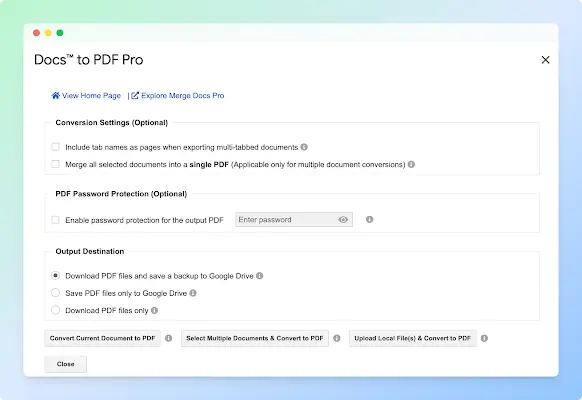
Under Output Destination, choose Download PDF files and save a backup to Google Drive, Save PDF files only to Google Drive, or Download PDF files only.
Click Convert Current Document to PDF.
Result: A password-protected PDF, downloaded, saved to Drive, or both.
Protecting several Docs at once
- Set the password and output destination as above.
- To get one PDF instead of one per Doc, tick Merge all selected documents into a single PDF.
- Click Select Multiple Documents & Convert to PDF and pick the Docs in the file picker.
Result: One protected PDF per Doc, or a single merged and protected PDF. If the Docs still need assembling, you can combine several Docs into one PDF first and then protect it.
The Marketplace listing states that conversion runs inside your Google account. Check the requested permissions on the listing and the Docs to PDF Pro privacy policy before you install.
Adding a password with an online tool
Use this only for non-sensitive files, when you can’t install anything.
- Download the Doc with File > Download > PDF document (.pdf).
- Open an online tool such as Smallpdf or PDF2Go.
- Upload the PDF, set a password and download the protected file.
Result: A protected PDF, but the service has received a copy of your file.
Warning: Online tools upload your document to someone else’s server. Read their retention policy, and don’t use them for contracts, IDs or client data.
Restricting the Google Doc instead of encrypting it
Use this when people only need to read the document inside Google Docs and you want to stop downloads.
- In the Doc, click Share.
- Click Settings (gear icon) at the top right.
- Under People who can download, copy, and print, untick the roles you want to block.
Result: Viewers and commenters can read the Doc but not download, print or copy it. Google’s sharing limits help notes this can’t stop every way of capturing content. To stop edits as well, lock the Google Doc itself.
Comparing the methods
| Method | Best for | Works on | Cost |
|---|---|---|---|
| macOS Preview | Confidential files, no upload | Mac | Free |
| Adobe Acrobat Pro | Offline encryption on Windows or Mac | Windows, Mac | Paid |
| Docs to PDF Pro | Setting the password during export, batch jobs | Google Docs in a desktop browser | Google Workspace add-on |
| Online tools | Occasional, non-sensitive files | Any browser | Free tiers |
| Restrict sharing | Stopping downloads of a shared Doc | Google Docs, Drive | Free |
Open password vs owner password
- Open password (user password): needed to open and read the PDF.
- Owner password (permissions password): controls printing, copying and editing. Some PDF readers don’t enforce these limits, so don’t rely on them alone.
Choosing and sharing the password
- Use a long passphrase, not a short word.
- Send the password by a different channel from the file, for example by phone or chat rather than in the same email.
- Keep the password somewhere safe. A lost open password generally can’t be recovered.
Troubleshooting
- The PDF opens without asking for a password. You set only an owner password. Add an open password too.
- Recipients can’t open the file. Check for typos in the password and that their reader supports encrypted PDFs.
- The add-on doesn’t appear in Extensions. Reload the Doc after installing, and make sure you use a computer, not the mobile app.
- Only one tab is in the protected PDF. The download used Current Tab; export every tab into one PDF first, then add the password.
- You need Word files protected too. First convert Word documents to PDF, then use Preview or Acrobat.
For other export options, see the full guide to exporting Google Docs as PDF and the convert and export hub.