
Mixed orientation is useful when a wide table, chart or image doesn’t fit a portrait page. Google Docs handles it with sections: each section can be portrait or landscape.
Methods in this guide:
- Right-click → Change page to landscape for a quick one-page change
- Section breaks + Page orientation for exact control over several pages
Using right-click → Change page to landscape
Use this when one page, or one table or image, needs to be landscape and you want the fastest fix.
Select the content on the page you want to rotate: text, a table or an image. Keep the selection on that page only.
Right-click the selection.
Click Change page to landscape.
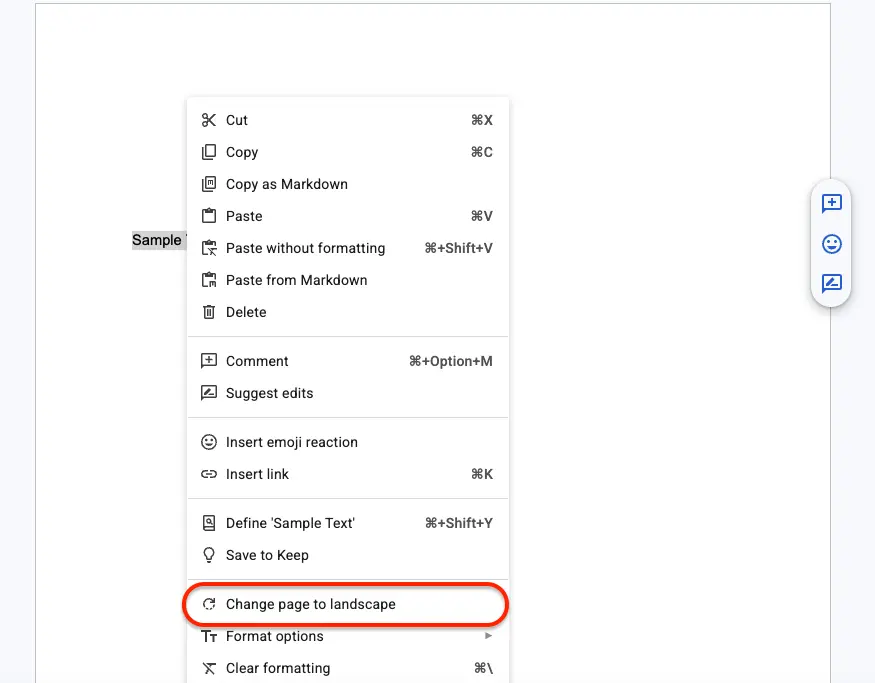
Scroll up and down to check that the pages before and after are still portrait.
Result: The selected content moves onto landscape pages, and the rest of the document stays portrait. Docs adds the section breaks for you.
Tip: Turn on View → Show section breaks to see exactly where the landscape section starts and ends.
To rotate it back, select the same content, right-click and choose Change page to portrait.
Using section breaks and Page orientation
Use this when several consecutive pages must be landscape, or when you want to control exactly where the change starts and stops. This is the method Google documents for sections.
Click where the landscape part should start.
Click Insert → Break → Section break (next page).
Click where the landscape part should end and insert another Section break (next page).
Place the cursor inside the new middle section.
Click Format → Page orientation, or File → Page setup.
Set Apply to to This section. (Choose This section forward to rotate every page after this point.)
Under Orientation, choose Landscape.
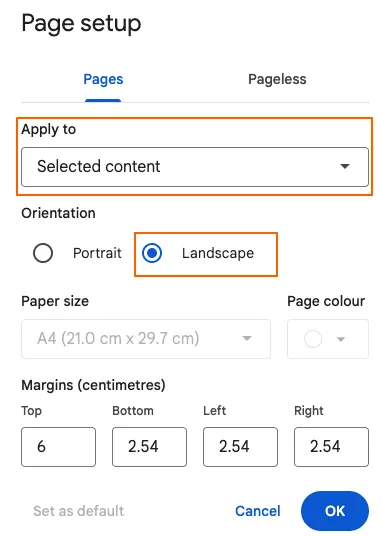
Click OK.
Result: Only that section turns landscape. While you’re in the same dialog, you can also adjust margins in the same Page setup dialog to give wide tables more room.
Note: Apply to also offers Selected content when text is selected, and Whole document to rotate every page. If the wrong pages rotate, press Ctrl + Z (Windows) or Cmd + Z (Mac) to undo.
Google’s page settings help lists both menu paths, and its page and section breaks help covers each break type.
Comparing the two methods
| Method | Best for | Works on |
|---|---|---|
| Right-click → Change page to landscape | One page or one wide element, fast | Google Docs on a computer, Pages format |
| Section breaks + Page orientation | Several pages, or exact start and end points | Google Docs on a computer, Pages format |
Pageless format, tabs and mobile
Orientation depends on the document’s format and where you edit it.
- Pageless format: orientation isn’t available in pageless documents. Click Format → Switch to Pages format first. Google’s pages vs pageless help explains the difference.
- Document tabs: Page setup can apply to This tab, so orientation can differ between tabs. Check the Apply to scope before you click OK.
- Mobile apps: Page setup in the Android and iPhone apps includes Orientation, but Google’s help doesn’t describe rotating a single page there. Use a computer for mixed orientation.
Troubleshooting
- The whole document turned landscape. Apply to was set to Whole document. Undo, then use This section.
- An extra blank page appeared. A section break or empty paragraph spilled onto a new page. Click at the start of the blank page and press Backspace until it disappears. If it stays, try the other fixes for deleting a blank page in Google Docs.
- The wrong content moved to the landscape page. Your selection crossed onto another page. Undo, reselect only the content you need, and try again.
- Page orientation is greyed out or missing. The document is pageless.
What to do next
Wide content often needs a different layout rather than a rotated page.
- For side-by-side text on a portrait page, try a two-column layout.
- Before sharing, export the Google Doc as a PDF and check that the landscape page looks right.
- Doing the same in Word? See how to make a page landscape in Word.
More page-layout how-tos are in the Google Docs guides.