
Word has no “Delete Page” command. A blank page always comes from something invisible: an extra paragraph mark, a manual break, or the paragraph Word keeps after a table. Show the hidden marks first, then remove the cause.
- Find the cause with formatting marks
- Delete extra paragraphs or a page break
- Fix the blank page after a table at the end
- Delete or change a section break
- Delete a whole page with Go To
Showing formatting marks to find the cause
Use this when you can see the blank page but not what is creating it.
On Windows, go to View and check Navigation Pane, then click the Pages tab and select the blank page thumbnail. On any platform you can also just scroll to the page.
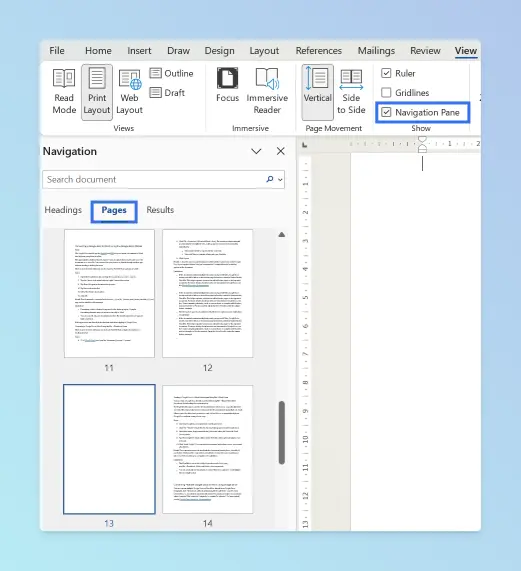
Press Ctrl + Shift + 8 on Windows or Cmd + 8 on Mac. You can also click the ¶ (Show/Hide) button on the Home tab.
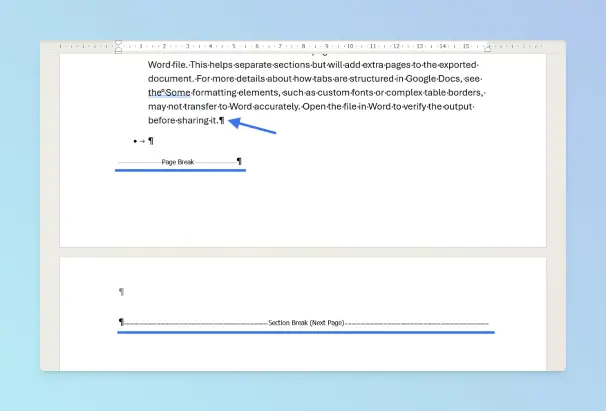
Look at the blank page and at the bottom of the page before it.
Result: Paragraph marks (¶), Page Break and Section Break markers become visible. Use the table below to match what you see to a fix.
| What you see | Cause | Fix |
|---|---|---|
| Several ¶ marks on the page | Extra empty paragraphs | Select them and press Delete |
| Page Break marker | Manual page break | Click before it and press Delete |
| A table ends just before the blank page | Word’s required paragraph after the table | Set that ¶ to 1 pt |
| Section Break (Next Page), (Odd Page) or (Even Page) | Section break that starts a new page | Delete it or change it to Continuous |
| A ¶ with a small square beside it | Page break before is turned on for that paragraph | Turn off Page break before |
| No blank page in Word, only in the PDF or print | Odd/Even section break or print settings | See Troubleshooting |
Deleting a blank page caused by extra paragraphs or a page break
Use this when the blank page shows empty ¶ marks or a Page Break marker.
With formatting marks on, drag across the empty ¶ marks on the blank page.
Press Delete or Backspace.
If you see a Page Break marker, click immediately before it and press Delete.
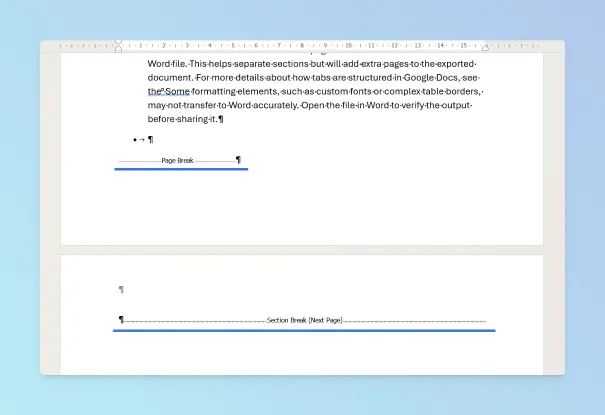
Result: The blank page disappears. Deleting a page break doesn’t change any other formatting.
Tip: If a ¶ has a small square next to it, right-click it, choose Paragraph, open Line and Page Breaks and clear Page break before.
Fixing the blank page after a table at the end of the document
Use this when your document ends with a table and Word adds an empty page after it.
This is the most common blank page that “won’t delete”. Word always places a paragraph mark after a table, and every document must end with one.
If the table fills the last page, that mark is pushed onto a new page, and you can’t delete it.
The fix, from Microsoft’s guide to deleting a page in Word, is to make that paragraph tiny:
- Press Ctrl + Shift + 8 (Windows) or Cmd + 8 (Mac) to show paragraph marks.
- Select the ¶ on the blank page.
- Click in the Font Size box on the Home tab, type
1, and press Enter. - Press the same shortcut again to hide the marks.
Result: The paragraph fits at the bottom of the previous page and the blank page is gone.
If it still spills over, reduce the bottom margin slightly with Layout > Margins > Custom Margins. You can also set the paragraph’s spacing before and after to 0 pt, as shown in how to adjust line and paragraph spacing in Word.
Note: The same fix works when the document ends with a full-page image or text box.
Deleting or changing a section break
Use this when the blank page shows a Section Break (Next Page), (Odd Page) or (Even Page) marker.
- With formatting marks on, click immediately before the section break.
- Press Delete.
Result: The blank page is removed and the two sections merge.
Warning: The merged section takes the layout of the section after it. Margins, orientation, columns and the section breaks that control page numbering can all change.
If the break sits in the middle of your document, change its type instead of deleting it:
- Click just after the section break, in the section that follows it.
- Go to Layout > Page Setup dialog launcher (the small arrow) and open the Layout tab.
- Set Section start to Continuous and click OK.
This keeps each section’s formatting but stops it from starting a new page. Breaks are often added for a landscape page in the middle of a document, so check that page afterwards.
Tip: Section breaks are easier to see in View > Draft.
Deleting a whole page with the Go To command
Use this when you want to remove a page and everything on it, including text. This is Microsoft’s own documented method.
Click anywhere on the page you want to delete.
Press Ctrl + G on Windows or Option + Cmd + G on Mac to open Go To.
In Enter page number, type
\page.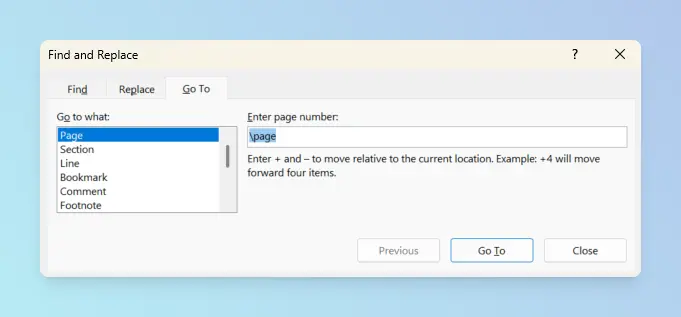
Press Enter, then click Close.
Check that the whole page is selected, then press Delete.
Result: Word selects the entire page so you can delete it with one keypress.
Comparing the methods
| Method | Best for | Works on |
|---|---|---|
| Delete ¶ marks or a page break | Most blank pages in the middle of a document | Windows, Mac, web |
| 1 pt paragraph after a table | Last page you can’t delete | Windows, Mac |
| Delete or change a section break | Blank page created by a Next/Odd/Even Page break | Windows, Mac |
Go To \page | Removing a page with content | Windows, Mac |
Platform differences
- Windows: Ctrl + Shift + 8 shows marks; Ctrl + G opens Go To.
- Mac: Cmd + 8 shows marks; Option + Cmd + G opens Go To (also listed in Microsoft’s Word keyboard shortcuts).
- Word for the web: you can delete empty paragraphs and page breaks, but it can’t add section breaks. For section-break problems, use Open in Word in the desktop app.
Troubleshooting blank pages in Word
- The blank page comes back after you delete it: a table, image or text box is filling the page above. Use the 1 pt fix.
- The blank page appears only in the PDF or printout: an Odd Page or Even Page section break adds a page so chapters start on the right side. Change it to Next Page or Continuous, then save the document as a PDF again. To leave a page out of the PDF instead, export only the pages you need.
- Everything after the deleted break changed layout: press Ctrl + Z (Cmd + Z on Mac) and change the break to Continuous instead. If Word closed before you could save, recover the unsaved document from AutoRecover.
- Blank pages between merged files: combining documents often leaves stray page breaks. See how to merge Word documents into one file for cleaner methods.
Working in Google Docs instead? See how to delete a page in Google Docs. For more page layout fixes, browse the Microsoft Word guides.