
A signature image in Word is just a picture, so the quality depends on the scan. The cleanup tools (crop, background removal, recolour) work on Windows and Mac. Signature Line and Quick Parts behave differently on Mac, covered below.
| Method | Best for | Works on |
|---|---|---|
| Scanned signature image | Letters, approvals, most documents | Windows, Mac |
| Drawn signature (Draw tab) | Touchscreen or pen devices | Devices with a pen or touchscreen |
| Signature Line | Showing where someone should sign | Windows |
| Certificate-based digital signature | Legally auditable signing | Desktop Word with a digital ID |
Preparing a clean signature image
Use this before anything else; a clear source image saves most of the cleanup.
- Sign blank white paper with a dark pen.
- Scan it, or photograph it in good light without shadows.
- Save it as a PNG (best) or a high-resolution JPG.
- Zoom in to check the strokes are sharp, not pixelated.
Inserting and cropping the signature
Use this to place the image in your document.
Click where the signature should go.
Go to Insert > Pictures > This Device (Picture from File on Mac).
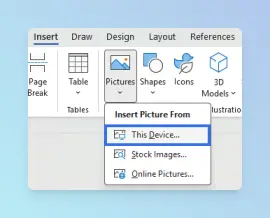
Choose your signature file and click Insert.
Select the image, go to Picture Format and click Crop.
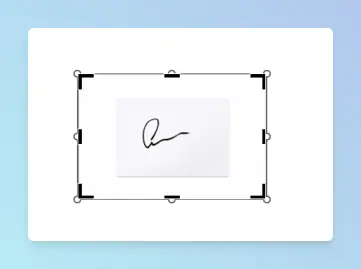
Drag the black crop handles inward, then click outside the image.
Result: The signature sits in the document without extra white space. The same Crop menu can also make a picture a circle in Word, which suits a profile photo beside the signature.
Removing the background and positioning the signature
Use this so the signature sits cleanly on lines or coloured backgrounds.
Select the image and go to Picture Format > Remove Background. Purple areas will be removed.
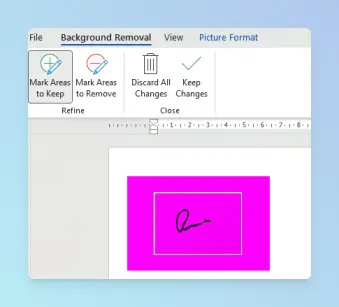
Use Mark Areas to Keep on any missing strokes and Mark Areas to Remove on leftover background.
Click Keep Changes.
Optional: go to Picture Format > Color and pick a Recolor option such as Black and White: 75% for more contrast.
Click Layout Options and choose In Front of Text, then drag the signature into place.
Result: A transparent, high-contrast signature you can move without pushing text around. Microsoft’s remove the background of a picture guide covers the tool in detail.
To position the signature image beside text, use the same wrap options as any picture.
Adding a Signature Line (Windows)
Use this when you want an “X” line showing where someone should sign, with their name and title printed below.
Click where the line should go.
Go to Insert > Signature Line (in the Text group) and choose Microsoft Office Signature Line.
In Signature Setup, enter the Suggested signer and Suggested signer’s title.
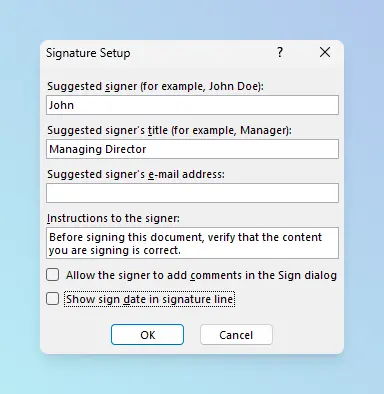
Optional: clear Show sign date in signature line.
Click OK.
Result: A signature line appears with the signer’s details. These steps follow Microsoft’s insert a signature in a Word document.
For a plain line to sign on paper, add a dotted or solid signing line with a tab leader instead.
Note: On Mac, Microsoft’s instructions for this task cover inserting the signature picture and saving it as AutoText, not the Signature Line command. Type the name and title under the image instead.
Saving the signature for reuse
Use this so you can drop the full signature block into any document in seconds.
On Windows (Quick Parts):
Type your name or title under the signature image if you want them included.
Select the image and the text together.
Go to Insert > Quick Parts > Save Selection to Quick Part Gallery.
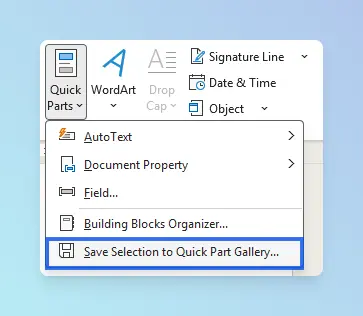
Enter a name, set Gallery to AutoText, and click OK.
To reuse it, go to Insert > Quick Parts > AutoText and pick your entry.
On Mac (AutoText):
- Select the signature image and any text under it.
- In the menu bar, go to Insert > AutoText > New.
- Name the entry and click OK.
- To reuse it, go to Insert > AutoText > AutoText and pick your entry.
Result: A reusable signature block in one click.
Tip: Quick Parts and AutoText entries are saved in Word’s building blocks template on that computer. On a new device, recreate the entry or reinsert the saved image.
Troubleshooting
- The signature looks blurry: use a higher-resolution scan or photo in better light.
- Strokes vanished after Remove Background: reopen the tool and use Mark Areas to Keep on the missing parts.
- The signature pushes text around: set Layout Options to In Front of Text.
- Signature Line is missing: you may be on Mac or Word for the web. Use the image method and type the name below it.
- The saved signature isn’t on another computer: entries are stored locally. Recreate it there.
- You want your logo faded behind every page: that’s a watermark, not a signature; add a logo watermark in Word from the Design tab.
- The page is black and dark ink is hard to see: Word’s Dark Mode changes only the screen; switch Word back to a white page.
When the document is signed, save it as a submission-ready PDF. You can also add checkboxes to the form, or sign a PDF by converting it in Word first.
To combine several signed contracts into one file, use the free merge Word documents tool. More guides are in the Microsoft Word guides.