
Saving as PDF fixes the layout so it looks the same on every device. How you save matters, though: Save As keeps clickable links and bookmarks, while printing to PDF usually doesn’t.
- Windows: Save As or Export, plus PDF options
- Mac: Save As with File Format set to PDF
- Word for the web: File > Export
- Phone or tablet: the Word app
Converting Word to PDF on Windows
Use this when you work in desktop Word on Windows and want the best-quality PDF.
Click File > Save As (or Save a Copy if the file was saved before), or press F12.
Click Browse and choose a folder.
In Save as type, select PDF.
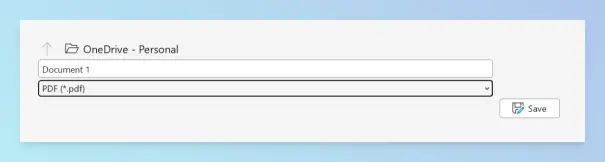
Choose Standard (publishing online and printing) for quality, or Minimum size for a smaller file.
Click Save.
Result: A PDF with the same layout and fonts as your document, with clickable links.
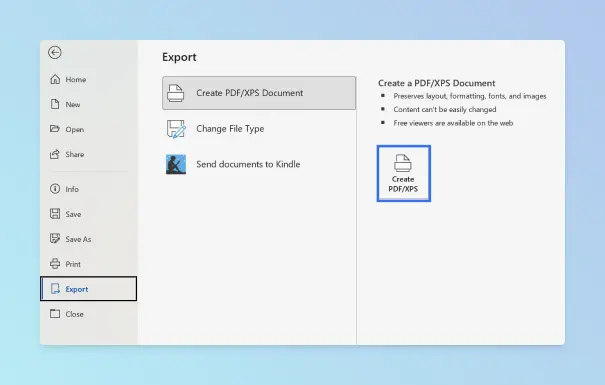
If PDF isn’t in the list, use File > Export > Create PDF/XPS Document > Create PDF/XPS, choose the folder and file name, and click Publish.
Keeping hyperlinks, bookmarks and accessibility in the PDF
Use these options when the PDF will be read on screen, shared as a report or submitted somewhere with accessibility rules.
- In the Save As dialog with PDF selected, click Options.
- Check Create bookmarks using, then choose Headings (or Word Bookmarks if you added your own).
- Check Document structure tags for accessibility so screen readers can navigate the PDF.
- Check ISO 19005-1 compliant (PDF/A) if the file must be archived.
- Click OK, then Save.
Result: The PDF has a bookmark panel built from your headings, and its hyperlinks stay clickable. Microsoft lists every option in Save or convert to PDF.
Tip: The same Options dialog has Encrypt the document with a password if only certain people should open the PDF.
Saving one page as PDF
Use this when you need only one page, or a few pages, of a longer document.
- Click anywhere on the page you want to export.
- Open File > Save As, choose a folder and set Save as type to PDF.
- Click Options.
- Under Page range, select Current page, or enter the first and last pages in Page(s) From and To.
- Click OK, then Save.
Result: A PDF that contains only the pages you chose. For Mac, web and extract-a-page options, see more ways to save one page of a Word document as PDF.
Using Microsoft Print to PDF
Use this only when the PDF must match specific print settings, such as a different paper size.
Click File > Print.
In Printer, select Microsoft Print to PDF (built into Windows 10 and 11).
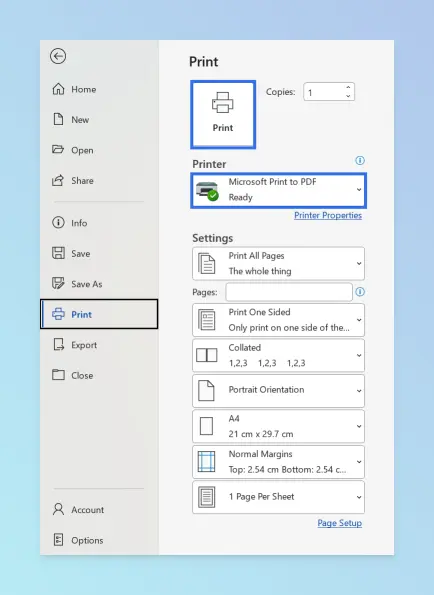
Set the pages, paper size and margins, then click Print.
Enter a file name, choose a folder and click Save.
Warning: Print to PDF creates a printed copy of the pages. Expect hyperlinks to stop being clickable, and you can’t add bookmarks or accessibility tags. Use Save As whenever those matter.
Converting Word to PDF on a Mac
Use this when you work in Word for Mac.
- Click File > Save As, or press Cmd + Shift + S.
- Open File Format and choose PDF.
- Pick an export option:
- Best for electronic distribution and accessibility (uses Microsoft online service) keeps hyperlinks and adds accessibility tags.
- Best for printing converts on your Mac, but hyperlinks may not convert correctly.
- Click Export.
Result: A PDF saved where you chose. Microsoft notes that the online option sends the file to a Microsoft service for conversion and doesn’t store it; see Create accessible PDFs.
Note: To save only one page on a Mac, use File > Print, set the page range, then choose PDF > Save as PDF in the print dialog.
Converting Word to PDF in Word for the web
Use this when you work in the browser and don’t have the desktop app.
Open the document in Word for the web.
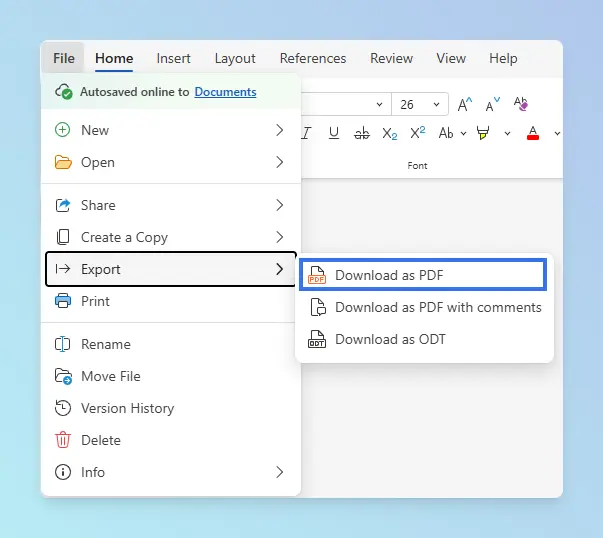
Click File > Export.
Choose Download as PDF, or Download as PDF with comments to include comments.
Click Download in the confirmation box.
Result: The PDF downloads to your browser’s download folder. For bookmarks or PDF/A, open the file in the desktop app instead.
Converting Word to PDF on a phone or tablet
Use this when you only have the Word mobile app.
- iPhone and iPad: Tap File (or the … menu), then Export > PDF, and choose where to save it.
- Android: Open the file menu and choose Print, then select Save as PDF as the printer. Menu names vary between Word app versions.
To share a PDF straight to email or chat instead, look for Share > Send a Copy > PDF. The mobile apps convert one document at a time.
Comparing the methods
| Method | Best for | Works on |
|---|---|---|
| Save As / Export | Best quality, links, bookmarks, PDF/A | Word for Windows |
| Save As with File Format: PDF | Same, on a Mac | Word for Mac |
| Print to PDF | Matching specific print settings | Windows 10 and 11 |
| File > Export > Download as PDF | No desktop app installed | Any browser |
| Word mobile app | Converting on the go | iPhone, iPad, Android |
Troubleshooting
- The document came from Claude. You can download Claude artifacts as PDF or Word directly.
- Links aren’t clickable. You probably printed to PDF, or used Best for printing on a Mac. Save again with Save As, or the online export option on a Mac.
- The PDF will be printed. Printed links can’t be clicked, so add a scannable QR code in Word for any link readers need.
- The page color disappeared. Print to PDF skips background colors unless you print the page background color in Word by turning that option on.
- Pages look black in Word. That’s Dark Mode, which changes only the screen, not the PDF; you can turn off Dark Mode in Word.
- There’s a blank page at the end. Remove blank pages before exporting.
- Fonts look different. Some fonts can’t be embedded. Check Bitmap text when fonts may not be embedded in Options, or switch to a standard font.
- Images look blurry. Choose Standard rather than Minimum size, and check Word’s image compression settings.
- You need one PDF from several Word files. Word can’t batch-export, so merge the Word documents into one file first, or combine several PDFs into one afterwards.
Need to change the PDF later? See how to edit a PDF in Word. Working in Google Docs instead? You can export Google Docs as PDF. More guides are in the convert and export hub.