
Word has no “Merge documents” button, but its Text from File command does the same job. If you don’t have the desktop app, Google Drive or a browser tool works instead.
- Merge in Word on Windows
- Merge in Word on Mac
- Merge in Google Drive with Merge Docs Pro
- Merge with the free online tool
Note: Review > Compare > Combine is a different feature. It merges tracked changes from two versions of the same document, not separate documents. To combine reviewers’ copies, see how to merge Word documents with comments.
Merging Word documents with Text from File on Windows
Use this when you have the Word desktop app and want the merge to happen offline, inside Word.
Open the document that will be the base, or create a blank one.
Click where the other files should go, usually at the end of the document.
Go to the Insert tab. In the Text group, click the arrow next to Object, not the Object button itself.
Click Text from File.
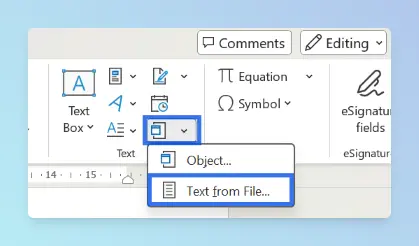
Select the files to merge. Hold Ctrl to select more than one.
Click Insert.
Scroll through the result to check that every file is there, in the right order.
Result: The contents of each file are added at the cursor, in the order they appear in the file list. Save straight away; if Word crashes on a large merge, you can recover an unsaved Word document.
Tip: To get a custom order, rename the files with number prefixes (
01-intro.docx,02-chapter.docx), or repeat steps 2–6 for one file at a time. Microsoft’s How to merge Word documents article describes the same behaviour.
Merging Word documents on a Mac
Use this when you work in Word for Mac. The command and the steps are almost the same as on Windows.
- Open the base document and click where the other files should go.
- On the Insert tab, click the arrow next to Object, then click Text from File. In some older versions, the same dialog opens from the menu bar’s Insert > File.
- Select the files. Hold Cmd to select more than one.
- Click Insert.
Result: The selected documents are inserted at the cursor.
Text from File is a desktop command. If you only have Word for the web or a phone, use one of the methods below.
Merging Word documents in Google Drive
Use this when you don’t have Word, need a fixed order across many files, or want a PDF or EPUB at the end.
Upload the .docx files to Google Drive, then use the Merge Docs Pro add-on from Google Docs or Google Sheets:
- Open a Google Doc and click Extensions > Merge Docs Pro > Merge Multiple Docs into One, or use the Sheets version for an ordered list of files.
- Select the Word files from Drive or from your computer.
- Choose the outputs: the merged Google Doc, plus optional Word, PDF or EPUB copies.
Result: One Google Doc containing every file, which you can download as a single .docx.
The full walkthrough, including the Sheets method and export options, is in our guide to merge Word files inside Google Drive. The add-on also accepts Google Docs, so you can merge Google Docs and Word files together.
Merging Word documents with the free online tool
Use this for a quick merge of a few .docx files on any device, when exact formatting is less important than speed.
Open the free online Word merger.
Click the upload area or drop your .docx files onto it. The tool takes up to 15 files.
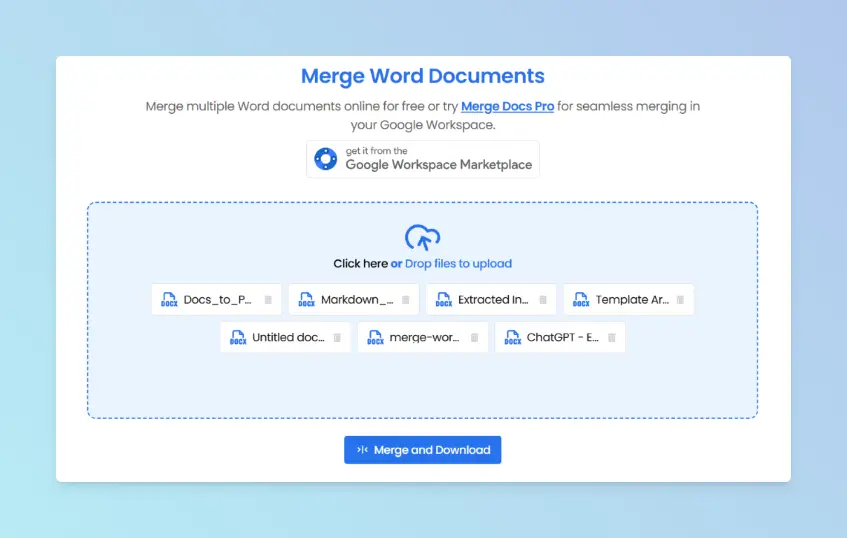
Drag the files into the order you want. Click the bin icon to remove a file.
Click Merge and Download.
Result: A single merged .docx downloads to your device.
Note: The tool works in your browser, and your files aren’t uploaded to a server. It rebuilds the documents through HTML, so headers, footers, page setup and complex styles may not carry over. It accepts .docx only, not .doc.
Comparing the methods
| Method | Best for | Works on |
|---|---|---|
| Text from File (Windows) | Offline merges with full Word formatting | Word desktop for Windows |
| Text from File (Mac) | The same, on a Mac | Word for Mac |
| Google Drive + Merge Docs Pro | No Word, many files, fixed order, PDF/EPUB output | Google Docs or Sheets in a desktop browser |
| Free online tool | A few .docx files, quickly | Any modern browser |
Platform differences
- Windows and Mac: both have Insert > Object > Text from File. Use Ctrl on Windows and Cmd on Mac to select several files.
- Word for the web and mobile: Text from File is a desktop command. Use Google Drive or the online tool instead.
- Google Drive: Word files are converted to Google Docs formatting during the merge, so review styles afterwards.
Troubleshooting
- Files are in the wrong order. Word follows the file list’s sort order. Rename the files with number prefixes, or insert them one by one.
- Headers and footers changed. Inserted content uses the base document’s header and footer. As Microsoft’s Insert a document in Word help advises, insert each file into a new section to keep its own. To show a title header on the cover only, put a header on the first page only in Word.
- Page numbers restart or run on. See how to fix page numbering after merging with section breaks.
- Styles look inconsistent. Files that used different style sets clash. Apply one style set from the Design tab, then check headings. To renumber chapters consistently, number headings in Word as 1, 1.1 and 1.1.1.
- Combined lists are out of order. Merged glossaries or reference lists keep each file’s order; alphabetize them in Word with Sort.
- Text from File is greyed out or missing. Make sure you clicked the arrow next to Object and that the document isn’t open in Word for the web.
When the merged file looks right, convert the merged file to PDF for sharing. For other formats, see the merge documents guides.