
Word doesn’t edit the PDF itself. It makes an editable copy, reflows the content into paragraphs and tables, and leaves the original PDF untouched. That works well for text and less well for heavily designed pages.
If you just want a .docx to keep, see how to convert a PDF to Word with other free methods.
- Edit a PDF in Word for Windows (desktop)
- Edit a PDF in Word for the web
- Know what converts badly before you start
Editing a PDF in Word on Windows
Use this when you have the Word desktop app on a Windows PC and need to change the text of a PDF.
In Word, click File > Open (or press Ctrl + O), then click Browse.
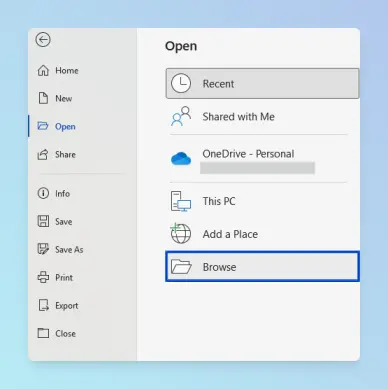
Select the PDF and click Open.
Word shows a notice that it will convert your PDF to an editable Word document. Click OK.
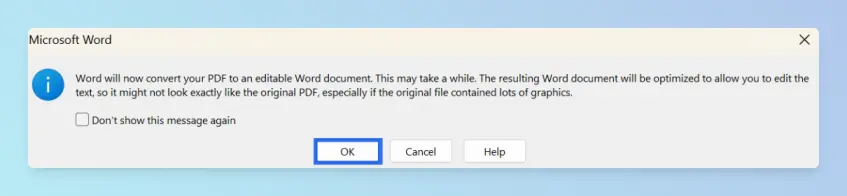
If a yellow Protected View bar appears, click Enable Editing. This bar is separate from the conversion notice.
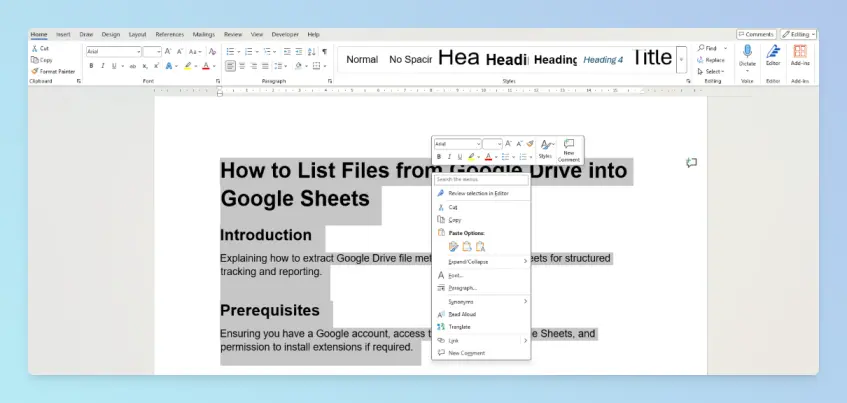
Edit the text, formatting, tables and images as you would in any Word document.
Click File > Save As (or press F12), pick a folder and open the Save as type list.
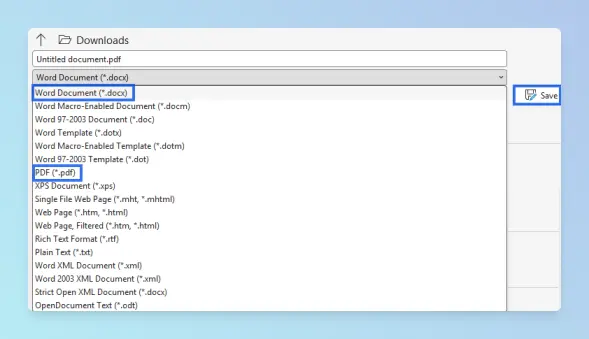
Choose PDF for a share-ready copy, or Word Document (*.docx) to keep editing later. Click Save.
Result: You have an edited PDF or .docx, and the original PDF is unchanged. To save the edited file back to PDF and keep its links, use Save As rather than printing to PDF.
Microsoft describes the conversion in Opening PDFs in Word.
Editing a PDF in Word for the web
Use this when you don’t have desktop Word, or you’re on a Mac or Chromebook.
- Upload the PDF to OneDrive.
- Open the PDF in Word for the web. Word converts it to a Word document.
- Make your edits. Word for the web saves your changes as you go.
- To get a PDF again, click File > Export > Download as PDF.
Result: You get an edited Word document in OneDrive and, if you exported it, a new PDF.
Microsoft confirms that when you open a PDF in Word for the web, it is converted to a Word document; see Add a PDF to your Office file. The same caveat applies: line and page breaks may move.
What converts well and what doesn’t
Conversion works best with documents that are mostly text, such as business, legal or scientific documents.
| Content in the PDF | How it usually converts |
|---|---|
| Paragraphs, headings and lists | Well; check line and page breaks |
| Simple tables | Usually well; tables with cell spacing don’t |
| Footnotes and endnotes | Footnotes over several pages and endnotes are unreliable |
| Page colours and page borders | Often lost |
| PDF bookmarks, tags and comments | Not kept |
| Audio, video and interactive elements | Not kept |
| Pages that are mostly charts or graphics | May come in as a single image you can’t edit |
| Scanned pages | Text is recognised, but check accuracy |
Platform differences
- Word for Windows: Opens and converts PDFs from File > Open, as described above.
- Word for the web: Converts PDFs you open in it, with fewer layout options than the desktop app.
- Word for Mac: Microsoft’s PDF conversion guidance covers Word for Windows and the web. On a Mac, Word for the web is the dependable route.
Troubleshooting
- The whole page is one image. Graphics-heavy and scanned pages can import as a picture. Try Google Drive’s OCR instead, or convert a scanned image to editable Word text.
- The layout shifted. Fix spacing, columns and table widths, then check the result in View > Print Layout before saving.
- An extra blank page appeared. See how to delete a blank page in Word.
- Word won’t convert the PDF. Password-protected or restricted PDFs may not open for editing. Remove the protection in the app that created it, if you have permission.
- Fonts look different. Word substitutes fonts that aren’t installed on your computer. Install the font, or change it in Word.
- Justified lines have big gaps between words. Converted line breaks often cause this; see how to fix extra spaces in justified text.
Tip: For a scanned PDF, Google Drive’s Open with Google Docs OCR is a free alternative. It handles files up to 2 MB and keeps basic formatting such as bold and italics. See the steps to open a PDF as an editable Google Doc.
After editing
- To add your signature before re-saving, insert it in Word, then save as PDF.
- To combine the edited PDF with others, use the free PDF merge tool.
- If Word closed before you saved your edits, you can often get back an unsaved Word document from AutoRecover.
- Writing in LaTeX instead? You can embed PDF pages in a LaTeX document with the pdfpages package.
For more PDF and conversion how-tos, browse the convert and export guides.