
A number typed in a normal font is only text, so a scanner can’t read it. A barcode needs bars drawn to a set standard.
On Windows, Word draws them for you from a field code; on a Mac or in a browser, you paste the barcode in as a picture.
Both ways are free and need no add-in. The guide ends with printing and a scan test, so you know the label works before you print a full batch.
- Insert a barcode with a field code
- Turn the code into a barcode
- Change the barcode number or type
- Make a barcode with our free generator
- Make a barcode bigger or smaller
- Print and scan your barcode
Inserting a barcode with a field code
Use this when you are on Word for Windows and want a barcode with nothing to download.
A field code is an instruction that Word turns into content, such as a page number or a date. The DisplayBarcode field tells Word to draw a barcode from the text you give it.
- Click where the barcode goes, for example under the product name on your label.
- Press Ctrl + F9. Two gray braces appear, with the cursor between them.
- Between the braces, type the following line. It asks for a Code 128 barcode that holds the number 490123456789 and shows that number with the bars.
DisplayBarcode "490123456789" CODE128 \tEach part has one job. The text in double quotes is what the barcode holds. CODE128 is the barcode type, and it works with letters and numbers. The \t switch shows the text under the bars.
Microsoft gives the full syntax on its DisplayBarcode field code page.
Note: The braces must come from Ctrl + F9. Braces typed from the keyboard look the same, but Word treats them as plain text and never draws a barcode.
Replace 490123456789 with your own number, and keep the double quotes around it. The number in this guide is sample data.
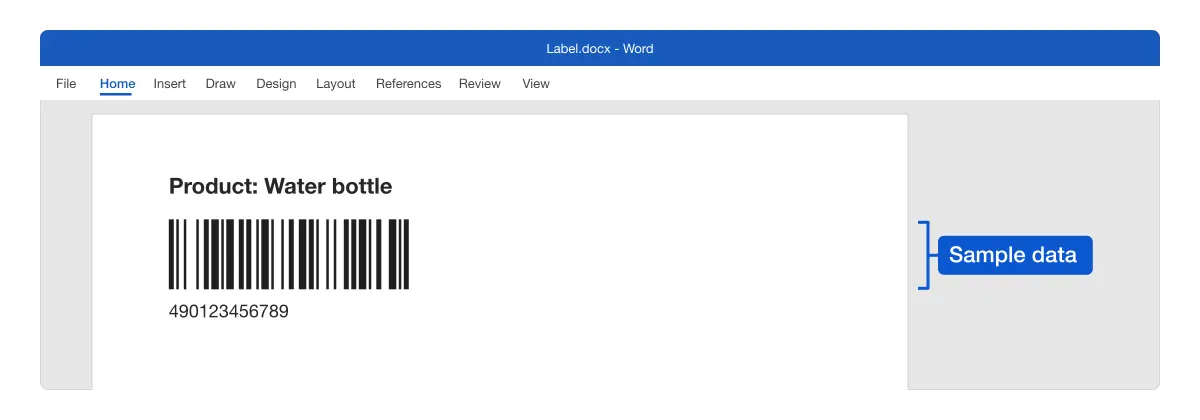
Result: The field code shows between the gray braces, ready to turn into a barcode.
Turning the code into a barcode
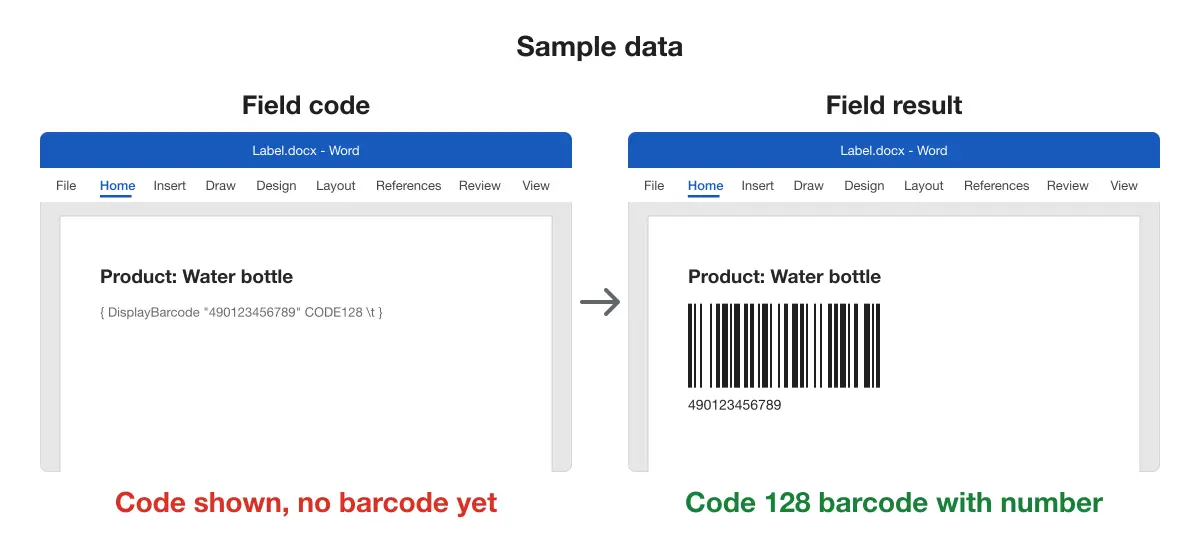
Use this when you see text in braces instead of bars.
Until you switch the view, Word shows the instruction rather than its result. Switching it tells Word to draw what the code describes.
- Right-click anywhere in the field text, between the braces.
- Select Toggle Field Codes.
Result: Bars appear where the code was, with the number under them.
Changing the barcode number or type
Use this when the number is wrong or you need another kind of barcode.
- Right-click the barcode and select Toggle Field Codes. The code comes back.
- Edit the text inside the double quotes, or replace
CODE128with another type. - Right-click the code and select Toggle Field Codes again.
Result: The new number shows under the bars.
The field accepts other types besides CODE128. These are some of the types Microsoft lists on its DisplayBarcode page.
| Type in the field | Use it for |
|---|---|
CODE128 | Letters and numbers, such as inventory tags |
CODE39 | Letters and numbers, for systems that read Code 39 |
EAN13, EAN8 | Product numbers in EAN format |
UPCA, UPCE | Product numbers in UPC format |
ITF14 | Item tracking for shipping |
QR | A QR code, such as a web address |
Product barcodes need a number in the right format: EAN8 holds 8 digits and EAN13 holds 13. Two switches can help:
\xcorrects the check digit when it isn’t valid. The check digit is the last digit, which scanners use to confirm the number.\dadds start and stop characters forCODE39.
QR codes follow the same steps. For sizes and other options, see how to insert a QR code in Word.
A barcode pasted as a picture can’t be edited this way. Make a new one with the right number and paste it over the old one.
Making a barcode with our free generator
Use this when you are on a Mac or in Word for the web, or would rather not type a code. It works on Windows too.
Our free Drive Explorer Pro barcode generator runs in your browser with nothing to install. It makes Code 128, EAN-13, UPC-A and QR Code barcodes. Its page says your data is processed locally in the browser.
- Open the generator.
- In Enter Barcode Value, type your number. The barcode shows in Live Preview.
- Under Barcode Type (Symbology), keep Code 128.
- Select Next, then raise Scale (Size) to make the barcode bigger.
- Right-click the barcode and select Copy image.
- In Word, click where the barcode goes and press Ctrl + V (Cmd + V on a Mac).
Result: A barcode picture sits in your document, at the size you chose.
You can also download the barcode as a PNG or JPEG file and add it in Word with Insert > Pictures. A saved file is useful when several documents need the same barcode.
Making a barcode bigger or smaller
Use this when the barcode must fit a label or a box on a form.
For a field barcode, add a size switch to the code:
\ssets the scale as a percentage, from 10 to 1000.\hsets the height in twips. A twip is 1/1440 of an inch, so 720 twips is 0.5 in.
Toggle the field code, add the switch and toggle back. This line draws the sample barcode 0.5 in tall.
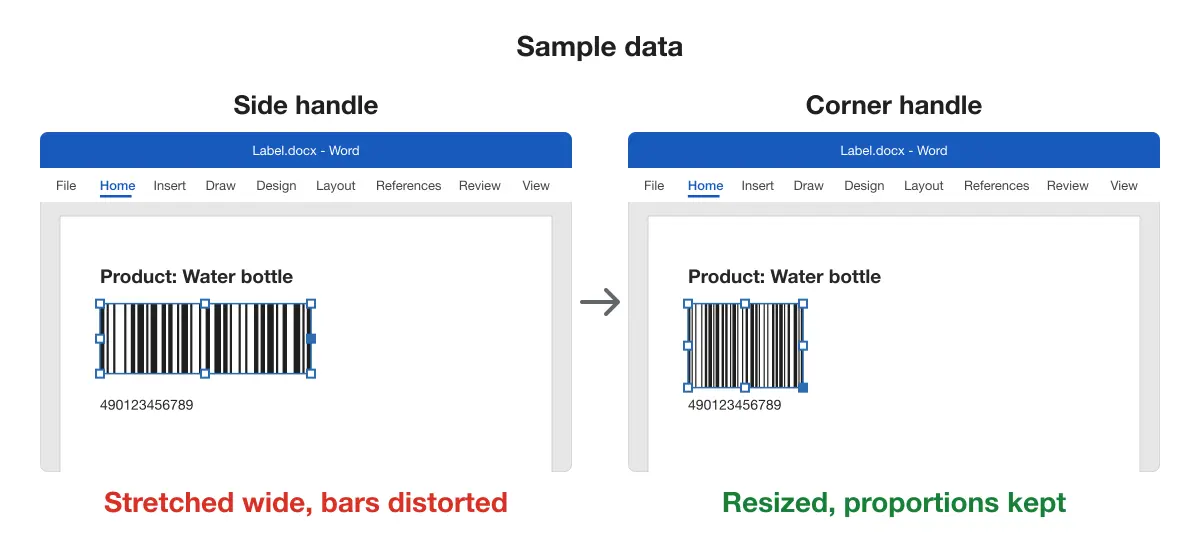
DisplayBarcode "490123456789" CODE128 \t \h 720For a picture from the generator, raise Scale (Size) before you copy it. In Word, drag a corner handle to resize it, never a side handle. A side handle stretches the bars out of shape, and a scanner may then misread them.
Result: The barcode fits its space and keeps its shape.
Keep blank space on both sides of the bars. Text or a border that touches the bars can stop a scanner from finding where the barcode starts.
We have not measured a smallest size that still scans. Print and test the size you plan to use before you commit to it.
Printing and scanning your barcode
Use this when the barcode looks right on screen and must work on paper.
- Open File > Print and check that the page prints at 100% scale, not shrunk to fit.
- Keep dark bars on a white background, with no shading or colored fill behind them.
- Print one page.
- Scan the barcode on the paper with a barcode scanner app on your phone or with a handheld scanner.
- Check that the number it reads matches the number under the bars.
Result: The paper copy scans and shows the right number.
Tip: Test one printout before you print a full batch of labels. A barcode that scans from the screen can still fail on paper if the printer shrinks it. To send labels to a print shop, save the document as a PDF.
Comparing the methods
| Method | Best for | Works on |
|---|---|---|
| DisplayBarcode field | No browser needed; you can edit the number later | Word for Windows |
| Our free generator | Any computer; a picture you replace to change | Word for Windows, Mac and the web |
Platform differences
- Word for Windows: the
DisplayBarcodefield works in Word for Microsoft 365, Word 2024, 2021, 2019 and 2016, according to Microsoft. - Word for Mac: Microsoft lists the field for Word for Windows only. Make the barcode in the generator and paste it with Cmd + V.
- Word for the web: it can’t insert or edit field codes. Make the barcode in the generator and paste it in.
Troubleshooting
- The code shows instead of bars. Word is showing the field code, not its result. Right-click the code and select Toggle Field Codes.
- Typed braces do nothing. Braces typed from the keyboard aren’t a field. Delete them, press Ctrl + F9 and type the code between the new braces.
- The field doesn’t update, or no bars appear. A small typing error stops the field. Check the double quotes around the number, the spaces between the parts and the spelling of the type, such as
CODE128. - The scanner reads nothing. Check the size, the contrast and the blank space on both sides of the bars. Also check that your scanner reads that barcode type.
- The product barcode is rejected. Check that the number has the right digits for the type. Add
\xto correct an invalid check digit.
If your barcode goes on a form people fill in, see how to create a fillable form in Word, how to insert a QR code in Word, or the rest of our Microsoft Word guides.