
Clickable checkboxes turn a Word list into a to-do list or form that people can tick on screen. Which tool you use depends on your platform: content controls on Windows, the Check Box form field on Mac, or Checklist in Word for the web.
- Turn on the Developer tab
- Check Box Content Control (Windows, recommended)
- Legacy Check Box Form Field (protected forms, older files)
- Checklist in Word for the web
- Check Box on Mac
Turning on the Developer tab
Use this first on desktop Word, because the checkbox controls live on the hidden Developer tab.
Go to File > Options.
Click Customize Ribbon.
Under Main Tabs, check Developer.
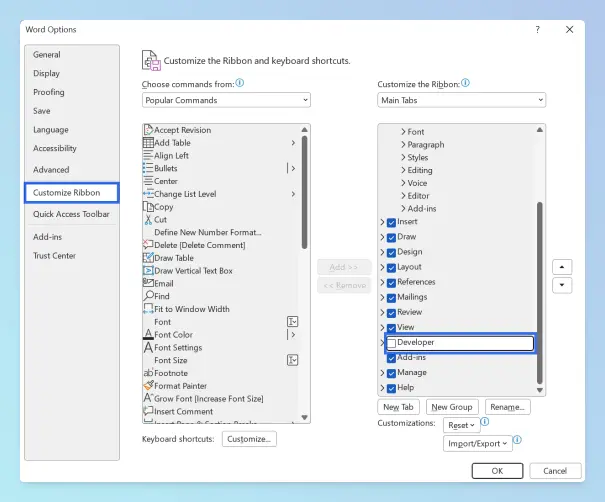
Click OK.
Result: The Developer tab stays on the ribbon until you turn it off. On Mac, go to Word > Preferences > Ribbon and Toolbar and check Developer, as described in Microsoft’s show the Developer tab in Word.
Inserting a Check Box Content Control (Windows)
Use this for most digital checklists and forms in .docx files.
Type your list (you can alphabetize the list in Word first) and click where the first checkbox should go.
Go to Developer and click Check Box Content Control in the Controls group.
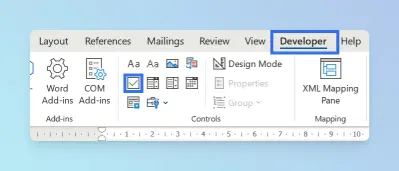
Click the box to check it works.
Copy the checkbox and paste it at the start of each list item.
Result: Each box toggles between empty and checked (an X by default) with one click.
Tip: If the box won’t toggle, turn off Design Mode on the Developer tab.
Microsoft’s make a checklist in Word guide uses the same steps.
Inserting a Legacy Check Box Form Field
Use this when you need a protected form, or compatibility with older .doc files.
Go to Developer > Legacy Tools (the toolbox icon in Controls).
Under Legacy Forms, click Check Box Form Field.
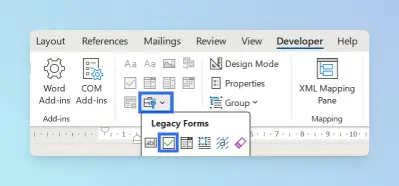
Double-click the field to set its size: Auto, or Exactly with a point size.
Optional: to protect only the checklist, add a Layout > Breaks > Continuous section break before and after it.
Legacy fields only become clickable once the form is protected:
Go to Developer > Restrict Editing.
Check Allow only this type of editing in the document and choose Filling in forms.
If you added section breaks, click Select sections and tick only the checklist section.
Click Yes, Start Enforcing Protection. A password is optional.
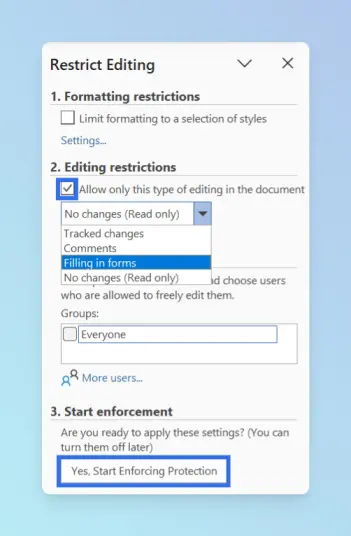
Result: The checkboxes toggle on click, and the rest of the protected section is locked.
Using Checklist in Word for the web
Use this when you work in a browser and want a quick interactive to-do list.
- Click where the list should start.
- Go to Home, and in the Paragraph group select Checklist. Or press Ctrl + ,.
- Type each item and press Enter for the next one.
- Click the box beside an item to tick it.
Result: An interactive checklist you can tick and untick in Word for the web. Microsoft lists this feature for Word for the web.
Inserting a checkbox in Word for Mac
Use this on a Mac, where Microsoft’s checklist steps use the Check Box form control.
- Show the Developer tab (Word > Preferences > Ribbon and Toolbar).
- Click at the start of the first list item.
- Go to Developer and select Check Box.
- Copy the box (Cmd + C) and paste it (Cmd + V) at the start of each item.
- To make the boxes clickable, select Developer > Protect Form. Select it again to unprotect and edit.
Result: The checkboxes toggle while the form is protected. See Microsoft’s create a form in Word (Mac tab) for the options.
Customizing checkbox symbols and layout
Use this to swap the default X for a tick and to keep long items aligned.
Change the checked symbol (content controls):
Click the checkbox and go to Developer > Properties.
Next to Checked symbol, click Change.
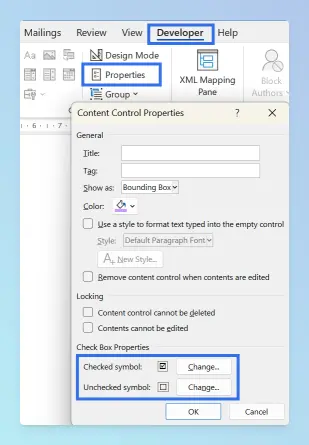
Choose a check mark. If you don’t see one, set Font to Wingdings 2 or Segoe UI Symbol. Our guide to special symbols and their codes in Word lists more options.
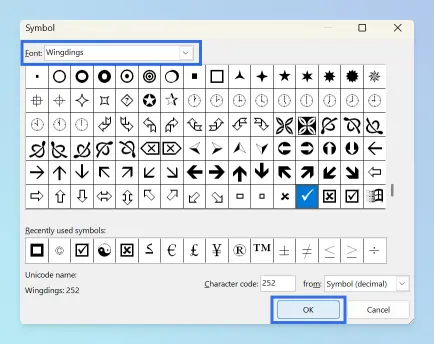
Click OK twice. To resize the box, change its font size on the Home tab.
Tip: In Content Control Properties, select Content control cannot be deleted to stop people removing a box by accident.
Align long items with a hanging indent:
Select the list and open the Paragraph dialog from Home.
Under Special, choose Hanging and keep By at 0.5”.
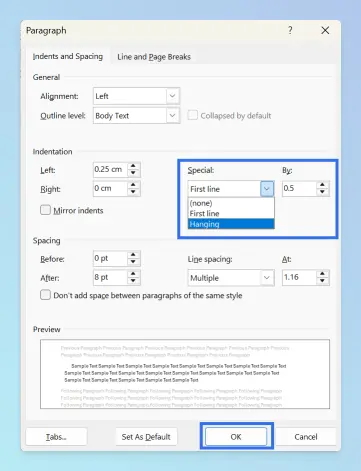
Click OK.
To lock the list text but keep the boxes clickable, select the list and choose Developer > Group > Group. The Google Docs version of this alignment is a hanging indent in Google Docs.
Comparing the methods
| Method | Best for | Works on |
|---|---|---|
| Check Box Content Control | Digital checklists and forms | Windows desktop |
| Legacy Check Box Form Field | Protected forms, older .doc files | Windows desktop |
| Checklist | Quick to-do lists in the browser | Word for the web |
| Developer > Check Box | Forms on a Mac | Mac |
| Bullet with a box symbol | Printed lists only (not clickable) | Windows, Mac, web |
Note: Microsoft says creating fillable forms isn’t available in Word for the web. Forms built in desktop Word keep their changes when reopened online.
Troubleshooting
- The box won’t toggle: turn off Design Mode, or protect the form if it’s a legacy or Mac form field.
- A letter appears instead of a tick: the symbol font changed. Pick the symbol again with Wingdings 2 or Segoe UI Symbol selected.
- Text wraps under the box: apply a hanging indent.
- You can’t click or edit anything: the document is protected or restricted; see how to fix a locked selection in Word.
- Boxes stop working in the PDF: that’s expected. A PDF keeps the current state as a static symbol. See how to convert Word to PDF.
Finishing a form? You can also add a signature to your form or add a drop-down list in Word for fixed answers. Combining several checklists into one file is covered in how to merge Word documents. For more, see the Microsoft Word guides.