
A table of contents (TOC) in Google Docs is built from heading styles, not from bold or large text. Each entry links to its heading, which makes long reports, theses and merged documents easier to navigate.
Steps in this guide:
Step 1: Apply heading styles to your section titles
Use this first, because the TOC only lists text that has a heading style.
Select a section title.
Open the Styles dropdown in the toolbar (it usually shows Normal text), or click Format → Paragraph styles.
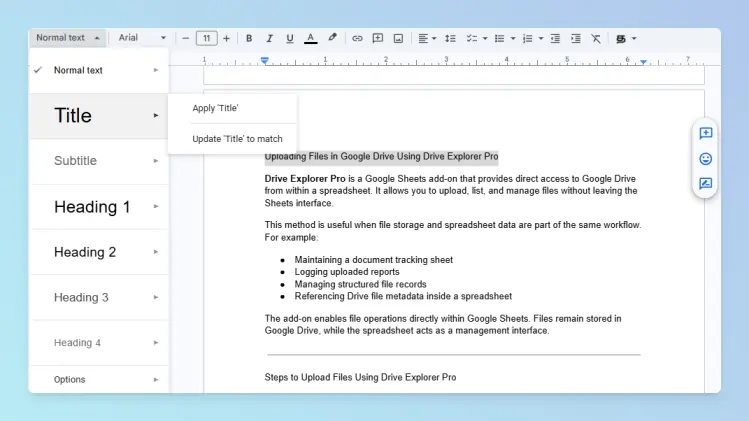
Choose a heading level:
- Heading 1 for main sections
- Heading 2 for subsections
- Heading 3 to Heading 6 for deeper levels
Repeat for every section title. Keep the levels in order, without skipping from Heading 1 to Heading 3.
Docs supports Heading 1 to Heading 6, per Google’s headings and table of contents help.
Step 2: Insert the table of contents
Use this once your headings are in place.
Click where you want the TOC to appear.
Optional: give it its own page with a page break, Ctrl + Enter (Windows) or Cmd + Enter (Mac).
Click Insert → Page elements → Table of contents.
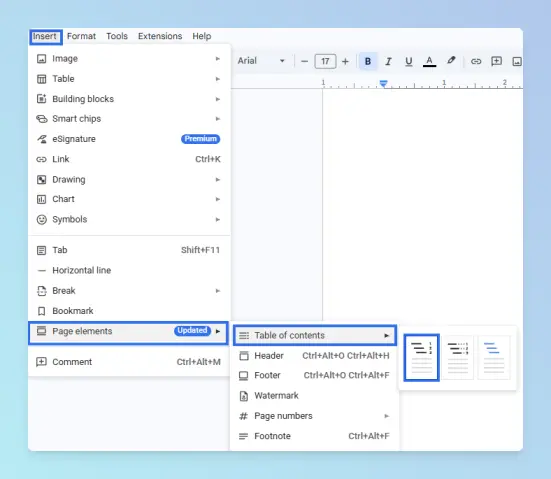
Choose a style:
- With page numbers for print and PDF
- With links (blue links) for documents people read on screen
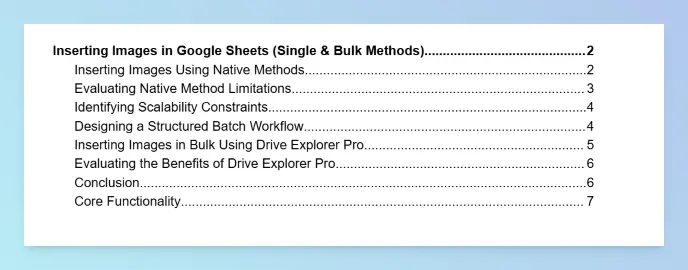
Result: The table of contents appears straight away, listing your headings with page numbers or links.
Formatting a table of contents
Use More options to change how the TOC looks and which heading levels it shows.
Click the table of contents.
To its left, click More options (the three dots). A panel opens on the right.
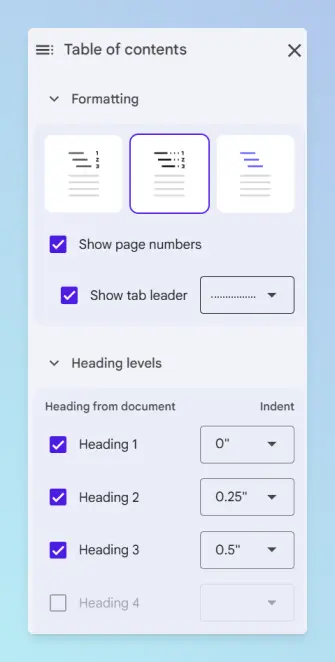
Under Formatting, choose page numbers or blue links, and turn the tab leader on or off. Moving to Word? You can add dotted tab leaders in Word too.
Under Heading levels, turn levels on or off to make the TOC shorter or more detailed.
Adjust the heading indents so each level is easy to scan.
Refreshing or deleting the table of contents
- Refresh: after you add, rename or remove headings, click the TOC and select Refresh. It doesn’t update on its own.
- Edit an entry: change the heading in the document, then refresh. Don’t type inside the TOC.
- Delete: right-click the TOC and choose Delete table of contents.
Tip: If you don’t see Refresh, click inside the table of contents first.
Table of contents vs document outline
Use the outline for your own navigation while editing, and the TOC for readers.
| Feature | Best for | Works on |
|---|---|---|
| Table of contents | Readers of the printed, PDF or shared document | Inside the document body; prints and exports |
| Document outline | Jumping between headings while you edit | Left panel (Show tabs & outlines); not printed |
Pageless format and document tabs
The TOC behaves a little differently in these two cases.
- Pageless format: you can insert a TOC, but Google says you can’t change its formatting while the document is pageless. Pageless documents also have no page numbers. Switch with Format → Switch to Pages format.
- Document tabs: each tab has its own outline under Tab options → Show outline. If your TOC doesn’t list headings from other tabs, add a TOC to each tab, or link between tabs with Tab options → Copy link. See Google’s document tabs help.
Troubleshooting
- A heading is missing. It isn’t styled as a heading, or its level is off in More options. Fix it, then click Refresh.
- The wrong text appears in the TOC. That line has a heading style. Set it back to Normal text in the Styles dropdown, then refresh.
- Page numbers are wrong after edits. Click Refresh before you print or export.
- The formatting options are greyed out. The document is pageless; switch to Pages format.
What to do next
A TOC is most useful in long documents.
- When you combine Docs into one PDF with a clickable TOC, readers can jump straight to each section.
- If you’re assembling a long file, merge multiple Google Docs into one first, then insert the TOC.
- For a research paper, format the reference list with a hanging indent.
- Finishing the document in Word? Insert an automatic table of contents in Word and number headings as 1, 1.1 and 1.1.1.
- For more formatting how-tos, see the Google Docs guides.