
Google added the Lock option to the Drive menu in September 2023, according to the Google Workspace Updates announcement. It’s built for review periods and finished files, when you want to stop accidental changes.
What “lock” can mean in Google Docs:
- Lock the file so nobody edits, comments or suggests until it’s unlocked
- Change sharing permissions so specific people can only view or comment
- Lock during an approval on eligible work and school accounts
Locking a Google Doc from Google Drive
Use this when the content is final, or under review, and you want to prevent accidental edits by anyone, including yourself.
Open Google Drive and find the Doc. If it’s buried in a folder, here’s how to find the Doc’s folder in Drive.
Right-click the file.
Choose File information → Lock.
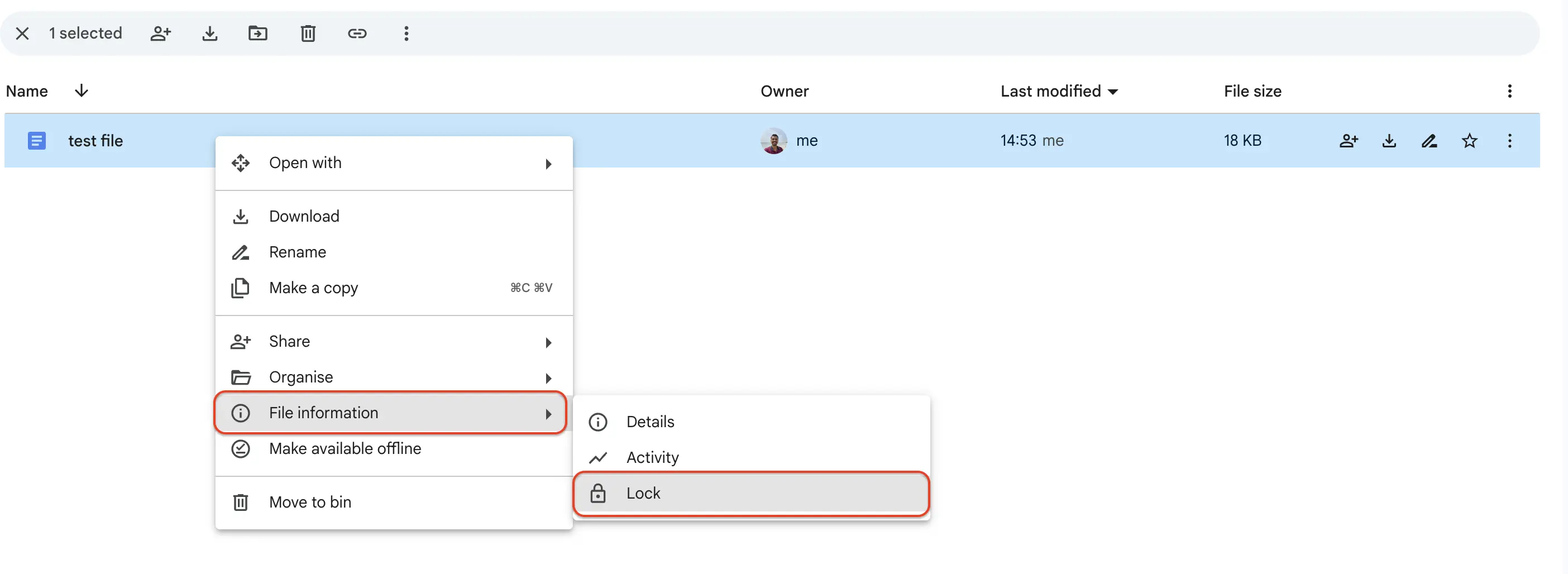
Confirm by clicking Lock.
Result: The Doc opens in a locked state. Nobody can edit it, add comments or make suggestions, even the owner, until it’s unlocked.
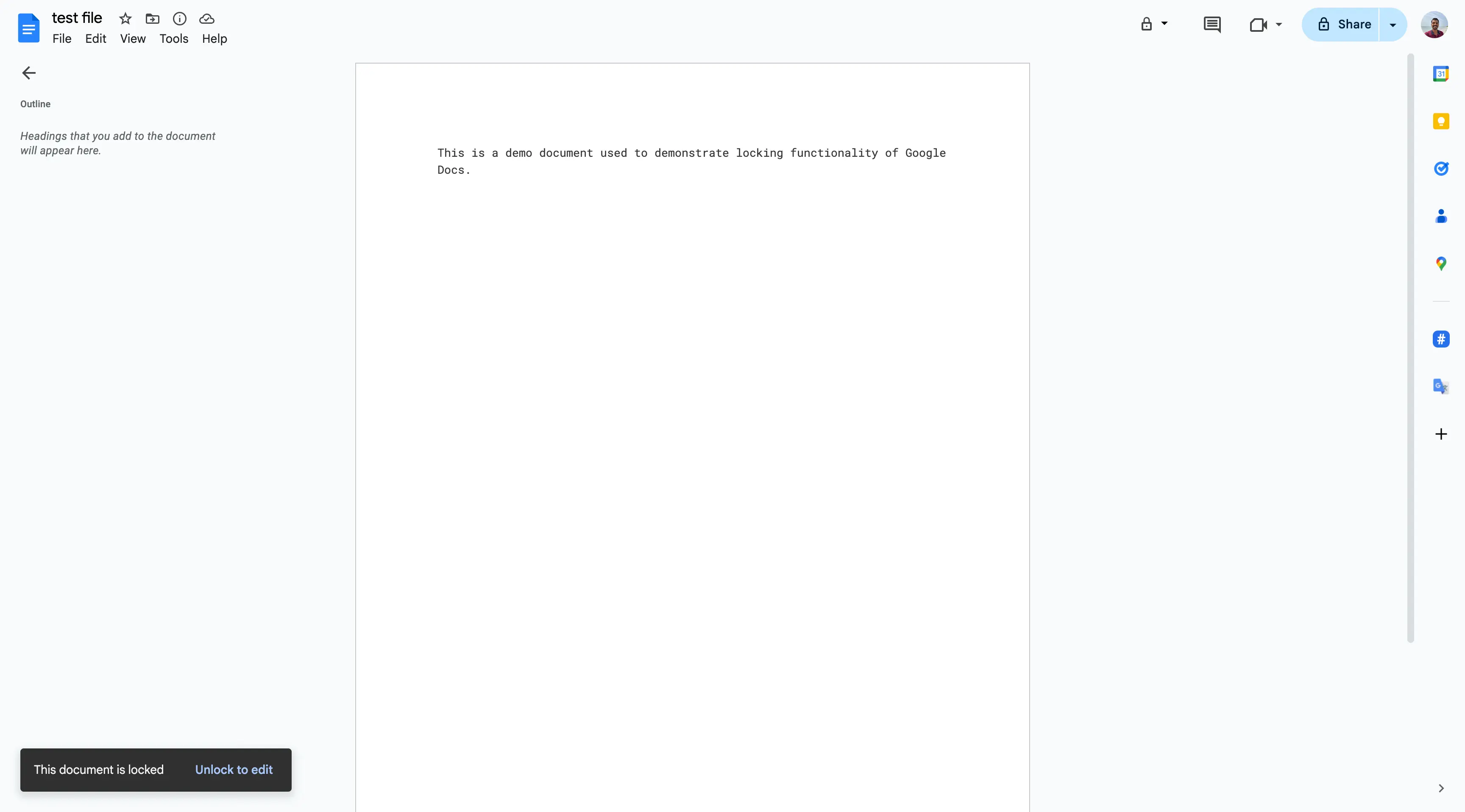
Note: You need edit access to lock a file. A lock covers the whole file, including every document tab.
Unlocking a Google Doc
Use this when you need to make changes again. Anyone with edit access can unlock the file.
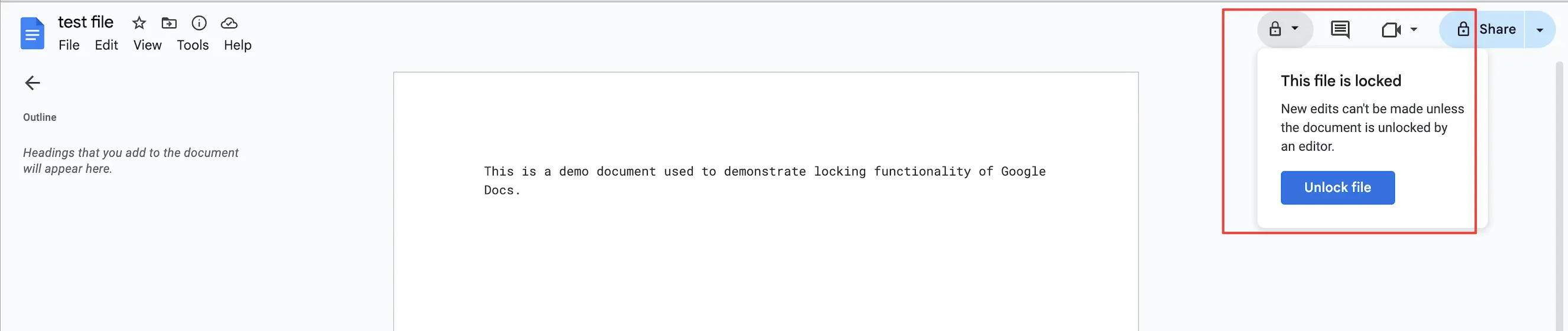
From inside the Doc
- Open the locked Doc.
- At the top right, click the lock icon (Locked). You can also click Unlock to edit in the message at the bottom.
- Click Unlock file.
From Google Drive
- In Google Drive, right-click the file.
- Choose File information → Unlock.
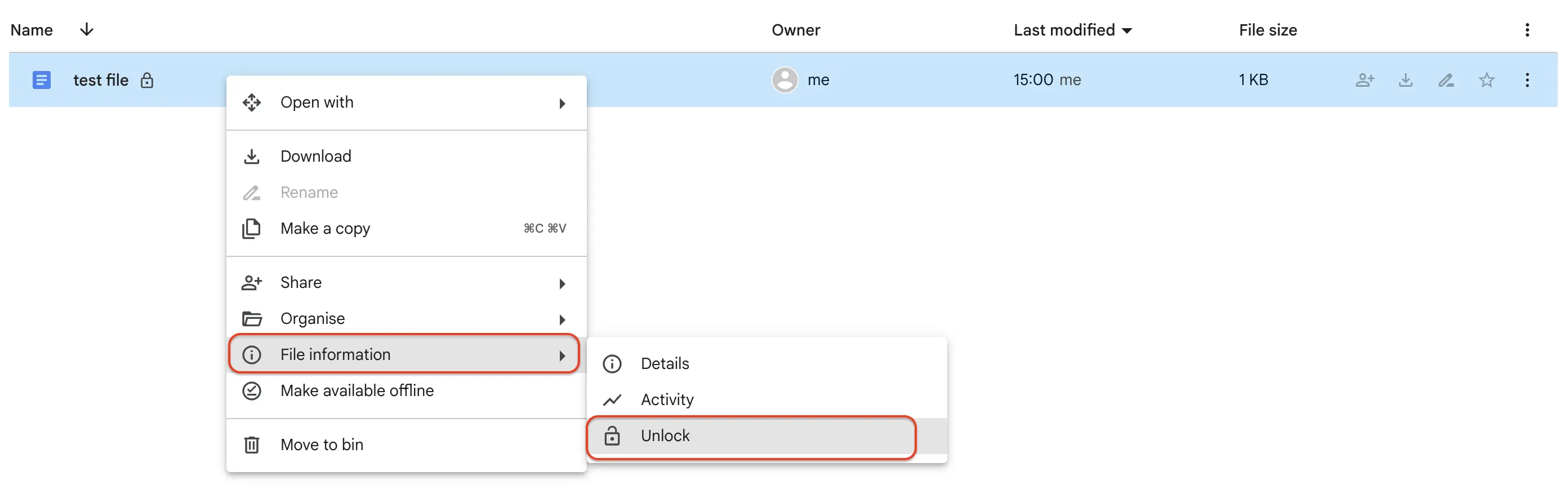
Result: Editors can change the Doc again, and commenters can comment and suggest. To apply their edits later, accept all suggestions.
Why a lock isn’t a security setting
A lock signals “don’t change this”; it doesn’t take anyone’s access away.
- Any editor can unlock it. Google’s Drive API guide to content restrictions says a restriction isn’t an access restriction and isn’t meant to stop users with enough permission.
- Editors keep their other rights. They can still move the file or change its sharing settings while it’s locked.
- Download and copy aren’t affected. Viewers who could download the file before can still download it.
To really stop someone editing, change their access instead.
Protecting a Google Doc with sharing permissions
Use this when specific people should read or comment, but never edit.
- Open the Doc and click Share.
- Next to each person, choose Viewer or Commenter.
- Under General access, choose Restricted or set link access to Viewer.
- Optional: click Settings (the gear icon) and clear the boxes under People who can download, copy, and print.
- Click Save or Done.
Result: Viewers and commenters can’t edit or unlock the Doc. Google’s stop, limit, or change sharing help covers the download and copy settings.
Tip: If you need a fixed copy to send outside your team, export the Google Doc as a PDF, or share a password-protected PDF instead.
Locking a Doc during an approval
Use this when your organisation uses Drive approvals and reviewers must sign off on unchanged content.
- Approvals are available on Enterprise and Education Plus accounts, not on personal Gmail or standard Workspace accounts.
- When you request an approval, you can lock the file so reviewers can’t change it during the review.
- After approval, anyone with edit access can still unlock the file and edit it.
Comparing the ways to protect a Google Doc
| Method | Best for | Who can undo it |
|---|---|---|
| Lock (Drive → File information → Lock) | Freezing a finished or under-review Doc against accidental edits | Anyone with edit access |
| Viewer or Commenter access | Stopping specific people from editing | Owner, or editors if allowed to share |
| Disable download, copy and print | Making it harder for viewers to take a copy | Owner |
| Approvals lock | Formal sign-off on work and school accounts | Anyone with edit access, after approval |
Troubleshooting
- There’s no Lock option. You don’t have edit access. Google documents locking for Drive on a computer, so use a browser if you can’t find it in a mobile app.
- Someone edited a locked Doc. An editor unlocked it. Give that person Viewer or Commenter access instead.
- I can’t unlock the Doc. You have view or comment access only. Ask the owner or an editor.
- A Word file says the selection is locked. That’s Word’s own editing restriction, not a Drive lock; see why Word locks a selection and how to fix it.
For more ways to organise and protect files, see the Google Docs and Drive guides.