
To cross out text in Word, select it. Then on the Home tab, in the Font group, click Strikethrough. On Windows, you can also press Alt, then H, then 4, one key after another.
We tested every step in Microsoft Word for Microsoft 365 on Windows. The sample line was “Old price $50 New price $40”, and we crossed out “$50”.
- Strike through text with the button
- Use the Alt, H, 4 shortcut
- Add a double strikethrough
- Remove strikethrough
- Change the strikethrough color
Striking through text with the button
Use this when you want one line through a word or sentence and you prefer to click.
- Select the text you want to cross out. In our test, we selected only
$50. - Click the Home tab.
- In the Font group, click Strikethrough. Its icon shows the letters “ab” with a line through them.
Result: One line runs through the selected text. The rest of the line is unchanged.
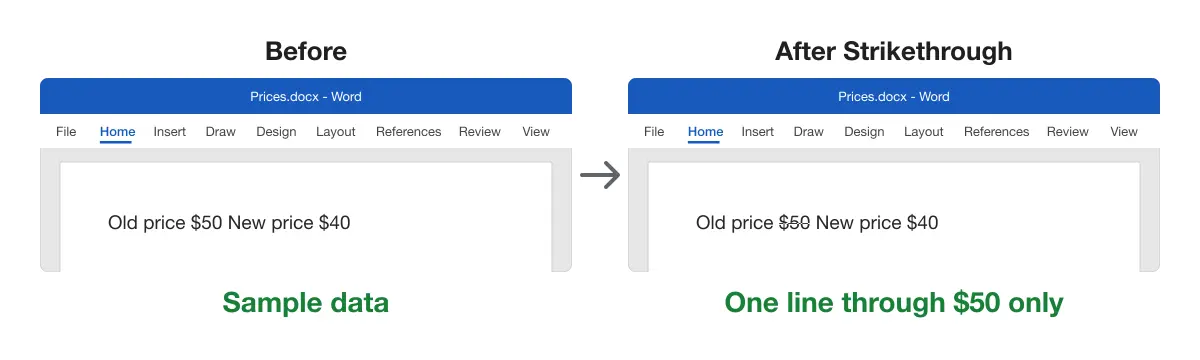
To turn the line off, keep the text selected and click Strikethrough again.
Microsoft lists the same steps in Apply or remove strikethrough text formatting, for Word 2016 and later.
Using the Alt, H, 4 shortcut
Use this when you want to keep your hands on the keyboard.
- Select the text you want to cross out.
- Press and release Alt.
- Press H. Word opens the Home tab and shows a small letter or number on every button.
- Find the key shown on the Strikethrough button. In our test, it was 4.
- Press 4.
Result: One line runs through the selected text, the same as with the button.
To remove the line, keep the text selected and press Alt, H, 4 again.
Word calls these small letters and numbers KeyTips. You press them one after another, not all at once. Microsoft explains them in Use the keyboard to work with the ribbon.
Adding a double strikethrough
Use this when you want two lines through the text, for example to mark it differently from text with one line.
- Select the text.
- Press Ctrl + D. The Font window opens on the Font tab.
- Check Double strikethrough.
- Click OK.
Result: Two lines run through the selected text.
Removing strikethrough
Use this when you crossed out text by mistake or the change no longer applies.
For one line:
- Select the crossed-out text.
- On the Home tab, click Strikethrough, or press Alt, H, 4.
For two lines:
- Select the crossed-out text.
- Press Ctrl + D. The Font window opens with Double strikethrough checked.
- Uncheck Double strikethrough.
- Click OK.
Result: The lines are gone and the text is plain again.
Changing the strikethrough color
Word has no setting for the color of the line alone. The line takes the color of the text, so a red line means red text.
A Microsoft moderator confirmed this in March 2026, in a Microsoft Q&A answer on strikethrough color. That answer gives two ways around it.
- Track Changes: with tracking on, Word marks deleted text with a strikethrough. The answer says you can set the color of that markup in the Track Changes options.
- A drawn line: go to Insert > Shapes > Line, draw it over the text, and give it any color. The answer warns that the line may need moving by hand when the text changes.
Comparing the methods
| Method | Best for | Works on |
|---|---|---|
| Strikethrough button on the Home tab | One line, using the mouse | Word for Microsoft 365 on Windows (tested) |
| Alt, H, 4 | One line, using the keyboard | Word for Microsoft 365 on Windows (tested) |
| Font window (Ctrl + D) > Double strikethrough | Two lines through the text | Word for Microsoft 365 on Windows (tested) |
Platform differences
We tested the steps in this guide in Word for Microsoft 365 on Windows only. We have not tested Word for Mac, Word for the web or the Word mobile apps. Their menus and keys may differ from those shown here.
Troubleshooting
Nothing happens when you press 4. Cause: Word shows the KeyTips only after Alt and then H. Fix: press and release Alt, press H, wait for the KeyTips, then press 4.
The key on the Strikethrough button is not 4. Fix: after Alt and H, press the key that Word shows on the Strikethrough button.
The line runs through more text than you wanted. Cause: more text was selected than you meant. Fix: remove the line as in Removing strikethrough, select only the words you want, and apply it again.
For lines that are not through the text, see how to add dotted lines in Word. To space lines apart instead, see how to double space in Word. You can find more formatting tasks in the Microsoft Word guides.