
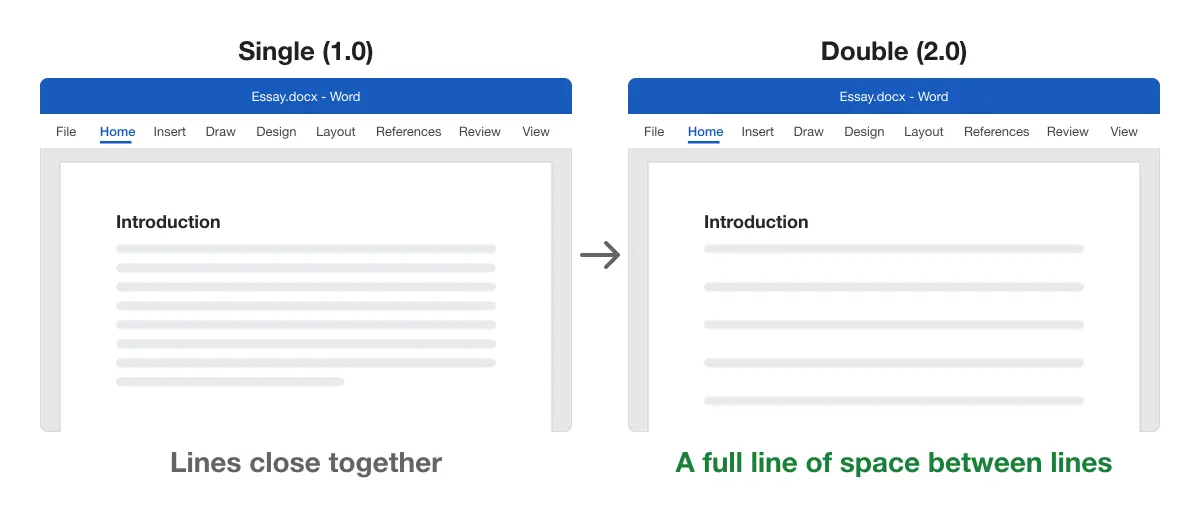
Double spacing leaves a full blank line’s worth of space between lines of text. It’s standard for essays, manuscripts and drafts that someone will mark up. Word gives you a menu option, a shortcut and a default setting for it.
- Double space the whole document
- Double space selected text
- Use the keyboard shortcut
- Make double spacing the default
- Double space with the Normal style
- Format an APA or MLA paper
- Put two spaces after periods
- Remove double spacing
What double spacing means in Word
Double spacing makes each line twice the height of a single-spaced line. Word measures it from the font size, so 12 pt text gets more room than 10 pt text.
Word’s own default is 1.15 line spacing, with extra space after each paragraph, per Microsoft’s default line spacing guide. That is why a new document never looks single or double spaced.
The Line spacing box in Line Spacing Options offers six settings:
| Setting | What it does | When to use it |
|---|---|---|
| Single | One line height, based on the largest font on the line | Letters, reports, tables |
| 1.5 lines | One and a half line heights | Drafts that need some room |
| Double | Two line heights | Essays, manuscripts, APA and MLA papers |
| At least | A minimum height in points; lines grow for big text or images | Mixed font sizes |
| Exactly | A fixed height in points; nothing can grow | Forms and fixed layouts |
| Multiple | Any multiplier, such as 1.2 or 3 | Spacing between the presets |
Tip: Choose Double, not Exactly 24 pt. With Exactly, tall content such as equations, inline images or larger headings gets clipped at the top.
Double spacing the whole document
Use this when every paragraph in the document should be double spaced.
- Go to the Design tab.
- Click Paragraph Spacing.
- Choose Double.
Result: The whole document is double spaced, as described in Microsoft’s guide to double-spacing the lines in a Word document.
You can also press Ctrl + A (Cmd + A on Mac) to select everything, then use either of the methods below.
Double spacing selected text
Use this when only some paragraphs, such as the body of an essay, should be double spaced.
- Select the paragraphs you want to change.
- Go to Home > Line and Paragraph Spacing.
- Choose 2.0.
Result: Only the selected paragraphs change. Line spacing applies to whole paragraphs, so selecting part of a paragraph changes all of it.
Using the keyboard shortcut
Use this when you want to switch spacing quickly while writing.
- Select the text, or click inside a single paragraph.
- Press Ctrl + 2 on Windows or Cmd + 2 on Mac.
Related shortcuts:
| Spacing | Windows | Mac |
|---|---|---|
| Single | Ctrl + 1 | Cmd + 1 |
| 1.5 lines | Ctrl + 5 | Cmd + 5 |
| Double | Ctrl + 2 | Cmd + 2 |
Making double spacing the default
Use this when every new document should start double spaced, for example for coursework.
- Go to Home > Line and Paragraph Spacing > Line Spacing Options.
- Under Line spacing, choose Double.
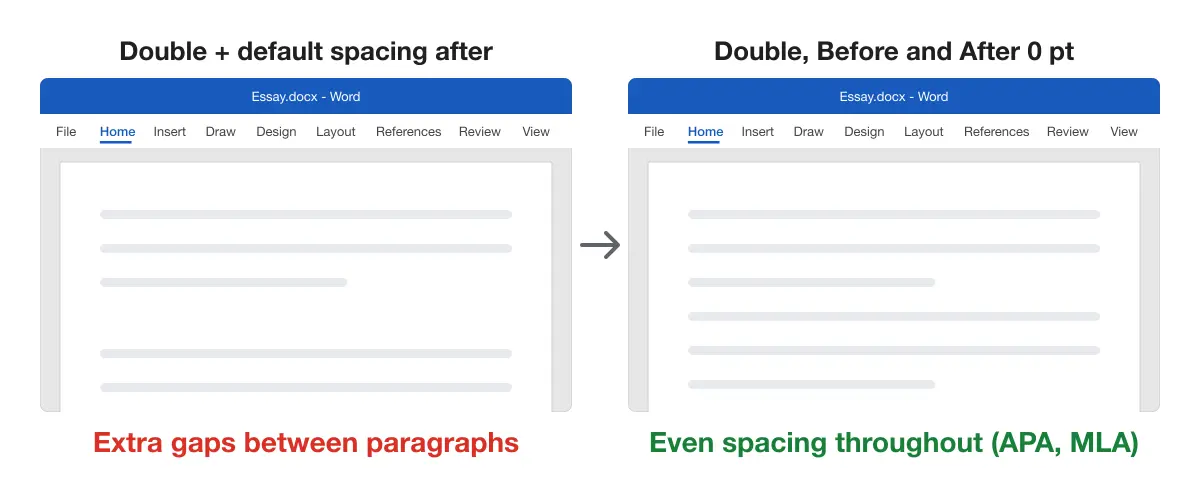
- Set Before and After to 0 pt if you don’t want extra gaps between paragraphs.
- Click Set As Default.
- Choose All documents based on the Normal template and click OK.
Result: New documents open double spaced. Microsoft explains the setting in Change the default line spacing in Word.
Note: Word for the web has no Set As Default option, so new documents there keep Word’s standard spacing.
Double spacing with the Normal style
Use this when a document keeps losing its spacing, for example after pasting text or applying another style set. Most body text uses the Normal style, so changing the style fixes every paragraph at once.
- On the Home tab, right-click Normal in the Styles gallery.
- Choose Modify.
- Click Format > Paragraph.
- Set Line spacing to Double, and Before and After to 0 pt.
- Click OK twice.
Result: Every paragraph in the Normal style is double spaced, including text you add later. To use it in future documents too, select New documents based on this template before the last OK.
Headings, quotes and footnotes use their own styles. Change those the same way if they should match.
Double spacing between paragraphs only
Use this when the lines inside a paragraph should stay single but each paragraph needs a blank line’s worth of space.
- Select the paragraphs.
- Go to Home > Line and Paragraph Spacing > Line Spacing Options.
- Keep Line spacing at Single.
- Set After to the font size, for example 12 pt for 12 pt text.
Result: Paragraphs are separated by an even gap without pressing Enter twice. Empty paragraphs from double Enter presses are harder to manage and can leave blank lines at the top of pages.
Double spacing for APA and MLA papers
Use this when your assignment follows a citation style.
- APA 7: APA Style’s line spacing guidance asks for double spacing throughout, including the reference list. It also says not to add extra space before or after paragraphs.
- MLA: MLA papers are double spaced throughout, including the Works Cited list. The MLA Style Center has the full layout rules.
For both styles, set Before and After to 0 pt in Line Spacing Options. Otherwise Word’s default paragraph spacing adds gaps that the style doesn’t allow.
APA allows a few exceptions, listed on the same APA page:
- Title page: double spaced, with one extra double-spaced blank line between the title and the byline.
- Tables: the cells can be single, 1.5 or double spaced. The table number, title and notes stay double spaced.
- Figures: text inside the image can use any spacing. The figure number, title and notes stay double spaced.
- Footnotes: use Word’s built-in footnotes. Their default single spacing and smaller font are fine.
Word’s footnotes use the Footnote Text style, so double spacing the body doesn’t change them. Adding and numbering notes is covered in how to insert footnotes in Word.
As a rough guide, a double-spaced page in a 12 pt font with 1-inch margins holds about 250 to 300 words. Exact counts depend on the font and paragraph length.
APA and MLA reference lists also need a hanging indent. See how to do a hanging indent in Word, or the Google Docs version. To add the citations themselves, see citations and references in Word.
Putting two spaces after a period
“Double spacing” sometimes means two spaces between sentences rather than taller lines. Most style guides, including APA 7, now use one space, so check your instructions first.
To add a second space after every sentence:
- Go to Home > Replace (or press Ctrl + H on Windows) to open Find and Replace.
- In Find what, type a period followed by one space.
- In Replace with, type a period followed by two spaces.
- Click Replace All.
Result: Every sentence ending in a period gets two spaces. Abbreviations such as “e.g. ” change too, so review them afterwards.
To have Word flag sentences with the wrong spacing, open Editor > Settings > Grammar & Refinements > Settings. Under Punctuation Conventions, set Space between sentences to one or two spaces.
To go back to one space, run the replace the other way. Removing stray double spaces is also covered in removing extra spaces in Word.
Removing double spacing
Use this when a document arrives double spaced and you need it single spaced.
- Selected text: press Ctrl + 1 (Cmd + 1 on Mac).
- Whole document: go to Design > Paragraph Spacing > No Paragraph Space, as described in Microsoft’s line spacing guide.
- Back to Word’s default look: go to Design > Paragraph Spacing and pick the option under Style Set.
Comparing the methods
| Method | Best for | Works on |
|---|---|---|
| Design > Paragraph Spacing > Double | The whole document in one click | Word for Windows |
| Home > Line and Paragraph Spacing > 2.0 | Selected paragraphs | Windows, Mac and web |
| Ctrl / Cmd + 2 | Quick changes while typing | Windows and Mac |
| Modify the Normal style | Spacing that survives pasting and new text | Windows and Mac desktop apps |
| Line Spacing Options > Set As Default | Every new document | Windows and Mac desktop apps |
Platform differences
- Windows: all four methods work, including Design > Paragraph Spacing and the shortcuts.
- Mac: the same menus, with Cmd + 2. Format > Paragraph also opens the spacing settings.
- Word for the web: use Home > Line Spacing on selected text. There is no Set As Default.
Troubleshooting double spacing
- The gaps between paragraphs are bigger than between lines. Paragraph spacing is adding space. Set Before and After to 0 pt, as covered in the line spacing guide.
- Only some paragraphs changed. The shortcut only affects the selected paragraphs. Press Ctrl + A first to apply it everywhere.
- Spacing looks uneven in justified text. Wide gaps between words are a different issue. See how to remove extra spaces in justified text.
- One paragraph won’t change. It probably has Exactly line spacing or a different style. Select it and set Line spacing to Double in Line Spacing Options.
- Lines with equations or images look cramped. Line spacing is set to Exactly. Switch to Double so lines can grow.
- Footnotes or headers are still single spaced. They use their own styles. Modify Footnote Text or Header if your instructions require it.
- New documents are single spaced again. You changed one document, not the default. Use Set As Default as described above.
- Text pasted from an AI chat ignores the spacing. Pasted text can bring its own formatting. See how to copy ChatGPT to Word without losing formatting, then reapply double spacing.
For the rest of a paper’s layout, see how to format a paper in APA 7th edition in Word. For more layout guides, see the Microsoft Word guides.