
Every file in Google Drive lives in exactly one folder. Shortcuts can make it appear elsewhere, but the parent folder is where the original sits, and where its folder-level sharing comes from.
Methods in this guide:
- The Move icon beside the title (fastest)
- File → Details (works with view access too)
- Google Drive when you start from search
Using the Move icon beside the title
Use this when you have the Doc open and want to jump to its folder.
Open the Google Doc.
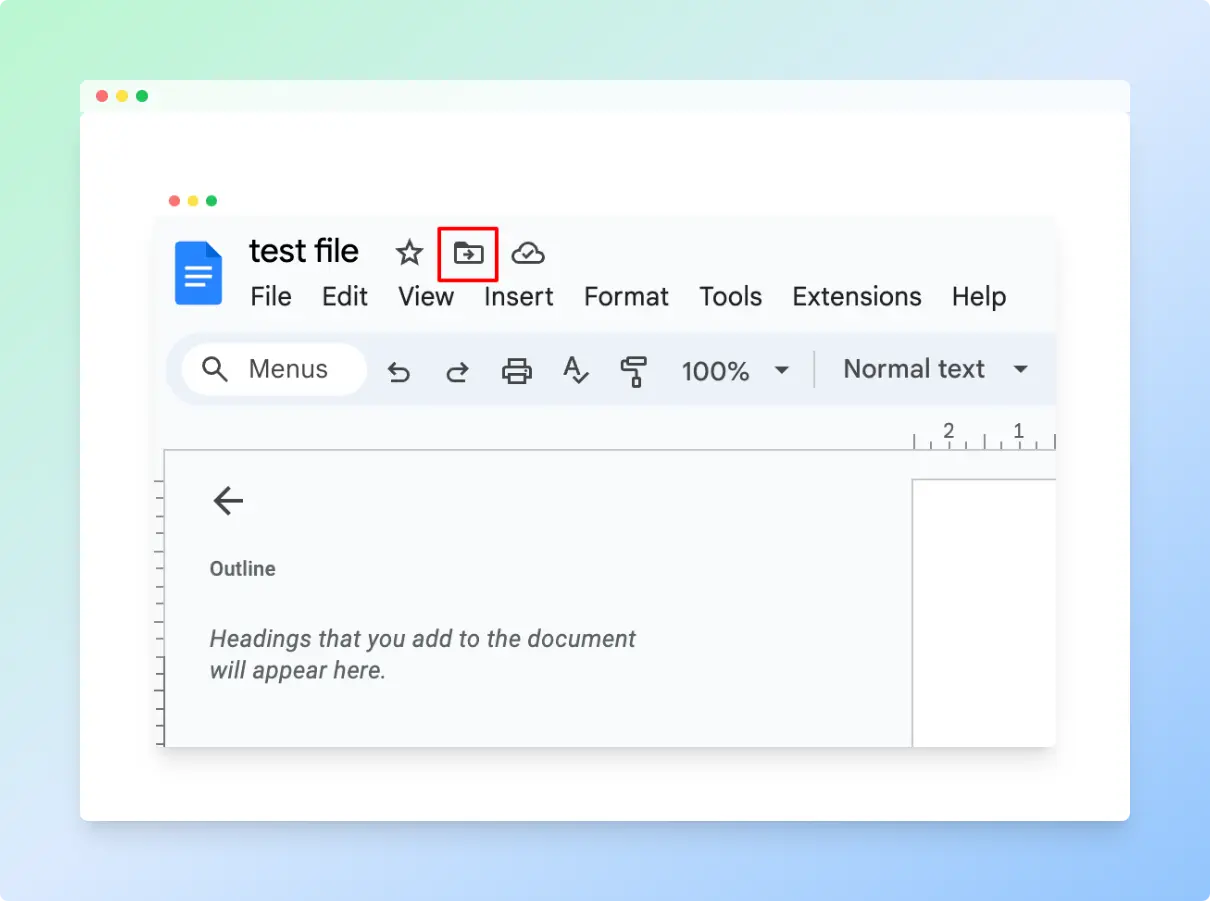
Next to the document title, click the Move icon (a folder with an arrow).
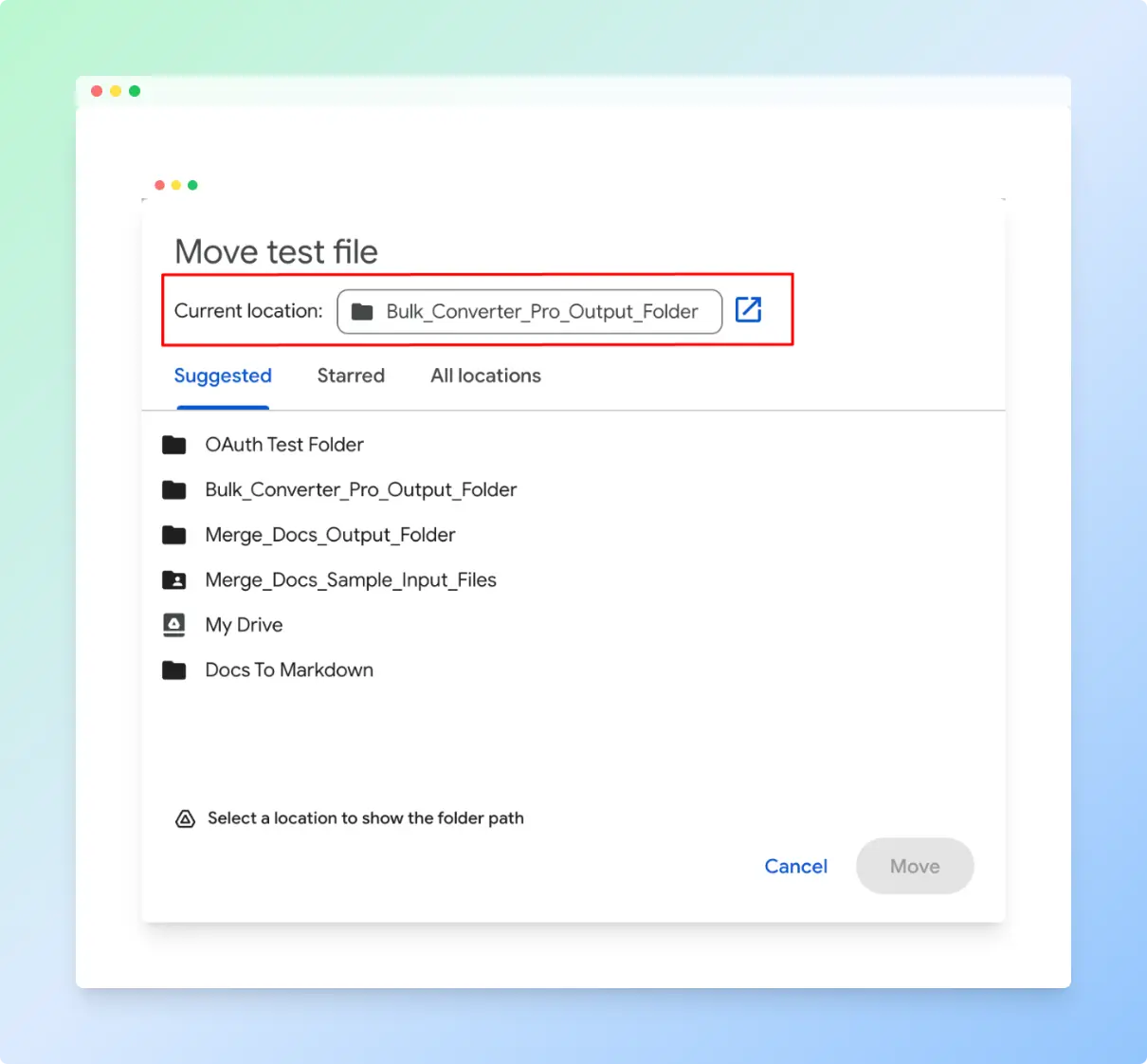
Read the Current location field at the top of the Move dialog.
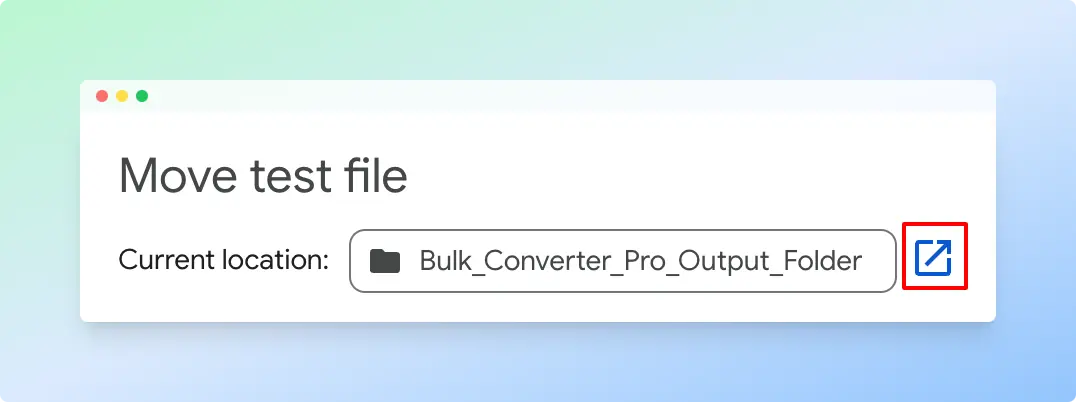
To open the folder in Drive, click the open-in-new-window arrow beside the location.
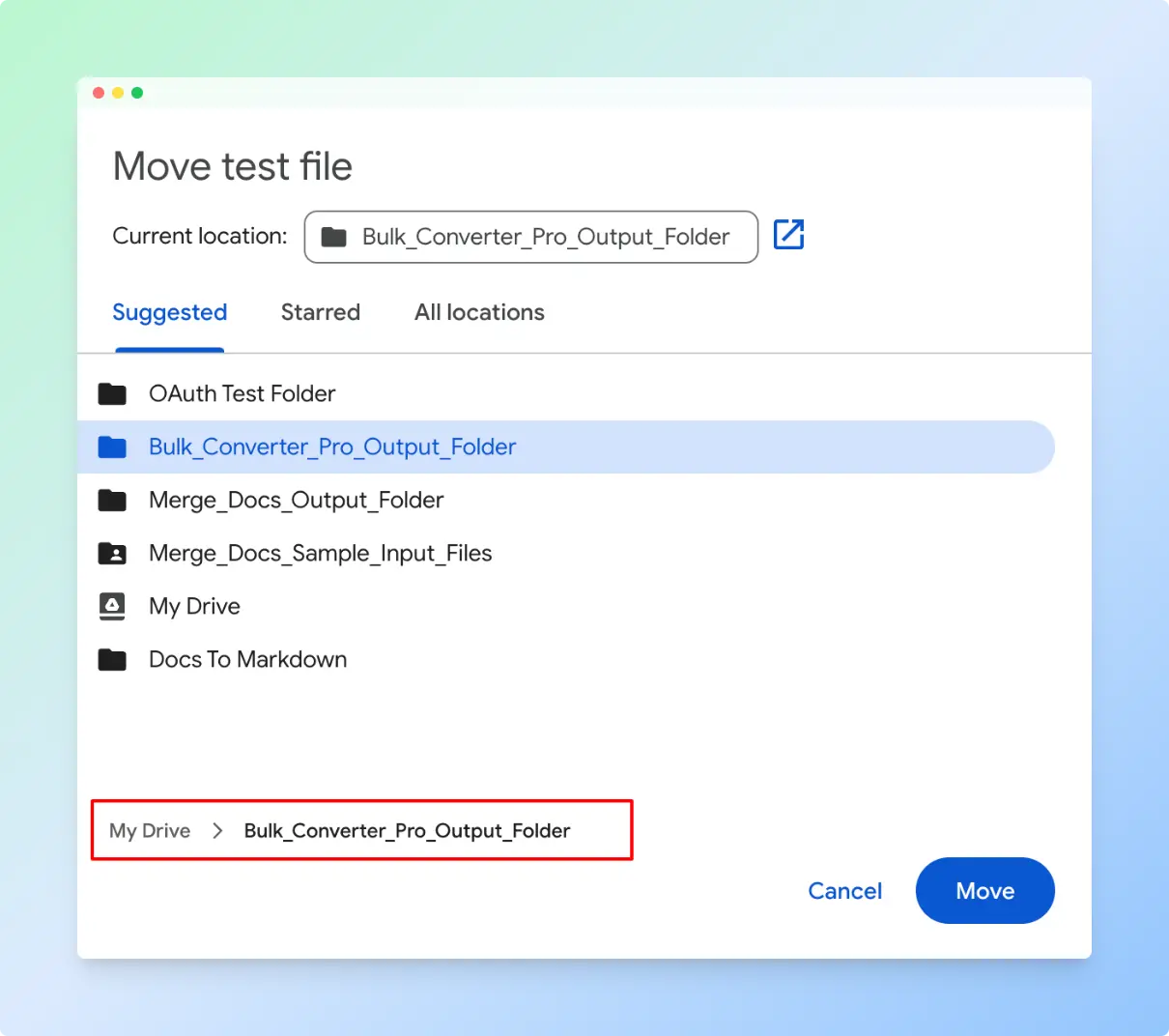
To see the full path, select the folder in the list. The path appears at the bottom of the dialog, for example My Drive > Folder name.
Result: You know the folder and can open it in a new tab. Close the dialog with Cancel if you don’t want to move the file.
Note: If you can only view the Doc, you may see an Add shortcut to Drive icon instead of Move. Use File → Details below.
Using File → Details
Use this when you only need the folder name, or you don’t have edit access.
In the Doc, click File → Details.
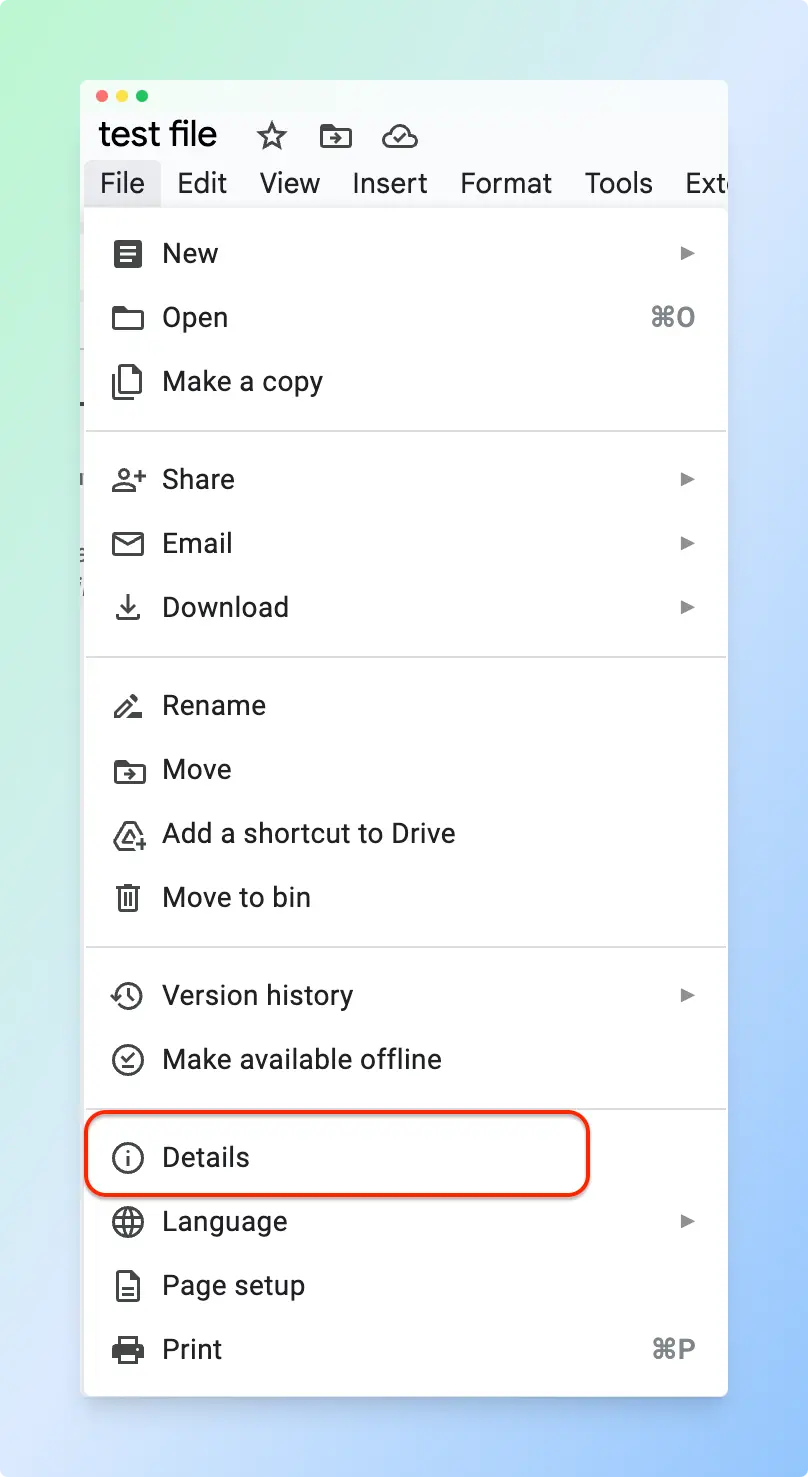
Read the Location row in the Document details dialog.
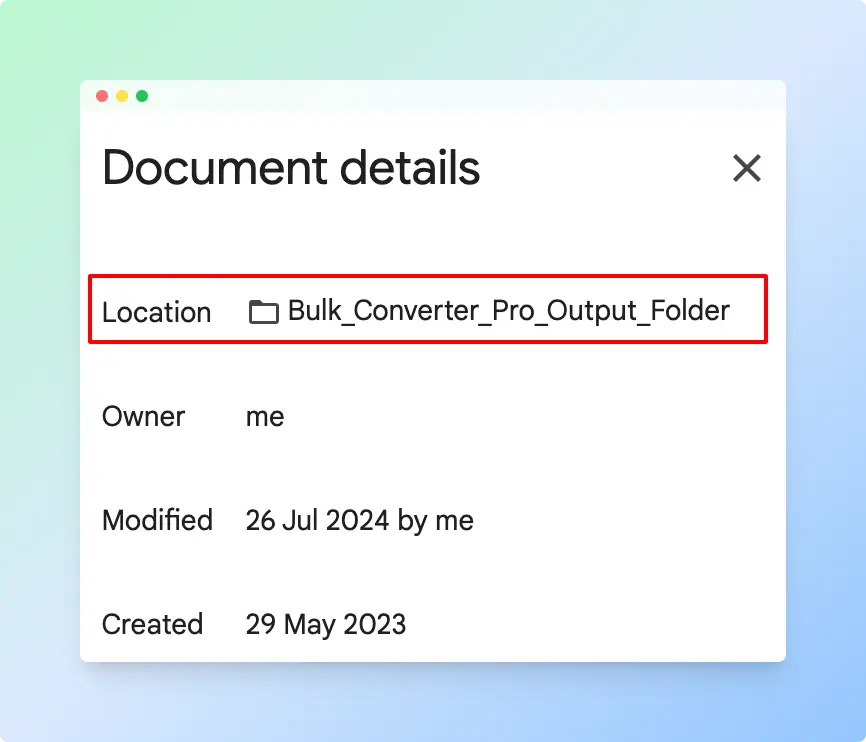
Result: You see the folder, the owner, and when the file was created and last modified.
Finding the folder from Google Drive
Use this when you found the Doc through Drive search or Recent and want to know where it lives.
- In Google Drive, right-click the file.
- Choose File information → Details.
- Check the location shown in the details panel on the right, and click the folder to open it.
Adding a shortcut to another folder
Use this when the Doc should appear in a second folder without moving or copying it.
In the Doc, click File → Add a shortcut to Drive.
Pick a folder from Suggested, Starred or All locations.
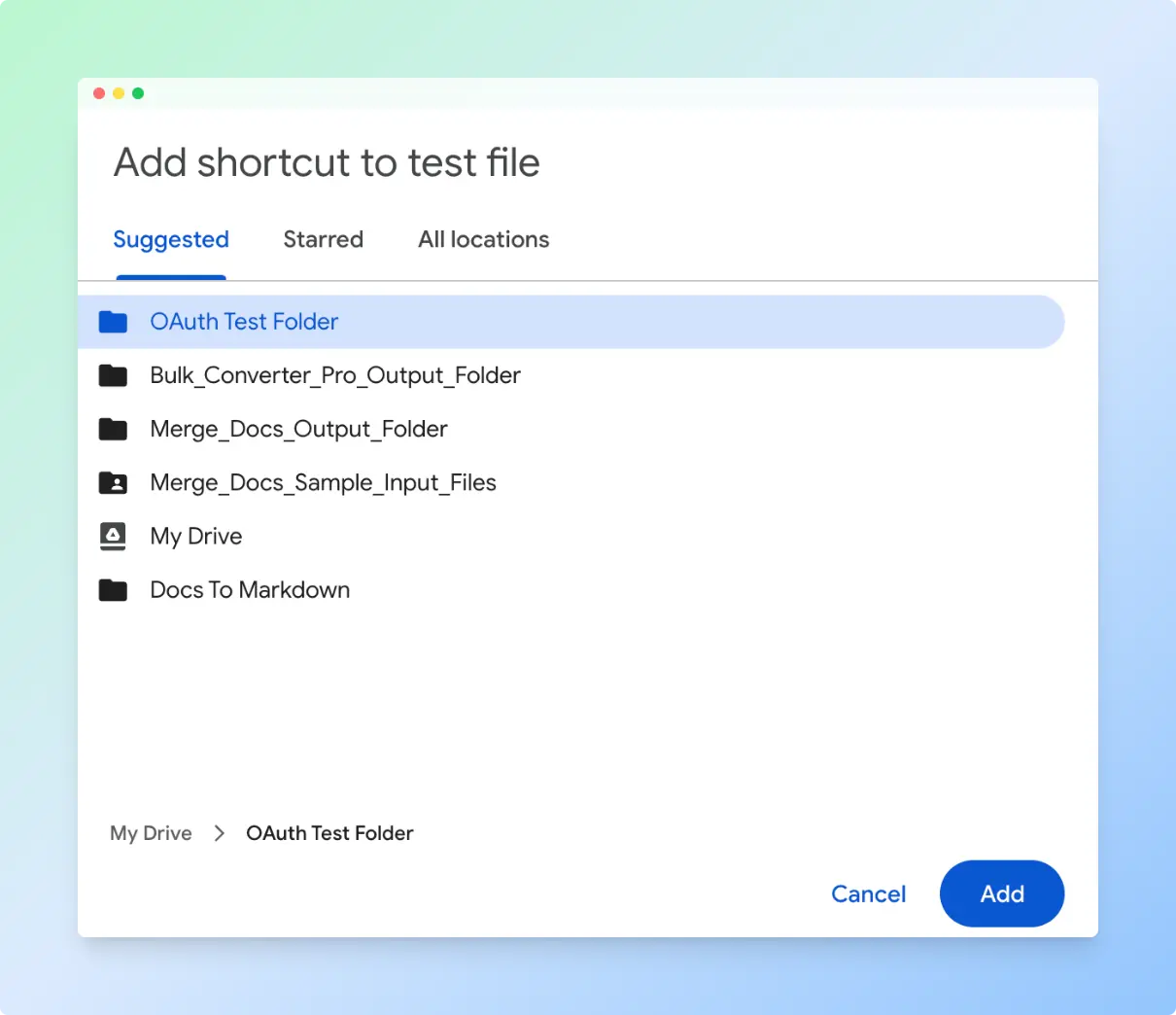
Click Add.
Result: The shortcut opens the original Doc, so everyone always sees the latest version. Google’s Drive shortcuts help explains limits and permissions.
Note: Since Google replaced files stored in multiple locations with shortcuts, a file can’t have two parent folders.
Comparing the methods
| Method | Best for | Works with |
|---|---|---|
| Move icon | Opening the folder or moving the file | Edit access |
| File → Details | Reading the folder name quickly | View access or higher |
| Drive → File information → Details | Files you found through Drive search | Any file you can see in Drive |
Troubleshooting
- The location is blank or won’t open. The Doc was shared with you, but its folder wasn’t. Ask the owner to share the folder.
- There’s no Move icon. You have view or comment access. Use File → Details instead.
- The Doc seems to be in two places. One of them is a shortcut. Shortcuts show a small arrow on the file icon in Drive.
- You can’t find a Doc another app created. Tools such as Gemini’s Export to Docs save a new Doc in Drive. Open it, then use the Move icon to see or change its folder.
What to do next
Once you’re in the folder, a few common next steps:
- Lock the Doc from Drive so nobody changes it by accident.
- Merge multiple Google Docs into one when the folder holds chapters or reports you need as a single file.
- Download files from Drive on the command line using the file ID.
For more Drive and Docs how-tos, see the Google Docs guides.