
Gemini’s language setting controls menus, notifications and the language you can speak to it in. It doesn’t limit what you can type: Gemini can understand and reply in any supported language.
Where to change it:
- Android: in the Gemini app’s settings
- iPhone and iPad: through your device language
- Web: through your browser or device language
- One conversation: by asking in the chat
Changing Gemini language on Android
Use this when you use the Gemini app on an Android phone or tablet.
Open the Gemini app.
At the left, tap Menu.
Tap your profile picture or initial, then Settings.
Tap Languages.
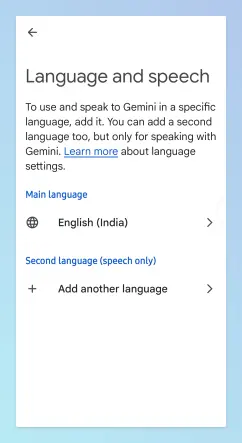
Choose a language from Google’s supported languages list.
Result: Gemini’s menus and voice input switch to the new language. You may also see an option to add a second language for speech only.
Note: Google’s Android steps are in its Change Gemini’s language help page. Older versions of the app showed a profile icon at the top right instead of a menu.
Changing Gemini language on iPhone or iPad
Use this when you use the Gemini app on iOS. The app has no separate language setting; it uses your device’s primary language.
- Open the Settings app.
- Tap General → Language & Region.
- Under Preferred Languages, tap Add Language.
- Select a supported language.
- Choose it as your primary language when prompted.
Result: Your iPhone or iPad, and the Gemini app, use the new language.
Changing Gemini language on the web
Use this when you use Gemini at gemini.google.com. Google says the web app uses the language set in your browser or device.
In Google Chrome:
- At the top right, click More (three dots) → Settings.
- On the left, click Languages.
- Under Preferred languages, click Add languages, pick a language, and click Add.
- Move your language to the top of the list with More → Move to the top.
- Reload Gemini.
Result: Gemini’s interface follows the new browser language. Other browsers have a similar language setting; on some systems the browser simply uses the device language.
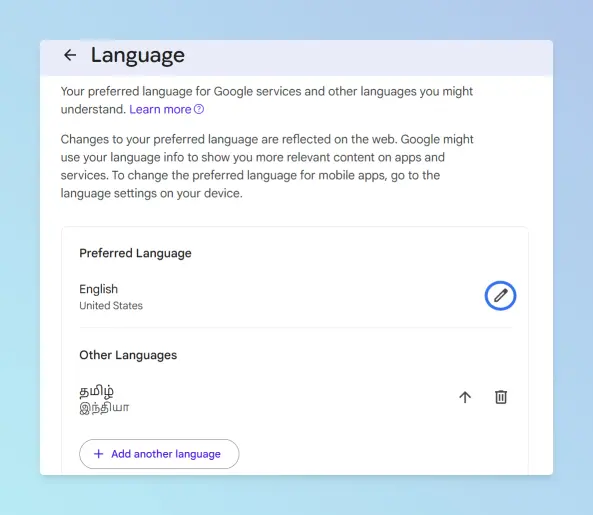
Note: Your Google Account also has a language setting for Google services on the web. If Gemini still shows the old language after a browser change, check it at Manage your Google Account → Personal info → Language, as described in Google Account language help.
Changing only the reply language
Use this when you want answers in another language without changing any settings.
Type an instruction in the chat. For example:
Respond only in Tamil from now on.Translate your next response into Tamil.Give the answer in both English and Tamil.
Result: Gemini replies in that language for the conversation. Your app and account settings don’t change.
Comparing the methods
| Method | Best for | Works on |
|---|---|---|
| Gemini app → Settings → Languages | Menus, notifications and voice language | Android |
| Device language | Changing Gemini along with all other apps | iPhone, iPad |
| Browser or device language | Changing the Gemini web interface | Web (any computer) |
| Ask in the chat | One conversation in another language | All platforms |
Troubleshooting
- My language isn’t listed. Gemini supports a limited set of languages, and some features, such as voice settings, aren’t available in every language.
- The web app didn’t change. Reload the page, then check your browser’s language order and your Google Account language.
- Voice input still uses the old language. On Android, check the main language and the speech-only second language under Languages.
Saving Gemini answers to Google Docs
Use this when a reply in another language needs to become a document. Below the response, click Share & export → Export to Docs; Gemini saves it as a new Doc in Google Drive.
To save whole conversations as files, see how to export a Gemini chat to Google Docs, PDF or Word.
From there you can find the new Doc’s folder in Drive or convert the Google Doc to Word. For more Docs, Drive and Gemini how-tos, see the Google Docs guides.