
Word can’t open LaTeX source as a formatted document, so you need a converter. Pandoc handles most papers in one command; the sections below cover images, citations, equations, styles and the cases where it needs help.
What you’ll learn
- Convert a whole .tex file with Pandoc (recommended)
- Paste a single LaTeX equation into Word
- Convert with make4ht when you rely on custom packages
- Convert an Overleaf project and multi-file theses
Note: Going the other way? See how to convert Google Docs to LaTeX, or bring LaTeX into Google Docs instead of Word.
Convert LaTeX to Word with Pandoc
Use this when you want the whole document in Word with editable equations, embedded images and a formatted bibliography.
Pandoc is a free, open-source document converter. It reads LaTeX directly and writes .docx, so you don’t need Word or a TeX installation for the conversion itself.
Install Pandoc. Download the installer from pandoc.org, or use a package manager:
- Windows:
winget install --source winget --exact --id JohnMacFarlane.Pandoc - macOS:
brew install pandoc
- Windows:
Open a terminal in your project folder, the folder that holds the main
.texfile, the.bibfile and the image folders.Run the conversion:
Terminal window pandoc paper.tex -o paper.docx --citeproc --bibliography=refs.bibOpen
paper.docxin Word and check headings, figures, equations and references. If you skipped-N, you can add numbered headings in Word afterwards.
Result: a .docx with Word headings, embedded figures, editable equations and a reference list at the end.
Pandoc flags for LaTeX to Word
These are the options you will actually need. All are documented in the Pandoc user’s guide.
| Flag | What it does |
|---|---|
-o paper.docx | Sets the output file. The .docx extension selects Word output. |
--citeproc | Turns \cite commands into formatted citations and adds a bibliography. Required since Pandoc 2.11. |
--bibliography=refs.bib | Points to your BibTeX file. |
--csl=apa.csl | Applies a citation style (APA, IEEE, Chicago and so on). Without it, Pandoc uses Chicago author-date. |
--reference-doc=template.docx | Copies styles (fonts, heading styles, margins) from a Word file you prepared. |
--resource-path=.:figures | Extra folders to search for images. Use ; instead of : on Windows. |
-N / --number-sections | Numbers the section headings. |
--toc | Adds a table of contents. |
Warning: Older guides use
--reference-docx. It was removed in Pandoc 2.0, and current versions stop with an error. Use--reference-doc. Older guides also add--mathml; it only affects HTML-type output and does nothing for .docx.
Images
Pandoc embeds every image referenced with \includegraphics into the .docx. You don’t need --extract-media for this.
\begin{figure} \centering \includegraphics[width=0.5\textwidth]{image.png} \caption{Example Image} \label{fig:example}\end{figure}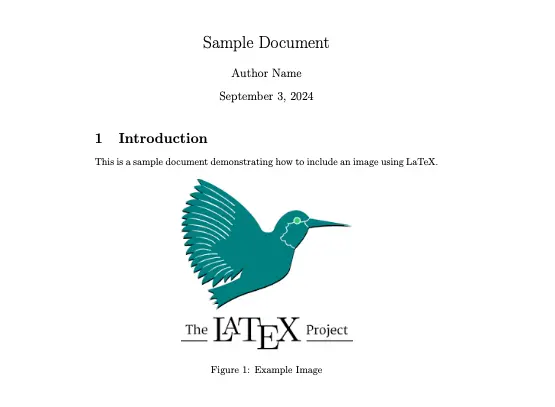
If Pandoc prints Could not fetch resource figures/plot.png, you are running it from the wrong folder. Run it from the folder the paths are relative to, or add --resource-path.
Citations and bibliography
Pandoc reads your .bib file and formats each \cite{key} with a Citation Style Language (CSL) style.
pandoc thesis.tex -o thesis.docx --citeproc --bibliography=refs.bib --csl=apa.csl- Download
.cslfiles for thousands of journal styles from the CSL styles repository, then pass the file name to--csl. - Without
--citeproc, citations simply disappear from the output and no reference list is added. - The citations are plain formatted text in Word, not live Zotero or Mendeley fields. To keep editing sources in Word, manage citations and references in Word instead.
Equations and cross-references
Pandoc writes .docx maths as native Office Math, the same format Word’s own equation editor uses. Every equation, align and inline $...$ becomes an editable Word equation.
\begin{equation} a^2 + b^2 = c^2\end{equation}- Simple custom macros defined with
\newcommandin the same file are usually expanded. Macros from your own.styfiles are not. - Figure references (
\ref{fig:example}) generally become numbers. - Equation references may stay as the label text, for example
[eq:energy]. Search the .docx for[and fix the few that remain. - Multi-line environments convert well. If you still need to restructure a long formula, see how to break long equations across lines in LaTeX.
Word styles with a reference document
Pandoc maps LaTeX structure to Word styles such as Heading 1, Body Text and Caption. A reference document controls how those styles look.
Create the default template:
pandoc -o custom-reference.docx --print-default-data-file reference.docxOpen
custom-reference.docxin Word and change the styles (fonts, sizes, spacing, margins). Don’t add your own content.Save it, then convert with:
Terminal window pandoc thesis.tex -o thesis.docx --citeproc --bibliography=refs.bib --reference-doc=custom-reference.docx
Result: the converted document uses your fonts and heading styles, so it matches a university or journal Word template.
Paste a single LaTeX equation into Word
Use this when you only need one or two formulas in an existing Word document. The video at the top of this page shows the steps.
- In Word, select Insert > Equation, or press Alt + = on Windows.
- On the Equation tab, in the Conversions group, set the input format to LaTeX.
- Paste or type the formula, for example
\frac{a}{b+c}. - Select Convert > Professional, or press Ctrl + = on Windows.
Result: the LaTeX code turns into a formatted, editable Word equation.
LaTeX input is a Word for Microsoft 365 feature, and Microsoft’s guide to UnicodeMath and LaTeX equations in Word lists the supported syntax.
Recent builds (Version 2606 on Windows, 16.110 on Mac) also accept \begin{...} environments and \newcommand macros, according to Microsoft’s LaTeX reference for Office; on older builds, paste the formula itself.
If the formula comes from an AI chat, see copying ChatGPT and Gemini equations into Word.
Tip: For the equation editor, ink and UnicodeMath, see how to write math equations in Word, or browse the Word symbols and equations guides.
Convert LaTeX to Word with make4ht
Use this when your document depends on custom packages or macros that Pandoc ignores.
make4ht is part of TeX4ht and comes with TeX Live. It runs your document through real LaTeX, so every package and macro is processed, and writes an OpenDocument file that Word opens.
- Open a terminal in the project folder.
- Run
make4ht -f odt paper.tex. - Open
paper.odtin Word and save it as .docx with File > Save As.
Result: a Word file that reflects your custom macros. Equations may need checking, so compare a few against the PDF.
Convert an Overleaf project to Word
Overleaf doesn’t offer a Word download, but its source files work with Pandoc.
- In Overleaf, download the project source as a .zip file.
- Unzip it and open a terminal in the unzipped folder.
- Run Pandoc on the main file, usually
main.tex, with the flags above.
Pandoc follows \input and \include, so chapters split into separate files come along, as long as you run it from the project folder.
Converting a thesis split into chapters
Use this when each chapter lives in its own .tex file or you’ve already converted chapters separately.
- Before converting: combine several .tex files into one with our free tool, or keep a
main.texthat uses\input, then convert once. - After converting: merge the converted chapters into one Word document.
- Working in Google Drive? Merge Docs Pro combines Word files and Google Docs into one Google Doc and can export the result as Word or PDF.
Which LaTeX to Word method should you use?
| Method | Best for | Works on |
|---|---|---|
| Pandoc | Whole papers and theses with equations, figures and citations | Windows, macOS, Linux |
| Word equation editor (LaTeX input) | One or two formulas in an existing Word file | Word for Microsoft 365 |
| make4ht | Documents built on custom packages and macros | Any system with a TeX distribution such as TeX Live |
| PDF opened in Word | A quick look when you have no source files | Word for Windows and the web |
Opening the compiled PDF in Word is the last resort: it reflows the layout and usually turns equations into plain text or images.
Windows, Mac and web differences
- Pandoc and make4ht behave the same on Windows, macOS and Linux. Only the install command and the
--resource-pathseparator differ. - LaTeX equation input is part of Word for Microsoft 365. On a Mac or in Word for the web, open Insert > Equation and check whether the Equation tab offers a LaTeX option before relying on it.
- Keyboard shortcuts Alt + = and Ctrl + = are Word for Windows shortcuts. On a Mac, use the Insert menu and the Equation tab instead.
Troubleshooting LaTeX to Word conversion
--reference-docx has been removed: rename the flag to--reference-doc.- Citations missing or shown as keys: add
--citeprocand check that the.bibpath is right. Could not fetch resource: run Pandoc from the project folder or add--resource-path.\inputfile not found: same cause; paths are resolved from the folder you run Pandoc in.- Macros missing in the output: define them in the main file, or switch to make4ht.
- TikZ or PGF drawings missing: compile them to PDF or PNG first and include the images with
\includegraphics. - References shown as
[fig:x]or[eq:x]: fix them by hand in Word, or replace them with plain text before converting.
For most documents, Pandoc with --citeproc and a reference document gets you a clean, editable Word file in one command. Browse the LaTeX guides for more conversion and formatting help.