
Lists pasted from ChatGPT, a web page or another document often come out with the words far from their bullets and the points squashed together. Word controls these two gaps with two different settings, so you fix them one at a time.
- Change the space between a bullet and its text
- Add space between bullet points
- Remove space between bullet points
- Apply the spacing to every new list
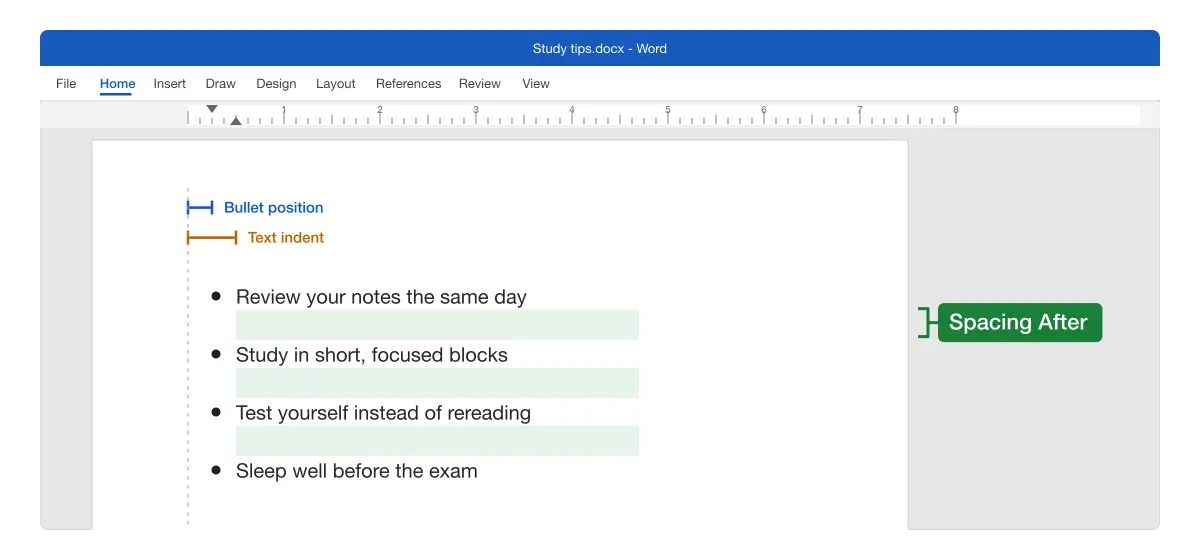
The two kinds of list spacing
| Gap | Setting that controls it | Where |
|---|---|---|
| Between the bullet and its text | Text indent (minus Bullet position) | Right-click a bullet > Adjust List Indents |
| Between one bullet point and the next | Spacing After (or Before) | Home > Paragraph settings |
| Between lines inside one long point | Line spacing | Home > Paragraph settings |
Where the bullet itself sits, and fixing bullets that are out of line, is covered in how to align bullet points in Word.
Changing the space between a bullet and its text
Use this when the words sit too far from, or too close to, their bullets.
- Click any bullet once. Every bullet at that level highlights, but the text doesn’t.
- Right-click a highlighted bullet and choose Adjust List Indents.
- Leave Bullet position as it is. It sets where the bullet sits.
- In Text indent, type a smaller number to bring the text closer, or a bigger one to move it away. For example, change 1” to 0.7”.
- Click OK.
Result: The text starts the same distance from every bullet. Microsoft covers this dialog in Change bullet indents.
The gap you see is Text indent minus Bullet position. With the bullet at 0.25” and the text at 0.5”, the gap is a quarter of an inch.
Tip: Follow number with sets what comes after each bullet. Tab character lines the text up at Text indent; Space puts it right after the bullet, for the tightest gap.
Adding space between bullet points
Use this when the points are squashed together with no space between them.
- Select the whole list: drag from the first word to the last.
- On the Home tab, click the small arrow in the corner of the Paragraph group.
- On the Indents and Spacing tab, under Spacing, click Don’t add space between paragraphs of the same style until the box is empty.
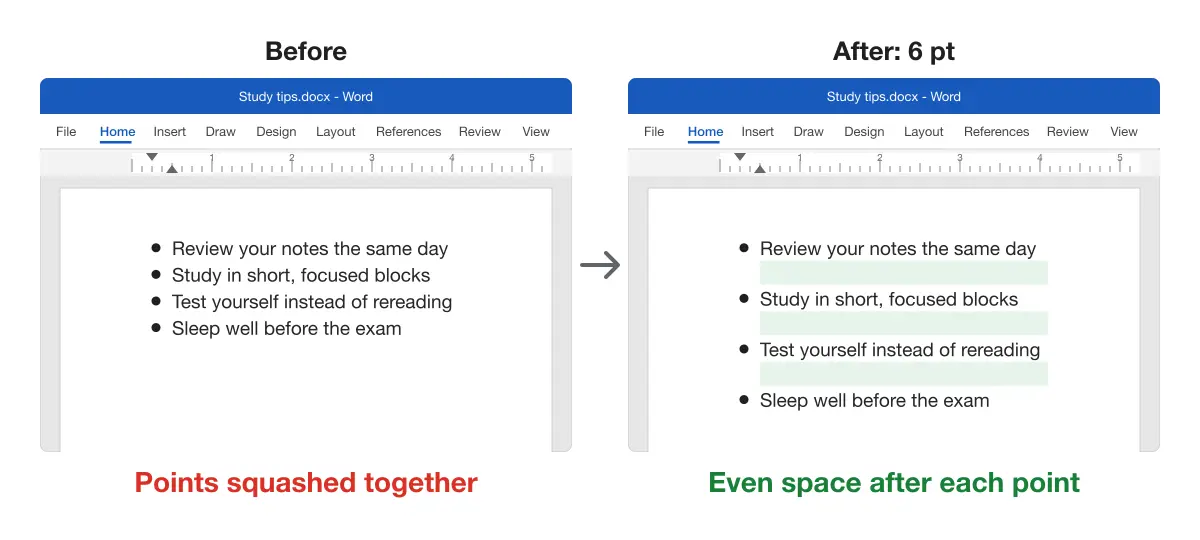
- Set After to 6 pt.
- Click OK.
Result: An even space appears after every point. Microsoft describes the same option in Change line spacing between bullets.
Note: A filled square in that box, not a tick, means only some points have the setting. Click it again until it’s completely empty, or the spacing won’t change.
Use 12 pt for a full blank line between points, or 3 pt for a slight gap.
Removing space between bullet points
Use this when the points are too far apart, for example after pasting from a web page.
- Select the whole list.
- Open the Paragraph settings from the Home tab.
- Set Before and After to 0 pt, or tick Don’t add space between paragraphs of the same style.
- Click OK.
Result: The points sit directly under each other.
If long points also have wide gaps between their own lines, change Line spacing to Single in the same window. See how to change line spacing in Word for the options.
Applying the spacing to every new list
Use this when you want every list in the document to look the same without fixing each one.
- Click inside a list that’s spaced the way you want.
- On the Home tab, find the list’s style in the Styles gallery, usually List Paragraph.
- Right-click it and choose Update List Paragraph to Match Selection.
Result: Every list that uses the style takes the same spacing between points.
The gap between bullet and text belongs to the list itself, not the style, so set it with Adjust List Indents for each list.
Keeping pasted lists tidy
Pasted lists bring their own indents and spacing, and a list pasted in pieces can carry different settings per point. Select the whole list before changing anything.
For pasting habits that avoid the problem, see keeping pasted lists aligned. If your list comes from ChatGPT, our ChatGPT to Word or PDF extension, built by the team behind Merge Docs Pro, sends the response to Word with the list already formatted.
Comparing the methods
| Problem | Fix |
|---|---|
| Text too far from the bullet | Smaller Text indent |
| Text too close to the bullet | Bigger Text indent |
| Points squashed together | Untick the same-style box, After: 6 pt |
| Points too far apart | Before and After: 0 pt |
| Every list should match | Update the List Paragraph style |
Platform differences
- Windows: all steps above.
- Mac: open the spacing options from Format > Paragraph; the same-style box is there too. For list indents, see Microsoft’s Mac list guide.
- Word for the web: space between points is under Home > Line Spacing. Microsoft says bullet indents can’t be fine-tuned there, so change Text indent in the desktop app.
Troubleshooting bullet spacing
- Text indent changed nothing. Follow number with is set to Space or Nothing. Set it to Tab character so the text lines up at Text indent.
- Only some bullets changed. You clicked a bullet at a different level, or the list was pasted as separate lists. Fix each level, or align the bullets first.
- Spacing After didn’t add space. The same-style box still has a tick or a filled square. Click it until it’s empty.
- One point still looks wider. It has spaces typed before its first word, which no setting removes. Turn on Show/Hide ¶ and delete them.
- The space between points is uneven. Some points have their own Before spacing. Select the whole list and set Before to 0 pt.
For more fixes to pasted text, see how to double space in Word and the Microsoft Word guides.