
Text pasted from ChatGPT, Gemini, Claude or a web page often brings odd fonts, sizes, colours and spacing with it. Word’s Clear All Formatting button resets all of it in one click, so the text matches the rest of your document.
- Clear all formatting in one click
- Remove leftover highlights
- Fix text typed in capitals
- Paste text without formatting
- Clean up text pasted from AI chats
- Hide formatting marks
Clearing all formatting
Use this when pasted text looks different from the rest of the document.
- Select the text. Press Ctrl + A (Cmd + A on Mac) for the whole document.
- Go to the Home tab.
- In the Font group, click Clear All Formatting, the letter A with a pink eraser.
Result: The text returns to the document’s Normal style. Microsoft describes the button in Clear all text formatting.
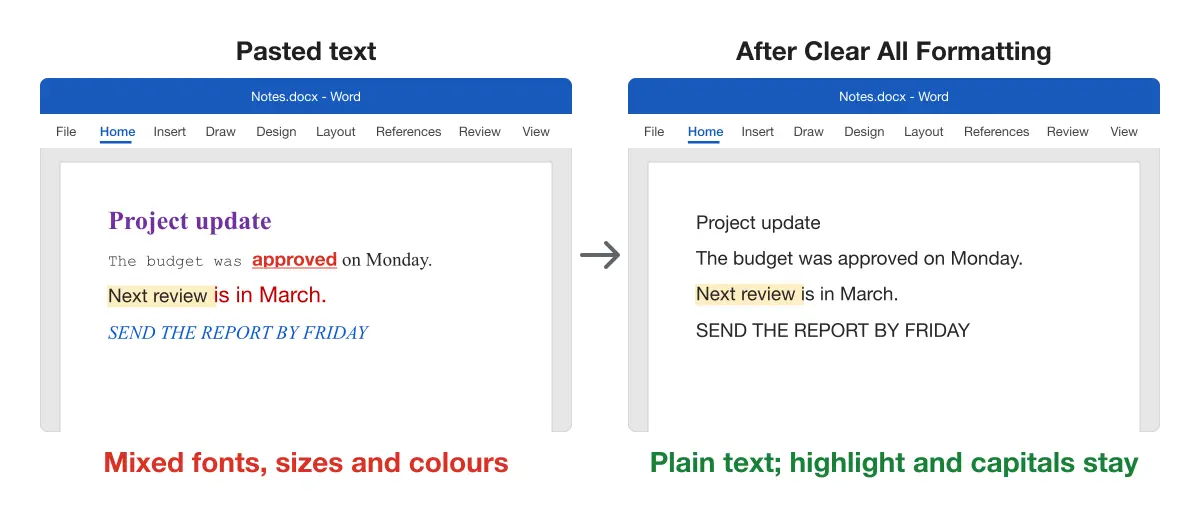
Clear All Formatting removes:
- fonts, font sizes and font colours;
- bold, italic, underline, strikethrough, superscript and subscript;
- text effects such as shadows and glows;
- line and paragraph spacing, indents and alignment;
- heading and other paragraph styles, which become Normal.
It doesn’t remove highlight colour, letters typed in capitals, hyperlinks, tables or images.
Tip: Clearing the whole document also turns your headings into body text. To keep them, select only the pasted paragraphs.
Clearing formatting with keyboard shortcuts
Use these when you only want to reset one kind of formatting. Microsoft lists them in its Word keyboard shortcuts.
| Shortcut (Windows) | What it removes | What it keeps |
|---|---|---|
| Ctrl + Spacebar | Character formatting: font, size, colour, bold, italic | Paragraph style, spacing and indents |
| Ctrl + Q | Paragraph formatting: spacing, indents, alignment | Fonts and bold |
| Ctrl + Shift + N | Applies the Normal style to the paragraph | Direct character formatting such as bold |
For example, Ctrl + Spacebar fixes a pasted heading’s odd font while keeping it a heading.
Removing leftover highlight color
Use this when a highlight stays after Clear All Formatting.
- Select the highlighted text, or press Ctrl + A.
- On the Home tab, click the arrow next to Text Highlight Color.
- Choose No Color.
Result: The highlight is gone. The steps match Microsoft’s highlight guide.
Shading from a web page is different from highlighting. If a background colour remains, select the text and choose Home > Shading > No Color.
Fixing text typed in capitals
Use this when text stays in capitals after clearing formatting.
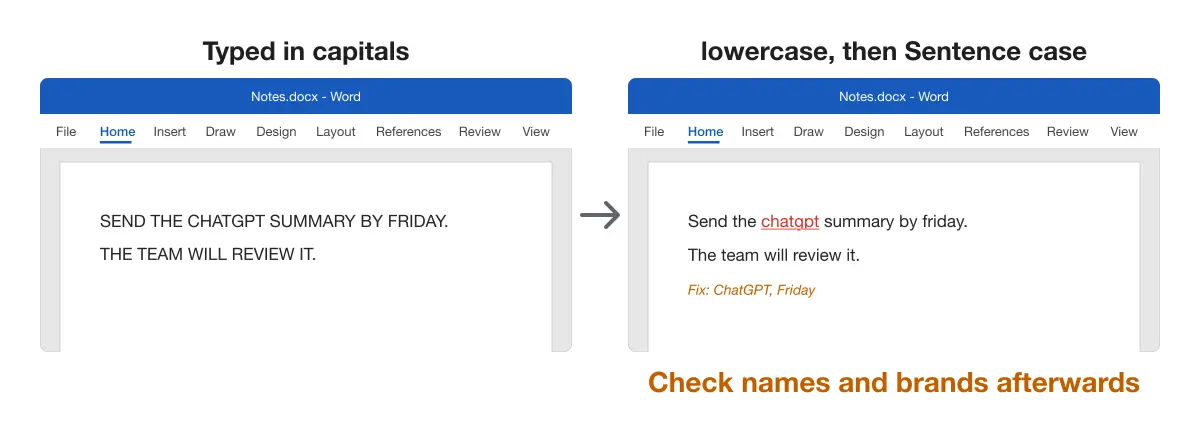
Clear All Formatting removes the All Caps setting, but it can’t change letters that were typed as capitals. Change the case instead:
- Select the text.
- On the Home tab, click Change Case (the Aa button).
- Choose lowercase.
- Click Change Case again and choose Sentence case.
Result: Each sentence starts with a capital letter and the rest is lowercase.
You can also press Shift + F3 to cycle the selection through uppercase, lowercase and title case.
Note: Sentence case also lowercases names and brands, such as “ChatGPT” or “Microsoft Word”. Check them afterwards.
Pasting text without formatting
Use this to avoid the cleanup in the first place.
- Shortcut: press Ctrl + Shift + V to paste text only.
- Paste Options: paste with Ctrl + V, press Ctrl, then choose Keep Text Only (T).
- Make it the default: go to File > Options > Advanced. Under Cut, copy, and paste, set Pasting from other programs to Keep Text Only.
Word has four paste options, per Microsoft’s paste formatting guide:
| Option | What it does |
|---|---|
| Keep Source Formatting | Keeps the copied fonts, colours and styles |
| Merge Formatting | Takes the destination’s style but keeps bold and italic |
| Picture | Pastes the text as an image (Microsoft 365) |
| Keep Text Only | Removes all formatting; tables become plain paragraphs |
Merge Formatting is often the best middle ground. It matches your document’s font but keeps emphasis.
Cleaning up text pasted from AI chats
Use this when an AI answer arrives with stray Markdown symbols or broken layout.
- Asterisks around words: the chat’s bold markers came through as text. Open Home > Replace, find
**, leave Replace with empty and click Replace All. Leave Use wildcards unticked. - Hash signs before headings: replace
##and#the same way, then apply heading styles. - Extra blank lines or uneven spacing: clear formatting first, then set spacing as described in the line spacing guide.
- Unwanted links: Clear All Formatting keeps hyperlinks. See how to remove hyperlinks in Word.
- Gaps between words: see how to remove extra spaces in justified text.
- Crooked bullet points: see how to align bullet points in Word.
- Uneven gaps in a list: see how to adjust space between bullets and text.
Clearing formatting also removes the headings and bold text you wanted to keep. Our Chrome extensions, built by the team behind Merge Docs Pro, export ChatGPT, Claude and Gemini chats to Word with that formatting intact.
The guide to copying ChatGPT to Word with formatting shows both the paste route and the extension.
Hiding formatting marks
Use this when you see ¶ symbols and dots between words.
These are formatting marks: ¶ for paragraph breaks, dots for spaces and arrows for tabs. They show the document’s structure and don’t print.
- On the Home tab, click Show/Hide ¶.
- Or press Ctrl + Shift + 8.
Result: The marks are hidden. Turn them back on when you need to find stray spaces, blank paragraphs or breaks, for example when you delete a blank page.
Comparing the methods
| Method | Best for | Keeps headings |
|---|---|---|
| Clear All Formatting | Resetting text completely | No |
| Ctrl + Spacebar | Fixing fonts and colours only | Yes |
| Ctrl + Q | Fixing spacing and indents only | Yes |
| Keep Text Only | Pasting clean text from the start | No |
| Merge Formatting | Pasting with your fonts but keeping bold | No |
Platform differences
- Windows: all buttons and shortcuts above.
- Mac: Home > Clear All Formatting, Change Case and Text Highlight Color work the same. Use Cmd instead of Ctrl for select all.
- Word for the web: select the text and click Clear Formatting on the Home tab. On narrow screens it may be under More (…).
- Phones and tablets: select the text and choose Clear Formatting from the font options.
Troubleshooting
- Nothing changed. The text may already be in the Normal style with highlights or capitals. Use No Color or Change Case.
- The font is still wrong after clearing. The Normal style itself uses that font. Change it under Home > Styles, right-click Normal > Modify.
- A table still has borders and shading. Clear All Formatting doesn’t change tables. Click in the table and pick a plainer design from Table Design, or use Layout > Convert to Text.
- The document is locked and the button is greyed out. Editing may be restricted. See how to unlock selection in Word.
- Spacing is still uneven. Paragraph spacing comes from the style. Reset it with the double spacing guide or the line spacing guide.
For more fixes, see the Microsoft Word guides.