
Lists pasted from ChatGPT, a web page or another document often come out crooked: a few bullets start further in than the rest, or a sub-point sits at the main level. Word can line them up again in a few clicks.
- Align one bullet with Format Painter
- Align several bullets at once
- Align the whole list with Adjust List Indents
- Move a sub-bullet in or out
- Keep pasted lists aligned
Why bullets go out of line
Each bullet paragraph stores its own indent. When you paste a list, some paragraphs can bring a different indent from where they were copied, so their bullets start in a different place.
Turn on View > Ruler and click into a crooked bullet. The indent markers on the ruler jump to a different spot than they do for the bullets that line up.
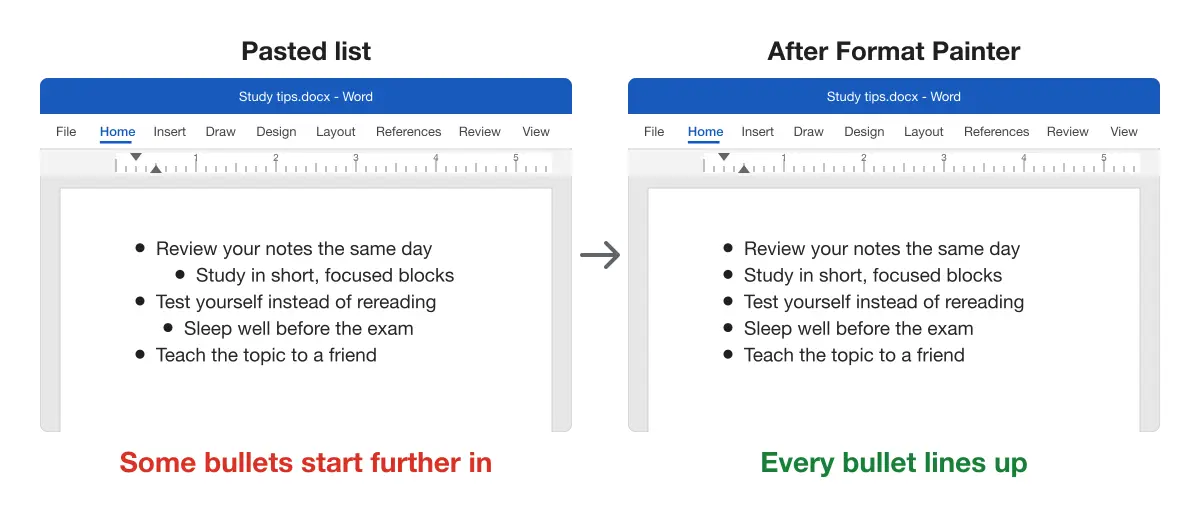
Aligning one bullet with Format Painter
Use this when one bullet starts further in, or further out, than the rest.
- Click inside a bullet point that sits in the right place.
- On the Home tab, click Format Painter (the paintbrush).
- Drag over the crooked bullet point.
Result: The crooked bullet now starts in the same place as the others.
Format Painter copies the whole paragraph’s formatting, so the fixed bullet also takes the font and spacing of the bullet you copied from.
Aligning several bullets at once
Use this when bullets are crooked in different places down the list.
- Click inside a bullet that sits in the right place.
- Double-click Format Painter. It stays on.
- Drag over each crooked bullet, one after another.
- Click Format Painter again, or press Esc, to turn it off.
Result: Every bullet you dragged over lines up with the first one.
Aligning the whole list with Adjust List Indents
Use this when the whole list should move, for example to start exactly at the margin.
- Click any bullet in the list. Every bullet at that level is selected.
- Right-click and choose Adjust List Indents.
- Set Bullet position, for example 0” to start at the margin.
- Click OK.
Result: Every bullet at that level moves to the same position. Microsoft covers this dialog in Change bullet indents.
The same dialog has Text indent, which sets the gap between each bullet and its text. That, and the space between bullet points, is covered in how to adjust space between bullets and text.
Tip: If clicking a bullet selects only part of the list, the list was pasted as separate lists. Fix it with Format Painter first, then use Adjust List Indents.
Aligning bullets with the ruler
Use this when you want to see the bullets move as you drag.
- Turn on View > Ruler.
- Select the bullets you want to move.
- Drag the top triangle (First Line Indent) to move the bullets.
- Drag the bottom triangle (Hanging Indent) to move the text that follows them.
Result: The selected bullets move together. Dragging the small square under the triangles moves both at once.
The same markers set a hanging indent in Word, so the text of a long bullet wraps under its first word rather than under the bullet.
Moving a sub-bullet in or out
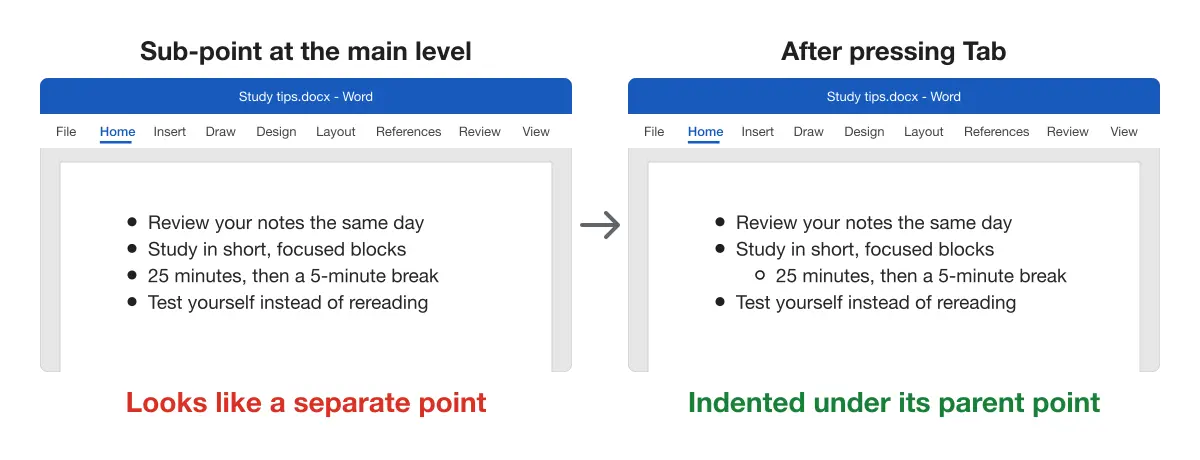
Use this when a sub-point sits at the same level as the main points, or the other way round.
- Click right before the sub-bullet’s first letter.
- Press Tab to move it in one level.
- Press Shift + Tab to move it back out.
Result: The sub-bullet sits one level in, under the point above it, often with a different bullet symbol.
To pick an exact level, use Home > Multilevel List > Change List Level, as Microsoft describes in its bullet indents guide. For outlines that number their headings, see numbered headings in Word.
Keeping pasted lists aligned
Use these when you paste lists often.
- Paste as text, then add bullets. Press Ctrl + Shift + V to paste text only, select the lines and click Home > Bullets. Every bullet starts the same way.
- Clear the pasted formatting first. Select the list and click Clear All Formatting, then apply bullets again. See how to clear all formatting in Word.
- Paste with Merge Formatting. It matches your document’s style but keeps bold and italic. The paste options are covered in copying ChatGPT to Word with formatting.
- Export instead of pasting. If your list comes from an AI chat, our ChatGPT to Word or PDF extension, built by the team behind Merge Docs Pro, sends the response to Word in one click with the list already formatted. See the ChatGPT export guide; the Claude and Gemini versions have their own guides.
Comparing the methods
| Problem | Method |
|---|---|
| One bullet starts in the wrong place | Format Painter, single click |
| Several bullets are crooked | Format Painter, double-click |
| The whole list should move | Right-click > Adjust List Indents |
| You want to drag and see the change | The ruler’s indent markers |
| A sub-point is at the wrong level | Tab or Shift + Tab |
Platform differences
- Windows: all methods above.
- Mac: Format Painter, Tab, Shift + Tab and the ruler work the same. Microsoft’s Mac list guide covers indent settings there.
- Word for the web: it keeps the alignment set in the desktop app, but you can’t fine-tune bullet alignment there, per Microsoft. Use Open in Word.
Troubleshooting bullet points
- Tab adds a gap instead of indenting. The cursor isn’t at the start of the text. Click right before the first letter and press Tab again.
- Format Painter changed the font too. It copies all paragraph formatting. Copy from a bullet with the font you want, or fix the font afterwards.
- Bullets appear while you type and you don’t want them. Word turns lines starting with
*or-into lists. Clear Automatic bulleted lists under File > Options > Proofing > AutoCorrect Options > AutoFormat As You Type, per Microsoft’s guide. - Bullets show as squares or odd symbols. The bullet font was lost in the paste. Select the list and pick a bullet again from Home > Bullets.
- The text after each bullet wraps under the bullet. The hanging indent is missing. Drag the bottom triangle on the ruler to where the text starts.
For more fixes to pasted text, see how to remove hyperlinks in Word and the Microsoft Word guides.