
Margins are the blank space between your text and the page edge. Google Docs applies them only in Pages format, and they also control how wide your columns, tables and images can be.
Methods in this guide:
- File → Page setup for exact values, sections and defaults
- The ruler for quick visual changes
Changing margins using Page setup
Use this when you need exact numbers, such as a 1-inch margin for a school or style-guide requirement.
Open the document in Google Docs on your computer.
Click File → Page setup.
At the top of the dialog, select Pages. (If you only see pageless options, see Pageless format below.)
Under Apply to, check the scope. Depending on your document, the list can include Whole document, This tab, This section, This section forward or Selected content.
Under Margins, type values for Top, Bottom, Left and Right.
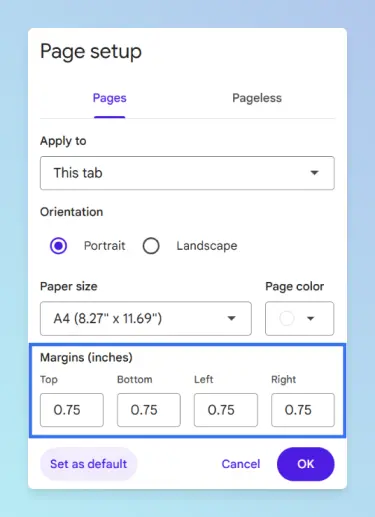
Optional: click Set as default so new documents you create use the same settings.
Click OK.
Result: The margins change right away for the scope you chose. The same dialog also lets you change one page to landscape or change the paper size.
Tip: Common values are 1 inch on all sides (the usual requirement for MLA and APA papers) and 0.5 inch for “narrow” layouts that fit more on each page.
Different margins for one part of the document
Use this when only one section, such as an appendix or a wide table, needs different margins.
- Click where the new section should start.
- Click Insert → Break → Section break (next page) or Section break (continuous).
- Place the cursor inside the new section.
- Open File → Page setup and set Apply to to This section (or This section forward).
- Enter the margins and click OK.
To see where sections start and end, click View → Show section breaks. Google’s help on page and section breaks covers each break type.
Changing margins using the ruler
Use this when you want a quick visual adjustment and don’t need the same value on every side.
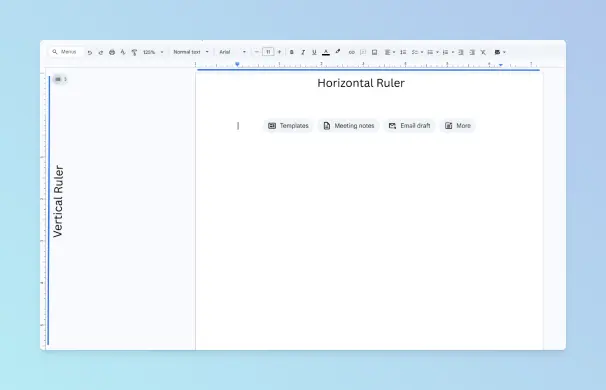
If the rulers are hidden, click View → Show ruler.
Find the margin edge: the line between the gray area at the end of the ruler and the white text area.
- The top ruler controls the left and right margins.
- The ruler on the left side controls the top and bottom margins.
Move the pointer over the margin edge until it becomes a two-sided arrow (↔).
Drag the edge left or right on the top ruler. The text reflows as you drag.
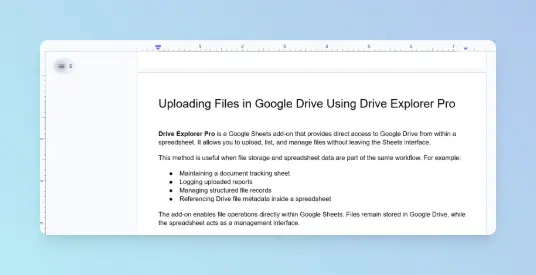
Optional: on the left ruler, drag the edge up or down to change the top or bottom margin.
Result: The margins move to where you release the mouse. Opposite sides may no longer match.
Tip: Drag the margin edge, not the small blue triangle and rectangle. Those are indent markers that control paragraph indents, not margins.
Note: If the ruler doesn’t respond, turn on View → Show print layout and check that the document is in Pages format.
Comparing the two methods
| Method | Best for | Works on |
|---|---|---|
| File → Page setup | Exact values, sections, and a default for new documents | Google Docs on a computer, Pages format |
| Ruler | Quick visual tweaks while you look at the layout | Google Docs on a computer, Pages format |
A practical workflow: drag on the ruler to get the look you want, then open File → Page setup to read off the exact numbers.
Pageless format and document tabs
Margins behave differently depending on the document format and how it’s organised.
- Pageless format: Google’s Page setup help says page size, margins and orientation aren’t available in pageless documents. Click Format → Switch to Pages format, then set margins. See pages vs pageless for what else changes.
- Document tabs: In a document with tabs, Apply to can be set to This tab, so margins can differ from tab to tab. Check the scope before you click OK, then open your other tabs from Show tabs & outlines to confirm.
- Mobile apps: Page setup in the Android and iPhone apps covers orientation, paper size and page color, not margins.
Troubleshooting
- Page setup has no Margins fields. The document is pageless. Switch to Pages format.
- Margins changed in the wrong place. Check Apply to and where your cursor was. Turn on View → Show section breaks to see the sections.
- Only one paragraph moved. You dragged an indent marker, not the margin edge. Undo with Ctrl + Z (Windows) or Cmd + Z (Mac).
- The PDF has different margins. The browser’s print dialog has its own Margins setting. To keep the document’s margins, export the document as a PDF with File → Download instead.
Once margins are set, you can split the page into two columns within them or frame the page with a border. Working in Word as well? See how to change margins in Microsoft Word, or browse more Google Docs layout guides.