
Margins are the white space between your text and the edge of the page. Word stores them per section, so a document can mix margin sizes once you add section breaks.
- Change margins with presets or Custom Margins (exact values)
- Change margins with the ruler (quick visual tweak)
- Change margins for one page only
Changing margins with presets or Custom Margins
Use this when you need exact measurements, or margins that apply to only part of the document.
Click the Layout tab.
Click Margins and choose a preset. Word applies it immediately.
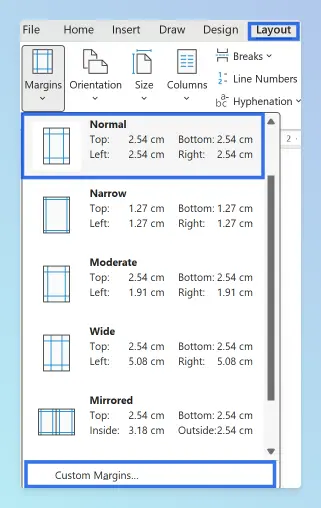
For exact values, choose Custom Margins instead.
Enter Top, Bottom, Left and Right. Add a Gutter only if you need extra space for binding.
Choose an Apply to option, then click OK.
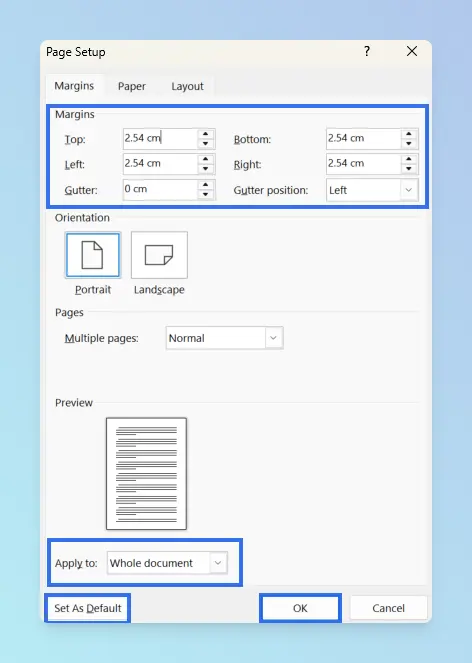
Result: The margins change for the part of the document you chose.
The Apply to options are:
- Whole document: every page.
- This section: only the section your cursor is in.
- This point forward: inserts a section break at the cursor and changes everything after it.
- Selected text: only the selection; Word adds section breaks around it.
Tip: Click Set As Default in the same dialog if you want every new document to start with these margins.
Microsoft’s change margins guide confirms that each page starts with a one-inch margin by default.
Margin presets reference
These are the presets in US versions of Word. Metric versions show the equivalent in centimetres.
| Preset | Top / Bottom | Left / Right |
|---|---|---|
| Normal | 1 in (2.54 cm) | 1 in (2.54 cm) |
| Narrow | 0.5 in | 0.5 in |
| Moderate | 1 in | 0.75 in |
| Wide | 1 in | 2 in |
| Mirrored | 1 in | Inside 1.25 in / Outside 1 in |
Use Mirrored for double-sided printing, where left and right pages face each other. To check facing pages on screen, show two pages side by side in Word.
Changing margins with the ruler
Use this when you want a quick visual adjustment and don’t need exact numbers.
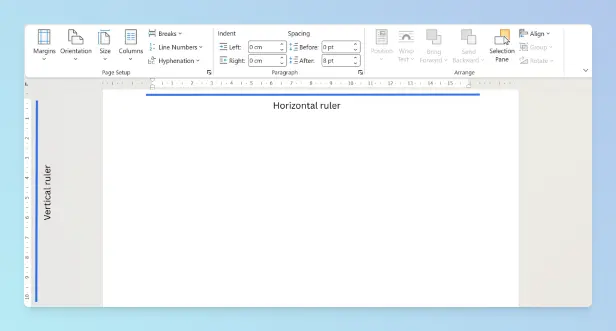
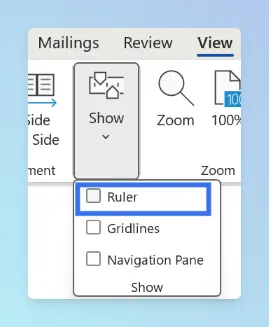
Go to View and check Ruler. This works on Windows and Mac.
On the ruler, find the line between the grey area and the white area. That line is the margin edge.
Hover over it until the pointer becomes a double arrow.
Drag the edge on the horizontal ruler to change the left or right margin.
Drag the edge on the vertical ruler to change the top or bottom margin.
If it looks wrong, press Ctrl + Z (Windows) or Cmd + Z (Mac) and try again.
Tip: Drag the margin edge, not the small triangles and square. Those markers are paragraph indents, and they only move the selected paragraphs.
Result: The margin moves as you drag. Open Custom Margins afterwards if you need the sides to match exactly.
Microsoft’s guide to using the ruler in Word explains what each indent marker does.
Changing margins for one page only
Use this when one page needs different margins, such as a wide table or a cover page.
- Click at the start of the page and go to Layout > Breaks > Next Page.
- Click at the end of the same page and insert another Next Page break.
- Click inside the page, open Layout > Margins > Custom Margins.
- Set the margins, choose Apply to: This section, and click OK.
Result: Only that page has the new margins. The same section approach lets you make one page landscape in Word or start page numbers from a specific page in Word.
Note: Section breaks can leave an empty page behind. If that happens, see how to delete a blank page in Word.
Comparing the methods
| Capability | Presets / Custom Margins | Ruler |
|---|---|---|
| Type exact values | ✅ Yes | ❌ No |
| Change left and right margins | ✅ Yes | ✅ Yes (horizontal ruler) |
| Change top and bottom margins | ✅ Yes | ✅ Yes (vertical ruler, Print Layout) |
| Choose where it applies (Apply to) | ✅ Yes | ❌ Current section only |
| Best for | Print-ready, exact layouts | Quick visual tweaks |
Platform differences
- Windows: Layout > Margins > Custom Margins opens the full Page Setup dialog with Apply to and Set As Default.
- Mac: the same Layout > Margins menu and View > Ruler are available. The Custom Margins dialog looks slightly different.
- Word for the web: Layout > Margins offers presets and custom values. It can’t insert section breaks, so per-page margins need the desktop app.
- Google Docs: margins live under File > Page setup. See how to change margins in Google Docs.
Why does my margin look wrong?
- Only some paragraphs moved: you dragged an indent marker, not the margin edge. Reset the indent in Home > Paragraph.
- Text still doesn’t fit after narrowing margins: reduce the spacing instead; see how to change line spacing in Word.
- Margins changed on the wrong pages: your cursor was in another section, or Apply to was set to This section. Show section breaks with Ctrl + Shift + 8 (Cmd + 8 on Mac).
- Text is cut off when printed: most printers can’t print to the edge of the paper. Use larger margins, or save the document as a PDF and check it before printing.
- Word warns that margins are outside the printable area: click Fix to use the printer’s minimum.
- The page color doesn’t print: Word skips it by default; get the background color to print in Word with one option.
For more layout guides, see the Microsoft Word guides.