
Word numbers pages through the header or footer, and each section can have its own numbering. To skip a cover and contents page, you split the document into sections and restart numbering in the second one.
- Start numbering on any page with a section break (page 3 or later)
- Use Roman numerals for front matter (thesis layout)
- Skip only the first page with Different First Page
Starting page numbers on any page with a section break
Use this when numbering should start on page 3 or later, for example after a cover and table of contents in Word.
Step 1: Add a Next Page section break
- Click at the very end of the last page that should not have a number.
- Go to Layout > Breaks and, under Section Breaks, choose Next Page.
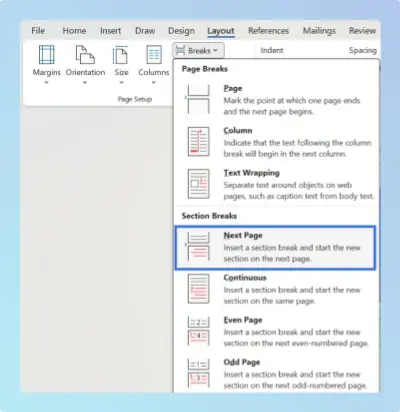
- Press Ctrl + Shift + 8 (Windows) or Cmd + 8 (Mac), or click ¶ on the Home tab, to check that Section Break (Next Page) appears.
Tip: Use a Next Page break, not Continuous, so the numbered section starts on a fresh page.
If an empty page appears, delete the extra ¶ marks above the break, not the break itself. See how to delete a blank page in Word for stubborn cases.
Step 2: Unlink the footer from the previous section
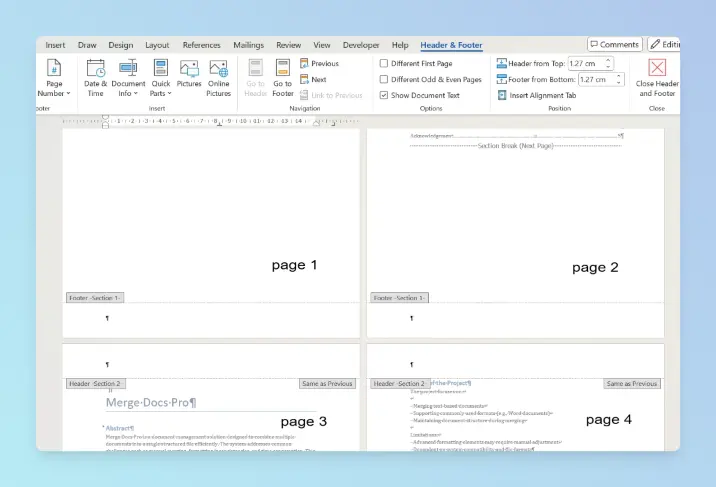
- Go to the first page that should be numbered and double-click the footer (or header).
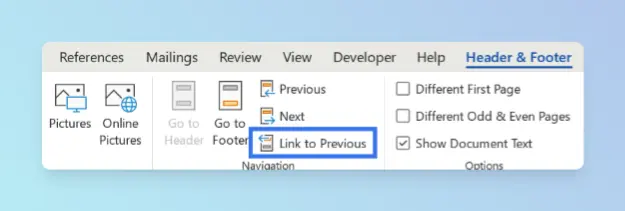
- On the Header & Footer tab, click Link to Previous so it is turned off.
- Check that the label reads Footer - Section 2 and that Same as Previous has disappeared.
Headers and footers are linked separately. If your number goes in the header, unlink the header; if it goes in the footer, unlink the footer.
Step 3: Insert the number and restart at 1
With the footer open, go to Insert > Page Number and choose a position.
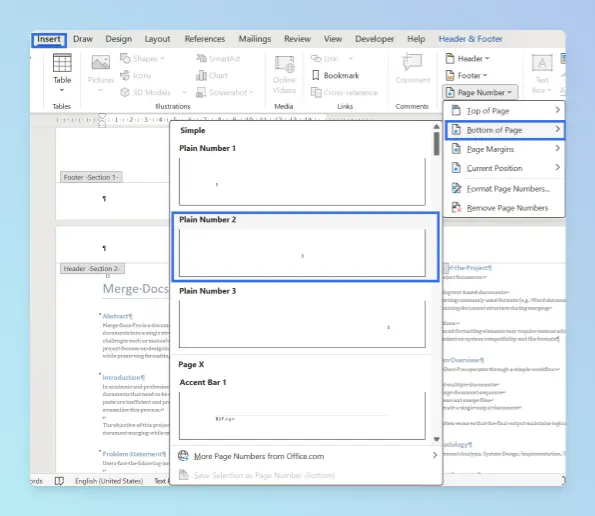
Go to Page Number > Format Page Numbers.
Under Page numbering, choose Start at and enter 1. Click OK.
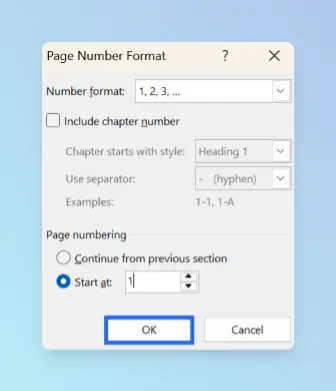
Go back to the front pages and delete any page number there.
Click Close Header and Footer.
Warning: Delete front-page numbers only after Link to Previous is off. Otherwise the numbers disappear from the whole document.
Result: The cover and contents pages have no numbers, and the first page of the main text shows 1. Microsoft’s guide to page numbers in different sections uses the same steps.
Sections control more than numbering. Landscape pages also need their own section, and you can change margins for one section the same way.
Using Roman numerals for front matter and Arabic numbers for the body
Use this for a thesis or report where the preface is numbered i, ii, iii and the body 1, 2, 3.
- Insert a Next Page section break between the front matter and the body.
- In the body’s footer, turn off Link to Previous.
- Click in the front matter’s footer and insert a page number.
- Open Format Page Numbers, set Number format to i, ii, iii, and set Start at: i.
- Click in the body’s footer, open Format Page Numbers, set Number format to 1, 2, 3 and Start at: 1.
Result: The front matter is numbered i, ii, iii and the body restarts at 1. If the cover should have no number, select Different First Page in the first section.
Writing a thesis? You can also add APA, MLA or Chicago citations and a bibliography with Word’s References tab.
Starting page numbers from page 2 with Different First Page
Use this when only the cover page should be unnumbered and you don’t want a section break.
Go to Insert > Page Number and choose a position.
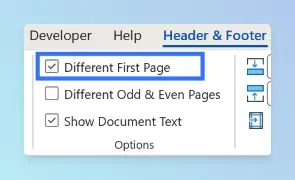
In the open header or footer, select Different First Page on the Header & Footer tab.
To make page 2 show 1 instead of 2, open Format Page Numbers.
Set Start at to 0 and click OK.
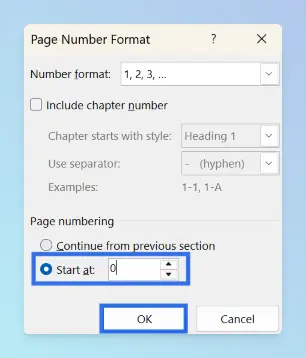
Result: The cover has no number and page 2 shows 1. Microsoft documents this in start page numbering later in your document.
The same Different First Page option controls headers too. This short video shows how to keep a header on the first page only:
Tip: If you add more front pages later, switch to the section break method.
Comparing the methods
| Method | Best for | Works on |
|---|---|---|
| Section break + Start at 1 | Numbering from page 3 or later | Windows, Mac |
| Roman + Arabic sections | Theses and reports with front matter | Windows, Mac |
| Different First Page + Start at 0 | Skipping only the cover page | Windows, Mac, web |
Platform differences
- Windows: all steps above apply.
- Mac: the steps are the same. In the Page Numbers dialog you can also clear Show number on first page to hide the first number.
- Word for the web: you can use Different First Page, but Word for the web can’t add section breaks. For numbering from page 3, use Open in Word.
Fixing common issues
- Numbers restart at 1 in every section: open Format Page Numbers in each later section and choose Continue from previous section.
- Link to Previous is greyed out: you are in the first section, or no section break exists yet. Show formatting marks to check.
- Numbers disappeared everywhere: you deleted them while Link to Previous was on. Undo with Ctrl + Z (Cmd + Z on Mac) and unlink first.
- Numbering broke after combining chapters: after you merge Word documents into one file, recheck each chapter’s section breaks and Start at values.
When numbering is final, you can export the thesis to PDF to lock it in, or save a single numbered page as PDF. For more header and layout guides, see the Microsoft Word guides.