
Typing “Figure 1” under a picture by hand breaks as soon as you add or remove one. A Word caption is a numbered field instead, so Word keeps every figure and table in order for you.
- Caption a picture
- Caption a table
- Change the label or numbering
- Fix the numbers after deleting
- Refer to a figure in your text
Why use captions instead of typing them
Captions do three things typed labels can’t:
- They number themselves. Add a figure between Figure 2 and Figure 3, and it becomes Figure 3 while the old Figure 3 becomes Figure 4.
- They keep separate counts. Figures, tables and equations each number from 1.
- They feed other features. Cross-references and a list of figures read them, so page numbers and labels stay correct.
Captioning a picture
Use this for images, charts and diagrams.
- Right-click the picture and choose Insert Caption. Or select it and go to References > Insert Caption.
- In the Caption window, check that Label says Figure.
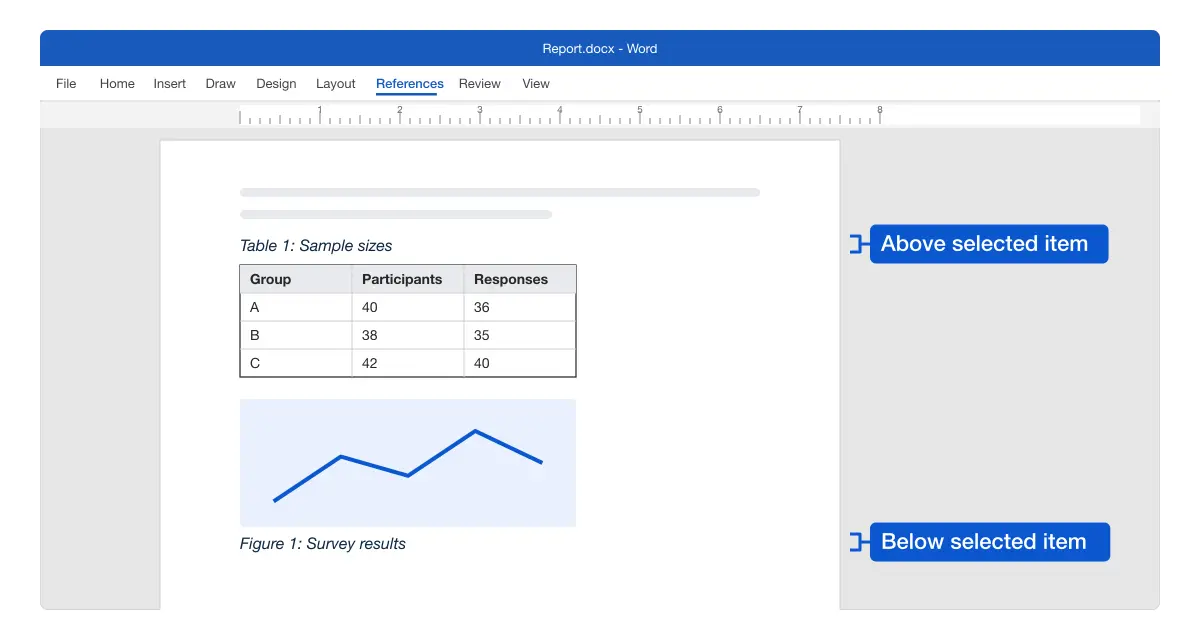
- Set Position to Below selected item.
- Type a short title after Figure 1, for example ”: Survey results”.
- Click OK.
Result: “Figure 1: Survey results” appears under the picture in the Caption style. Caption the next picture the same way and Word numbers it Figure 2.
Microsoft covers the same window in Add, format, or delete captions.
Captioning a table
Use this for data tables. Two things change from pictures: you select the whole table, and the caption usually goes above it.
- Point at the table and click the small square handle at its top-left corner to select it.
- Right-click the table and choose Insert Caption.
- Set Label to Table.
- Set Position to Above selected item.
- Type a title and click OK.
Result: “Table 1” appears above the table, even if figures come before it. Tables keep their own count.
Tip: Check your style guide. APA puts the number and title above both tables and figures, while many other guides put figure captions below.
Changing the label or numbering
Use this when you need a label Word doesn’t list, or numbers other than 1, 2, 3.
A new label, such as “Chart” or “Photo”:
- Open Insert Caption.
- Click New Label, type the label and click OK.
A different number format, such as I, II, III or A, B, C:
- In the Caption window, click Numbering.
- Pick a Format and click OK.
- Click OK again to insert the caption.
Result: The caption shows your label and format, for example “Chart I”. Each new label keeps its own count.
Adding chapter numbers to captions
Use this in a thesis or long report where figures number per chapter, like “Figure 2-1”.
- Number your chapter headings with Home > Multilevel List, using a heading style only chapters use, such as Heading 1. See how to number headings in Word.
- Open Insert Caption and click Numbering.
- Tick Include chapter number.
- Set Chapter starts with style to Heading 1 and pick a separator, such as a hyphen.
- Click OK twice.
Result: The first figure in chapter 2 reads “Figure 2-1”. Microsoft explains this in Add chapter numbers to captions.
Fixing the numbers after deleting a figure
Use this after you delete or move a figure or table.
Caption numbers update when you add a caption, but not when you delete one. Delete Figure 1 and the next caption still says Figure 2.
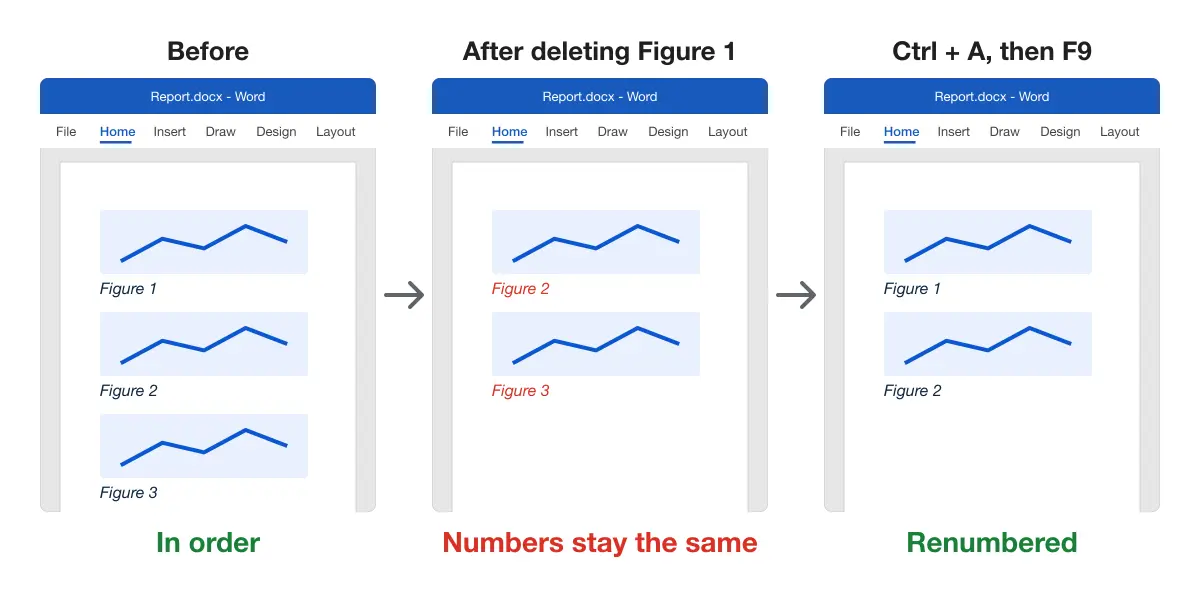
- Press Ctrl + A to select the whole document.
- Press F9.
Result: Every caption renumbers in order. You can also right-click the selection and choose Update Field.
Note: If a caption shows code like
{ SEQ Figure \* ARABIC }, Word is showing field codes. Press Alt + F9 to switch back.
Referring to a figure in your text
Use this for lines like “as shown in Figure 3”, so the number changes when the caption does.
- Click where the reference goes and type the words before it, such as “as shown in ”.
- Go to Insert > Cross-reference.
- Set Reference type to Figure (or Table).
- Set Insert reference to to Only label and number.
- Pick the caption in For which caption and click Insert.
Result: “Figure 3” appears as a field linked to the caption. Tick Insert as hyperlink so readers can click to jump to it. Microsoft covers this in Create a cross-reference.
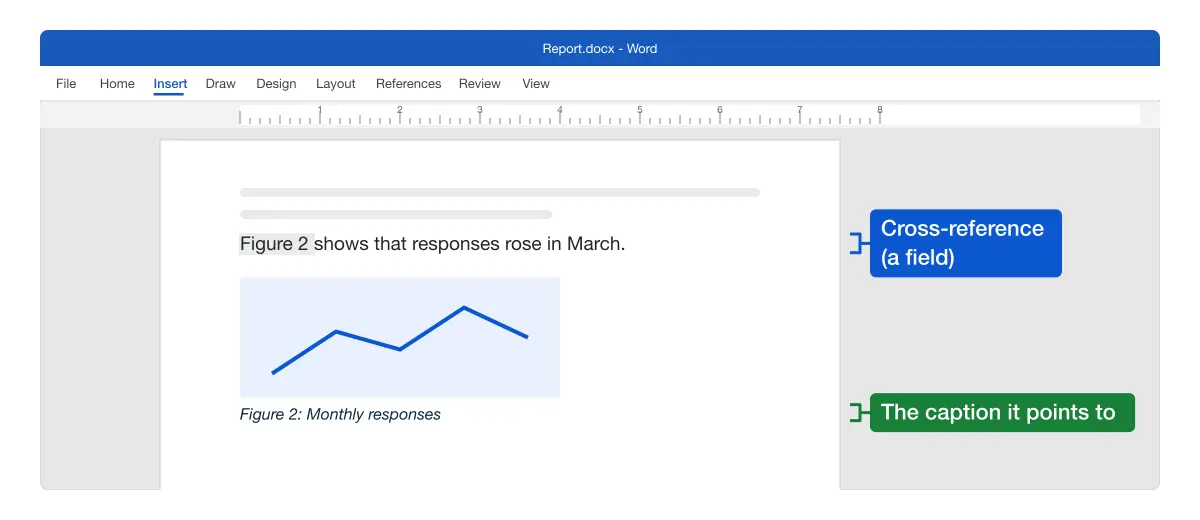
Cross-references also update with Ctrl + A, then F9.
Keeping a caption with its figure
Use this when a caption ends up on a different page from its picture or table.
- Caption above a table, or a picture above its caption: click the paragraph that comes first (the caption, or the picture), right-click > Paragraph > Line and Page Breaks, and tick Keep with next.
- Pictures with text wrapping: select the caption, hold Shift, select the picture, then right-click > Group > Group. They now move together.
Microsoft describes Keep with next in Keep text together.
Formatting every caption at once
Captions use Word’s Caption style, so change the style, not each caption.
- On the Home tab, find Caption in the Styles gallery. If it isn’t shown, open the gallery’s Styles pane.
- Right-click Caption and choose Modify.
- Set the font, size and colour your style guide asks for.
- Click OK.
Result: Every caption in the document changes together.
Comparing the methods
| Task | Method |
|---|---|
| Caption one item | Right-click > Insert Caption |
| Caption every new table or picture automatically | Insert Caption > AutoCaption |
| Number per chapter | Numbering > Include chapter number |
| Refer to a caption in text | Insert > Cross-reference |
| Renumber after deleting | Ctrl + A, then F9 |
Platform differences
- Windows: all steps above.
- Mac: References > Insert Caption and Insert > Cross-reference work the same. To update, select all with Cmd + A, then right-click and choose Update Field.
- Word for the web: if Insert Caption isn’t on the References tab, use Open in Word and add captions in the desktop app.
- LaTeX: captions and references work through
\captionand\label. See how to refer to a table in LaTeX.
Troubleshooting captions
- The numbers skip or repeat. Fields haven’t updated. Press Ctrl + A, then F9.
- A table caption counts figures too. It was inserted with the Figure label. Delete it and insert it again with Table.
- The caption moved away from the picture. Use Keep with next or group them, as described above.
- Captions came in as plain text from a pasted document. They’re typed labels, not captions. Delete them and insert real captions so the numbering works.
Next, Word can list every captioned figure with its page number in a table of figures, much like a table of contents in Word. For the rest of a report, see citations and references, footnotes and the Microsoft Word guides.