
A footnote adds a source, a comment or an explanation at the bottom of the page without breaking the sentence. Word numbers footnotes for you and keeps that numbering correct as you edit.
- Insert a footnote
- Edit and jump between notes
- Insert an endnote
- Restart numbering or change the format
- Put endnotes at the end of each section
- Delete a footnote
- Keep footnotes from ChatGPT
Footnotes vs endnotes
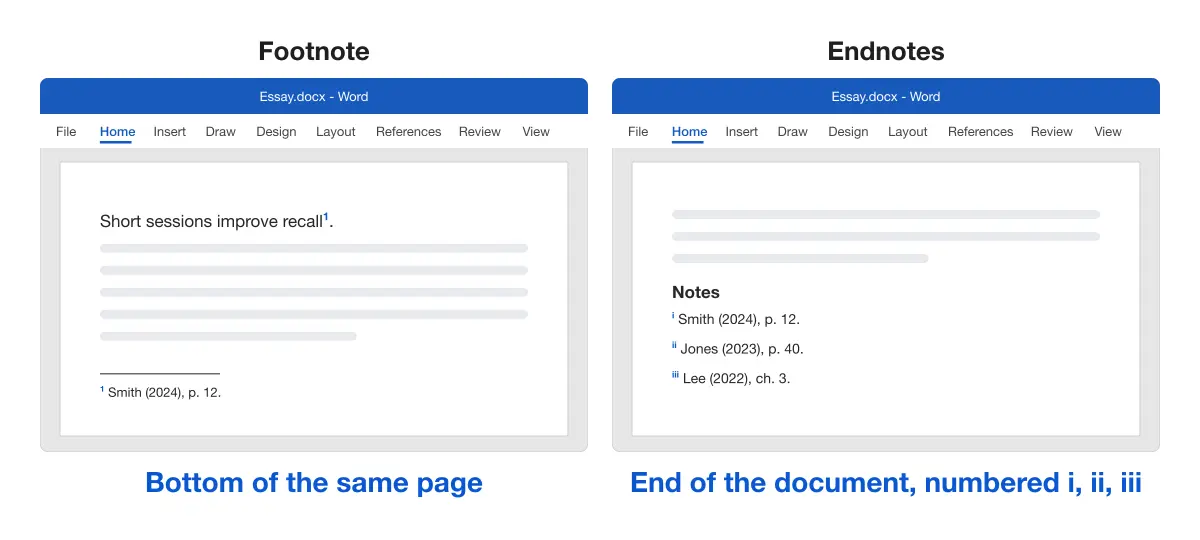
Both are numbered notes linked to a mark in the text. The difference is where the note text appears.
| Footnote | Endnote | |
|---|---|---|
| Where the note appears | Bottom of the same page | End of the document or section |
| Default numbers | 1, 2, 3 | i, ii, iii |
| Insert with | References > Insert Footnote | References > Insert Endnote |
| Windows shortcut | Ctrl + Alt + F | Ctrl + Alt + D |
| Best for | Notes the reader needs right away | Long notes that would crowd the page |
Microsoft lists both shortcuts in its Word keyboard shortcuts.
Inserting a footnote
Use this to add a source or an explanation for one sentence.
- Click right after the word or sentence the note refers to.
- Go to the References tab.
- Click Insert Footnote, or press Ctrl + Alt + F.
- Type the note at the bottom of the page.
Result: A superscript number appears in the text, and the matching note sits at the bottom of the page. Microsoft covers the same steps in Insert footnotes and endnotes.
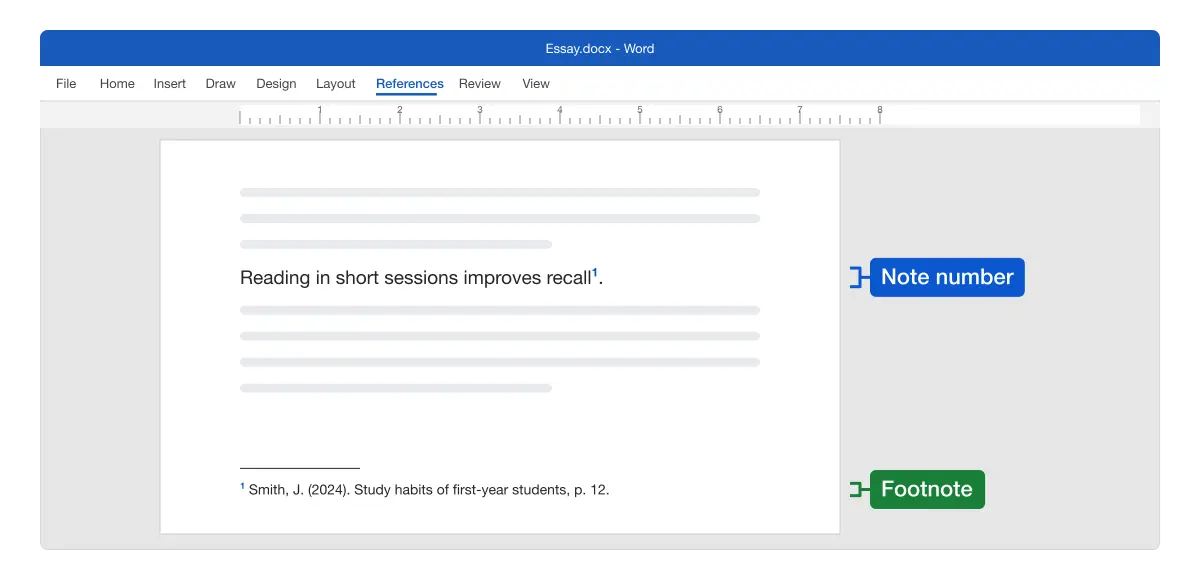
Tip: Place the cursor after the punctuation if your style guide puts note numbers after commas and periods, as Chicago does.
Editing and moving between notes
Use this to change a note, or to check where a note is referenced.
- Edit a note: click inside the note text at the bottom of the page and type.
- Jump from the note to the text: double-click the number at the start of the note.
- Jump from the text to the note: double-click the number in the text.
- Go through notes in order: select References > Next Footnote. Its menu also has Previous Footnote, Next Endnote and Previous Endnote.
- See every note: select References > Show Notes.
Word numbers notes automatically. Add a note between notes 2 and 3 and it becomes note 3, and the old note 3 becomes note 4.
Inserting an endnote
Use this when notes are long, or your style guide collects them at the end.
- Click where the note belongs in the text.
- Select References > Insert Endnote, or press Ctrl + Alt + D.
- Type the note at the end of the document.
Result: A small roman numeral (i, ii, iii) marks the text, and the endnote appears after the last paragraph.
Footnotes and endnotes number separately, so a document can use both.
Restarting numbering and changing the number format
Use this when each page should start again at 1, or when you need symbols or letters instead of numbers.
- On the References tab, click the small arrow in the corner of the Footnotes group. The Footnote and Endnote dialog opens.
- Choose Footnotes or Endnotes under Location.
- Pick a Number format, for example 1, 2, 3 or a, b, c or symbols.
- Under Numbering, choose Continuous, Restart each section or Restart each page.
- Set Apply changes to to Whole document, then click Apply.
Result: Existing and new notes use the new format and numbering. Microsoft’s footnotes guide for Mac shows the same dialog.
The dialog also has:
- Start at: begin numbering at a number other than 1, for example for a chapter saved as its own file.
- Custom mark: use one symbol, such as an asterisk, for a single note.
- Convert: turn all footnotes into endnotes, all endnotes into footnotes, or swap them.
Putting endnotes at the end of each section
Use this for chapters or parts that each need their own notes, such as a thesis.
- Split the document with Layout > Breaks > Next Page at the start of each chapter.
- Open the Footnote and Endnote dialog and choose Endnotes.
- Set the location to End of section.
- Set Numbering to Restart each section if each chapter should start at i.
- Click Apply.
Result: Each chapter ends with its own endnotes. If notes from one chapter run into the next, check that you used a section break (Next Page), not a plain page break.
Deleting a footnote
Use this to remove a note and its number together.
- Find the note’s number in the main text.
- Select the number and press Delete.
Result: The number and the note both disappear, and the remaining notes renumber.
Note: Deleting the note text at the bottom of the page isn’t enough. The number stays in the text with an empty note.
To remove every footnote at once, open Home > Replace, click More > Special > Footnote Mark, leave Replace with empty and click Replace All.
Footnotes in APA, MLA and Chicago
Footnotes matter more in some citation styles than others:
- Chicago (notes and bibliography): cites sources in numbered notes. The Chicago citation guide shows full and short note forms.
- APA: uses in-text citations, and footnotes only for extra content or copyright notes. APA’s page order guide allows footnotes at the bottom of the page or on a page after the references.
- MLA: also uses in-text citations, with notes for extra comments.
For in-text citations and a reference list, use Word’s citation tools, covered in citations and references in Word. The reference list also needs double spacing in APA and MLA, covered in how to double space in Word.
Keeping footnotes when exporting from ChatGPT
Use this when your draft starts in ChatGPT and has notes or sources you want to keep.
Copy and paste brings the text over but not as real Word footnotes. The video above shows our Chrome extension, ChatGPT to Word or PDF, built by the team behind Merge Docs Pro. It exports the chat to Word with the footnotes kept.
For the full export options, see how to export a ChatGPT chat to Word, PDF or Google Docs. For pasting only part of a response, see how to copy ChatGPT to Word with formatting.
Platform differences
- Windows: everything above, including the shortcuts.
- Mac: References > Insert Footnote and Insert Endnote work the same. Open the dialog from the small arrow in the Footnotes group.
- Word for the web: References > Insert Footnote and Insert Endnote work. To convert notes, open the file in the desktop app, as Microsoft explains in Add footnotes and endnotes.
- iPhone and iPad: footnotes are on the Insert tab. Change number formats on a computer.
Troubleshooting footnotes
- Insert Footnote is greyed out. You may be in the header, a text box or Reading view. Click in the body text in Print Layout.
- A footnote jumped to the next page. Word keeps the note with its number. Long notes continue on the next page with a continuation separator.
- Numbers don’t restart on each page. Check that Restart each page is applied to Whole document, not This section.
- The footnote font doesn’t match the body. Notes use the Footnote Text style. Right-click it in the Styles gallery and choose Modify.
- Footnotes are single spaced in a double-spaced paper. That’s the Footnote Text style too. Most styles, including APA, accept single-spaced footnotes.
For more on document structure, see the table of contents guide, numbered headings and the rest of the Microsoft Word guides.