
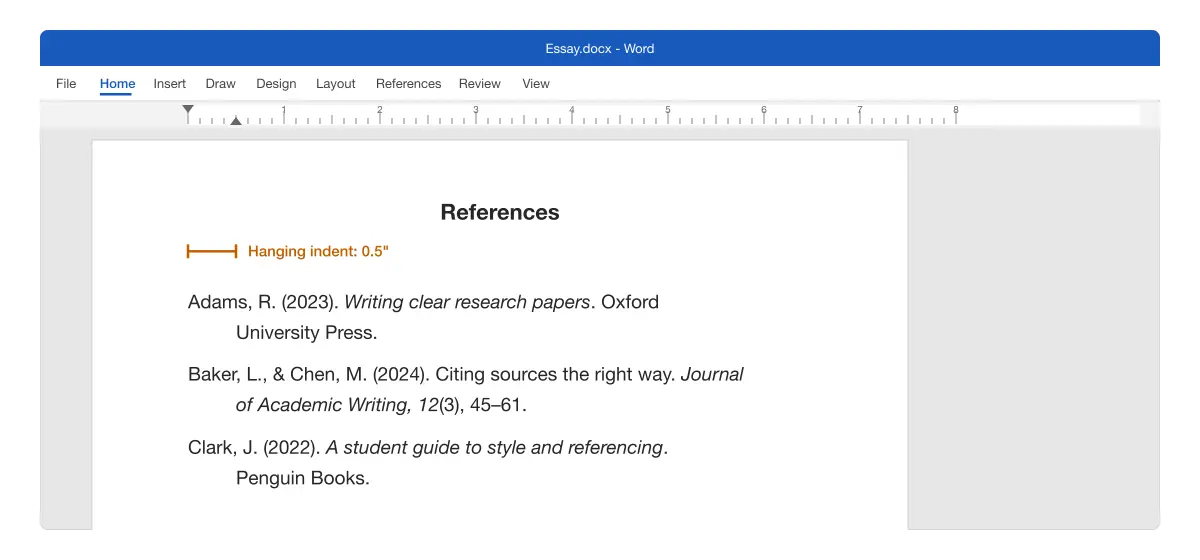
A hanging indent keeps the first line of a paragraph at the margin and moves every line after it in. Reference lists use it so readers can scan the left edge and find each author’s name.
- Use the Paragraph settings
- Use the ruler
- Use the Ctrl + T shortcut
- Remove a hanging indent
- Make it automatic with a style
Hanging indent rules for APA and MLA
Both APA and MLA ask for a 0.5-inch hanging indent on the reference list or Works Cited page:
| Style | Page | Hanging indent | Spacing |
|---|---|---|---|
| APA 7 | References | 0.5 inch | Double |
| MLA 9 | Works Cited | 0.5 inch | Double |
APA describes the format in its reference list guidance, and the MLA Style Center covers the Works Cited layout.
Using the Paragraph settings
Use this when you want an exact, checked measurement.
- Select only your references, not the heading. Click before the first one, hold Shift and click after the last one.
- Go to Home and click the small arrow in the corner of the Paragraph group.
- In the Paragraph window, under Indentation, open Special and choose Hanging.
- Leave By at 0.5” (it shows 1.27 cm if Word uses centimetres).
- Click OK.
Result: Every line after the first moves in by half an inch, and the heading stays in place. Microsoft covers the same steps in Create a hanging indent.
Using the ruler
Use this when you want to see the lines move as you set the indent.
- If the ruler is hidden, go to View and tick Ruler.
- Select your references.
- On the left of the ruler, find the two triangles. The top one sets the first line; the bottom one is the Hanging Indent marker.
- Drag the bottom triangle to the 0.5” mark.
Result: The lines after the first follow the marker as you drag.
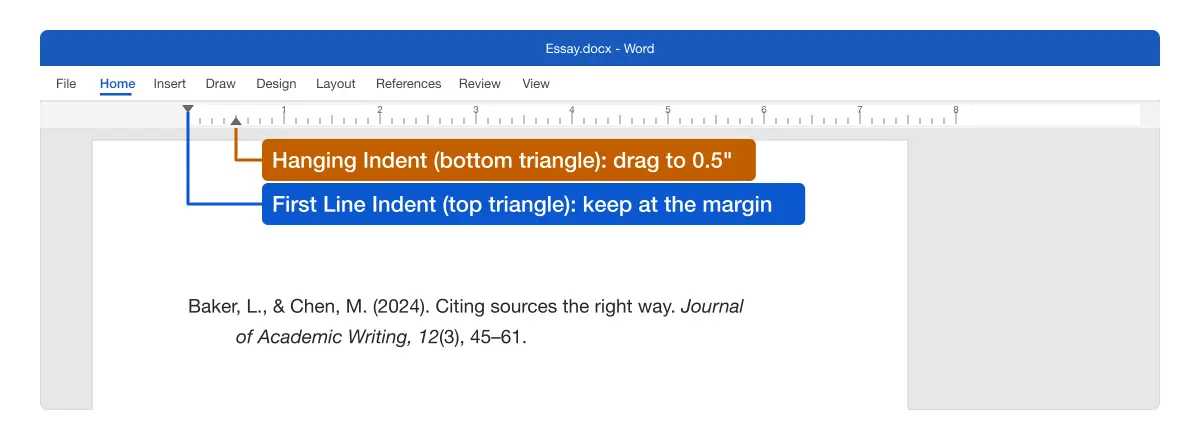
Tip: Drag the triangle, not the small square under it. The square moves both markers together, which indents the whole paragraph instead.
Using the keyboard shortcut
Use this for the fastest result.
- Select your references.
- Press Ctrl + T on Windows or Cmd + T on Mac.
Result: Every reference hangs at 0.5 inch right away.
Press the shortcut once. Each extra press moves the hanging lines in by another step.
Removing a hanging indent
Use this to put lines back at the margin, for example on a heading you selected by mistake.
- Shortcut: select the paragraphs and press Ctrl + Shift + T (Cmd + Shift + T on Mac).
- Paragraph settings: open the Paragraph window, set Special to (none) and click OK.
- Ruler: drag the Hanging Indent marker back to line up with the top triangle.
Microsoft lists both shortcuts in its Word keyboard shortcuts.
Making it automatic with a style
Use this when you keep adding references and don’t want to format each one.
- Click inside a reference that already has the hanging indent.
- On the Home tab, open the Styles gallery and choose Create a Style.
- Name it, for example “References”, and click OK.
- Apply the style to the whole list, and to every new reference you add.
Result: Every reference in the style gets the same indent and spacing. Change the style once and the whole list updates.
If you build the list with Word’s citation tools, the Bibliography it inserts already uses a hanging indent. See citations and references in Word.
Formatting the rest of the reference list
A hanging indent is one of several things APA and MLA check on the reference page:
- Double spacing throughout, with no extra space between entries. See how to double space in Word.
- Alphabetical order by the first author’s surname. See how to alphabetize in Word.
- A centred heading: “References” for APA, “Works Cited” for MLA, not indented.
- Notes, if your style uses them, go in footnotes. See how to insert footnotes in Word.
If your references come from ChatGPT, Claude or Gemini, our Chrome extensions, built by the team behind Merge Docs Pro, bring them into Word already formatted. The ChatGPT export guide shows how.
Comparing the methods
| Method | Best for | Exact 0.5”? |
|---|---|---|
| Paragraph settings | Checking or changing the measurement | Yes, shown in By |
| Ruler | Seeing the lines move | Only if you stop on the mark |
| Ctrl / Cmd + T | Speed | Yes, on the first press |
| Paragraph style | Long or growing lists | Yes |
Platform differences
- Windows: all four methods.
- Mac: use Format > Paragraph for the settings, and Cmd + T for the shortcut.
- Word for the web: open the Paragraph settings from the Home tab and set Special to Hanging, per Microsoft’s guide.
- Google Docs: the steps are different. See how to create a hanging indent in Google Docs.
Troubleshooting hanging indents
- The whole paragraph moved instead of the second line. You dragged the square on the ruler. Undo and drag the bottom triangle.
- The indent is deeper than 0.5 inch. You pressed Ctrl + T more than once. Press Ctrl + Shift + T until it’s back to one step, or set By to 0.5”.
- Only the first reference changed. The others weren’t selected. Select the whole list and apply it again.
- Lines break in odd places. Each reference must be one paragraph. Remove manual line breaks (Shift + Enter) inside entries; turn on Show/Hide ¶ to find them.
- Pasted references ignore the indent. Pasted text brings its own formatting. Clear all formatting, then apply the hanging indent again.
To set up a whole paper, see how to format a paper in APA 7th edition in Word. For more on reports and papers, see the Microsoft Word guides.