
Word can cut one long document into separate files, one for each chapter. It does this from Outline view.
This guide was tested in Word for Windows on a sample handbook with 3 chapters. You set up the chapter titles, save the document in a folder of its own, split it, and then open the new files.
At the end you have one Word file per chapter, saved in the same folder as your document.
- Prepare the document with Heading 1 chapters
- Save the document in its own folder
- Split it in Outline view
- Open the chapter files
Preparing the document with Heading 1 chapters
Use this when your chapter titles are plain text, bold text or a mix of styles.
Word needs to know where each chapter starts, and it uses the Heading 1 style to find out.
A style is a named set of formatting that Word can recognize. Heading 1 is the built-in style for top-level titles, and Word starts a new file at each one.
- Click the title of the first chapter.
- On the Home tab, in the Styles group, click Heading 1. The title changes to the heading look.
- Repeat the first 2 steps for the title of every other chapter.
Leave the title of the whole document as it is. In our test, the document title kept the Normal style, so it did not become a chapter file.
Tip: Split a copy of your document. After the split, the original holds links to the chapter files instead of the chapter text.
This method splits at chapter titles only. It does not split every few pages or at section breaks. For those, see Comparing the methods. Once each chapter is its own file, you can also save a Word file as a PDF.
Result: Each chapter title has the Heading 1 look, and the document title is unchanged.
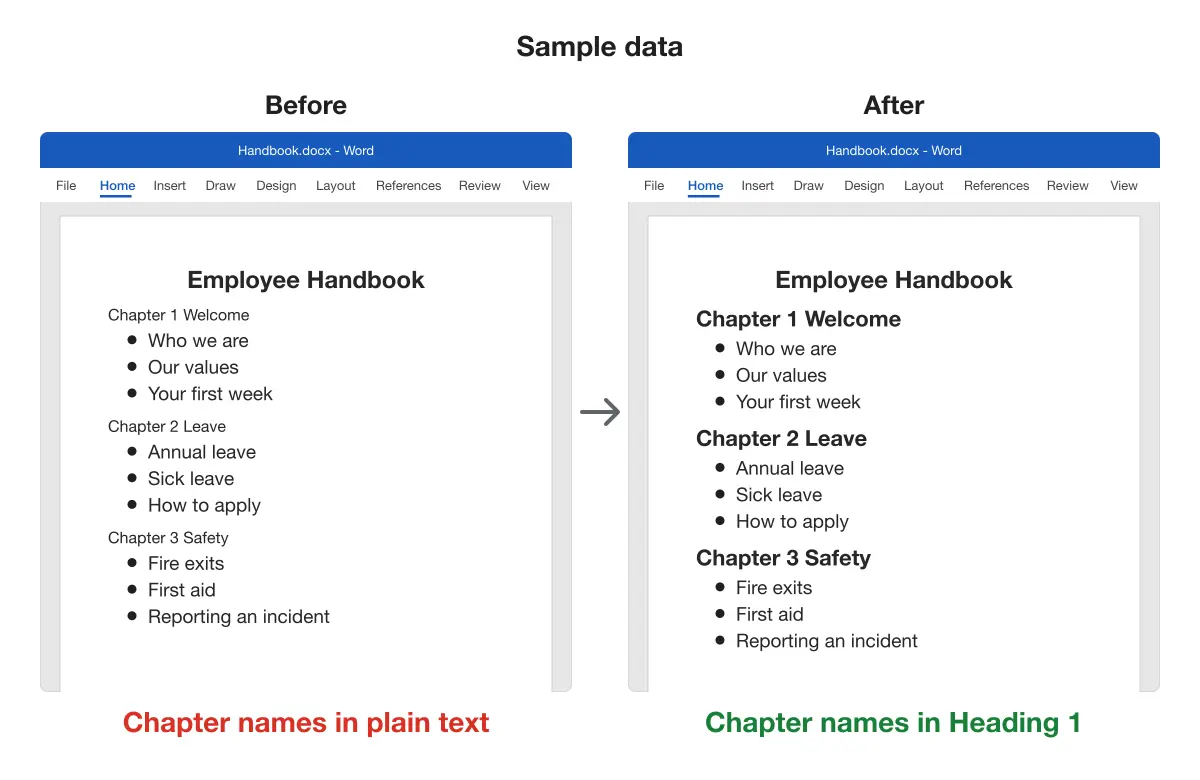
Saving the document in its own folder
Use this when your document sits in a busy folder, such as Documents or Downloads, or is not saved yet.
Word saves the new chapter files next to your document. A new, empty folder keeps them together and apart from your other files.
- Create a new, empty folder. In our test, it was a folder named
Split teston the desktop. - In Word, click File > Save As, then click Browse.
- Open the new folder, type a file name, and click Save.
Note: We tested with OneDrive turned off and the document saved in a local folder. The split worked this way.
Result: The new folder holds only your document.
Splitting in Outline view
Use this when every chapter title has the Heading 1 style and the document is saved in its own folder.
- On the View tab, in the Views group, click Outline. The page turns into a list with bullets, and the Outlining tab opens.
- Press Ctrl + A to select all the text.
- On the Outlining tab, click Show Document.
- Click Create. A box appears around each chapter.
- Press Ctrl + S to save, then close Word.
Result: Each chapter sits in its own box. When you save, Word creates one new Word file for each chapter in your folder.
Microsoft calls a document like this a master document: a container for a set of separate files, or subdocuments. Its page on how to create a cross-reference gives a book with several chapters as the example.
Opening the chapter files
Use this when you want to find the new files or work on a single chapter.
- In File Explorer, open the folder where you saved your document.
- Double-click one of the chapter files.
Result: The chapter file opens in Word and shows only that chapter.
The folder holds your original document and one new file per chapter, each named after its chapter heading. Our test folder looked like this.
Sample data
Split test Handbook Chapter 1 Welcome Chapter 2 Leave Chapter 3 SafetyTo check a chapter against the original while you edit, see how to view two pages side by side in Word. Your original document holds only links to these chapter files.
Comparing the methods
Word’s Outline view method splits at Heading 1 titles. For other kinds of split, you need another method.
| Method | Best for | Works on |
|---|---|---|
| Outline view, Show Document and Create | One file per chapter | Word for Windows (tested) |
| Copy and paste, or Save As and delete the other chapters | A few splits | Any version of Word |
| An add-in or a macro | Every few pages, or at section breaks | Depends on the add-in; a macro needs code |
If you later need the chapters back in one document, the guides on how to merge Word documents and how to combine many Word files into one cover that task.
Platform differences
The steps in this guide were tested in Word for Windows only. We have not tested Word for Mac, Word for the web or the mobile apps. If you cannot find Outline view there, copy each chapter into a new document by hand.
Troubleshooting
The original document shows links instead of chapter text. Cause: after the split, the original holds only links to the chapter files. Fix: open the chapter you need from its own file in the folder, as in Opening the chapter files.
The chapter files are mixed with other files. Cause: Word saves the chapter files next to the original document, and the document was in a busy folder. Fix: before you split, save the document in a new, empty folder.
No chapter files were created, or the chapters split in the wrong places. Fix: check that every chapter title has the Heading 1 style, then repeat the steps in Splitting in Outline view.
To work with long documents in other ways, start from the Microsoft Word guides.