
Both methods use optical character recognition (OCR) to read the text in your picture. Neither keeps complex layouts, so expect to tidy up the result and rebuild any tables.
- Google Drive: works in any browser, on Windows, Mac or Chromebook
- Microsoft Word: works offline in desktop Word on Windows
Checking your image first
OCR accuracy depends mostly on the picture. Before you start, check that the image:
- is a JPG, PNG or GIF (or a PDF);
- is 2 MB or smaller if you’ll use Google Drive;
- has text at least 10 pixels high;
- is right side up, sharp and evenly lit;
- shows printed or typed text in a common font. Handwriting is rarely recognised.
Converting an image to Word with Google Drive
Use this when you can sign in to Google, work in a browser, or use a Mac.
The video shows a PDF, but the steps are the same for a JPG or PNG. For PDFs specifically, see how to convert a PDF to Google Docs.
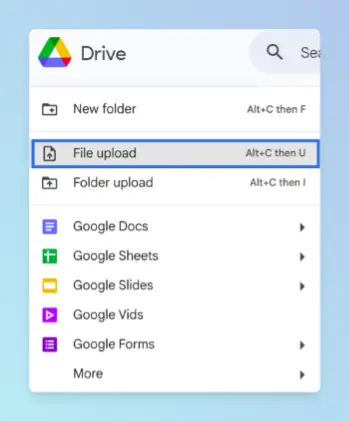
Open Google Drive and click New > File upload, or drag the image into Drive.
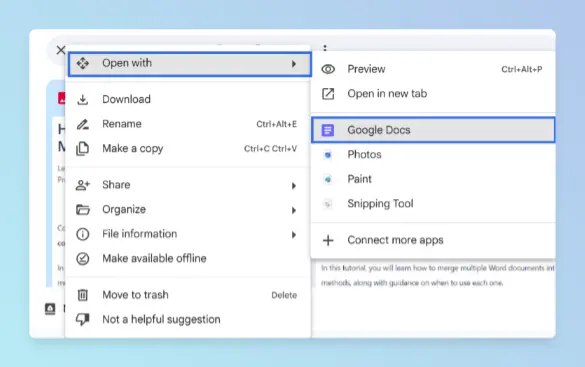
When the upload finishes, right-click the image and choose Open with > Google Docs.
A new Google Doc opens with the image at the top and the recognised text below it. Check the text against the image.
Click File > Download > Microsoft Word (.docx).
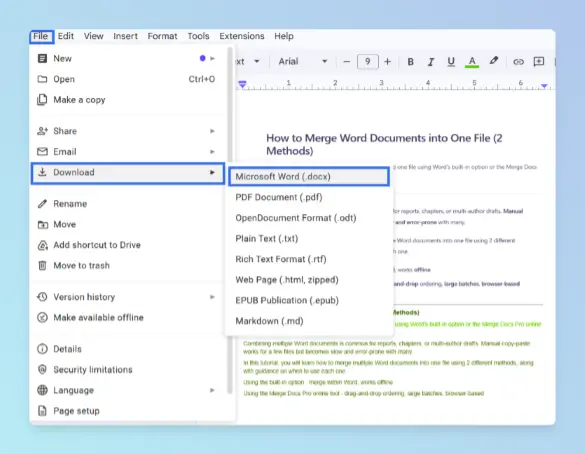
Result: A .docx file with editable text downloads to your computer. Google lists the requirements in Convert PDF and photo files to text.
Note: Bold, italics, font size and line breaks are usually kept. Lists, tables, columns, footnotes and endnotes usually aren’t.
You can also keep working in Google Docs; see Google Docs to Word for other export options.
Converting an image to Word with Microsoft Word
Use this when you have desktop Word on Windows and prefer to work offline.
Word can’t read text straight from a picture. Instead, you save the picture as a PDF, then let Word convert that PDF back into editable text.
Open Word and create a blank document.
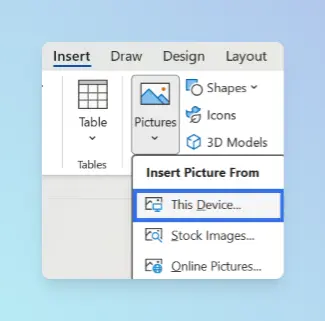
Click Insert > Pictures > This Device, or drag the image onto the page.
Click File > Save As, set Save as type to PDF and click Save.
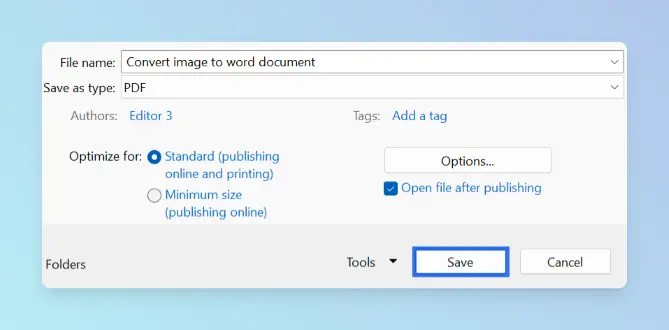
Click File > Open and open the PDF you just saved.
When Word says it will convert the PDF to an editable Word document, click OK.
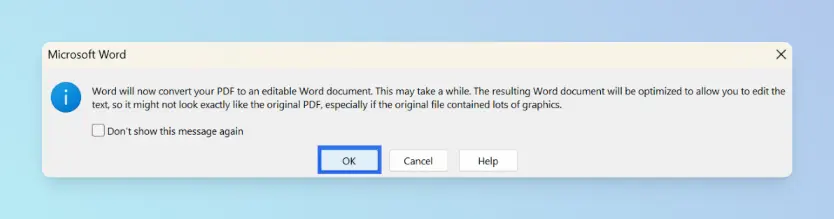
Click in the text and type a letter. If you can type, the conversion worked.
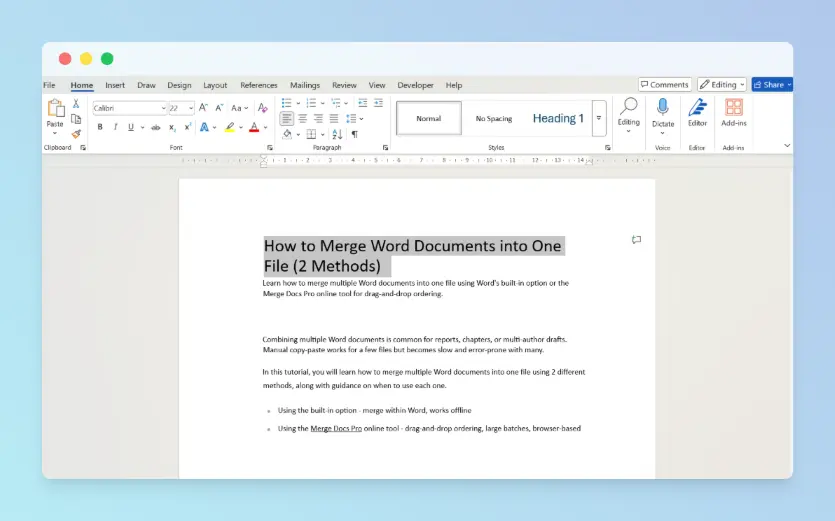
Compare the text with the original image and fix any mistakes.
Click File > Save As, choose Word Document (*.docx) and click Save.
Result: A .docx file with text you can edit. Microsoft describes the same approach for scans in Insert scanned text or images into Word.
If the page still behaves like one picture, Word didn’t recognise the text. Try a sharper image, or use the Google Drive method instead.
Comparing the methods
| Method | Best for | Works on |
|---|---|---|
| Google Drive Open with > Google Docs | Quick, free OCR in a browser | Windows, Mac, Chromebook |
| Word Save as PDF, then reopen | Working offline without a Google account | Word for Windows |
Platform differences
- Word for Windows: Supports the PDF-reopen method above.
- Word for Mac and Word for the web: Microsoft’s scan-to-Word guidance covers the Windows desktop app. On a Mac, use the Google Drive method.
- Phone: Upload the photo with the Google Drive app, then run Open with > Google Docs from a computer.
Troubleshooting
- The Google Doc shows the image but no text. The image may be too small, blurred, rotated or over 2 MB. Crop, rotate or rescan it and try again.
- Letters are wrong. OCR mistakes are common with stylised fonts and low contrast. Proofread every line against the original.
- Tables came out as plain text. Rebuild the table in Word or Docs; neither method keeps table structure reliably.
- Justified paragraphs show wide gaps. OCR often adds hard line breaks; remove extra spaces in justified text by replacing them.
- Your file is a PDF, not an image. See how to edit a PDF in Word instead, or compare the ways to turn a PDF into a Word document.
- The content is confidential. Google Drive processes the file on Google’s servers. Use the Word method if that’s a concern.
Finishing the document
- To place the original image beside the extracted text, use Word’s text wrapping options.
- To convert the finished document back to PDF, use Save As rather than Print.
More conversion how-tos are in the convert and export guides.