
A thesis usually numbers its front pages (abstract, acknowledgements, contents) i, ii, iii and its chapters 1, 2, 3. Word does this with two sections, each with its own page number format.
- Add page numbers
- Split the front pages from the chapters
- Number the front pages i, ii, iii
- Start chapter one at 1
- Hide the number on the title page
Typical thesis page numbering
Check your university’s guide first. A common pattern is:
| Part | Numbering | Shown on the page |
|---|---|---|
| Title page | i | No |
| Abstract, acknowledgements, contents, lists of figures | ii, iii, iv… | Yes |
| Chapter one to the end | 1, 2, 3… | Yes |
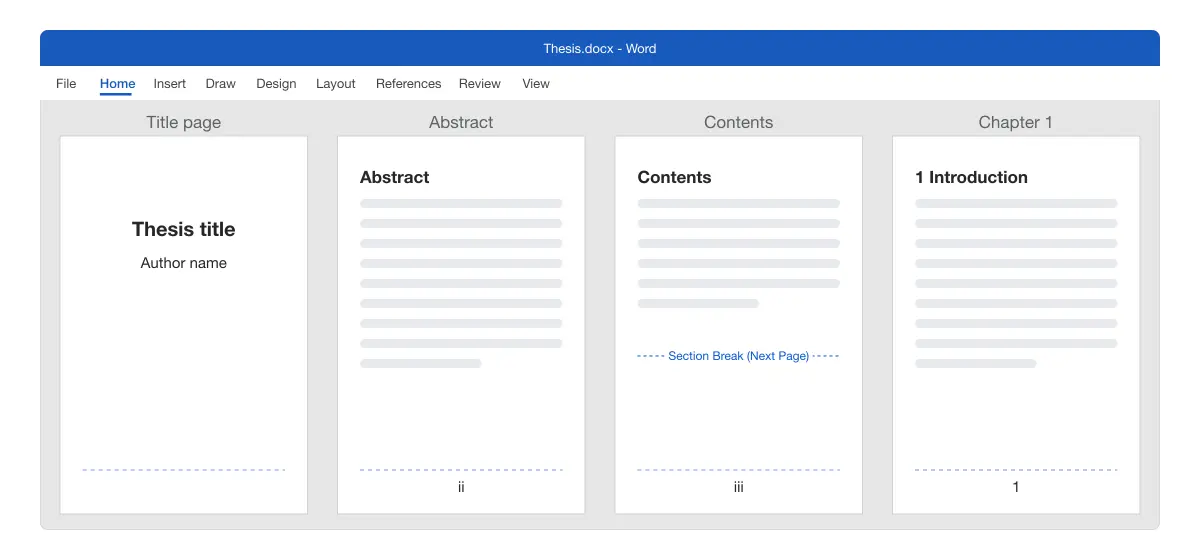
If your guide says the abstract must show i, give the title page a section of its own. That’s covered under hiding the title page number.
Adding page numbers
Use this first, so every page has a number to format.
- Go to Insert > Page Number > Bottom of Page.
- Choose Plain Number 2 for a centred number.
- Leave the footer open for the next steps.
Result: Every page shows 1, 2, 3. Microsoft covers the options in Add page numbers to a header or footer.
Splitting the front pages from the chapters
Use this to give the chapters their own numbering.
- Turn on Home > Show/Hide ¶ so you can see breaks.
- Click at the very end of the last front page, usually the end of the contents or list of figures.
- Go to Layout > Breaks > Next Page.
- Double-click the footer on chapter one’s first page. It’s labelled Footer -Section 2-.
- On the Header & Footer tab, turn off Link to Previous.
Result: The front pages and the chapters now have separate footers. Changing one no longer changes the other.
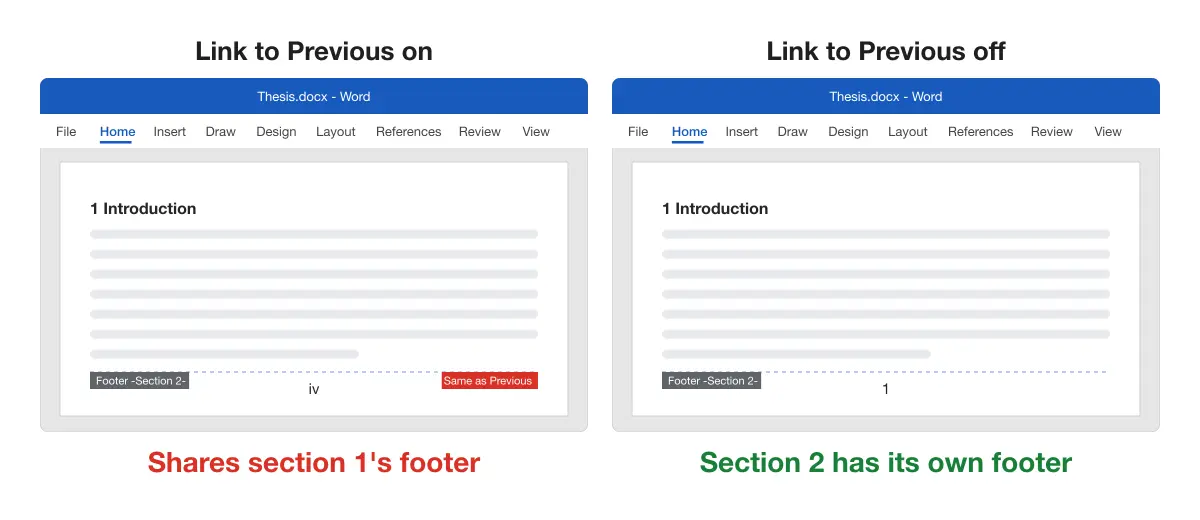
Note: If your page number is in the header, unlink the header instead. Headers and footers link separately.
New to section breaks? See how to insert and remove section breaks in Word.
Numbering the front pages with Roman numerals
Use this for the pages before chapter one.
- Double-click the footer on any front page.
- Go to Header & Footer > Page Number > Format Page Numbers.
- Set Number format to i, ii, iii.
- Under Page numbering, choose Start at and leave it at i.
- Click OK.
Result: The front pages are numbered i, ii, iii. Microsoft shows the same dialog in Customize page numbers in different sections.
For capital numerals, choose I, II, III instead, if your guide asks for them.
Starting chapter one at page 1
Use this so the chapters don’t carry on from the Roman numerals.
- Double-click the footer on chapter one’s first page.
- Open Page Number > Format Page Numbers.
- Set Number format to 1, 2, 3.
- Choose Start at and type 1.
- Click OK.
Result: Chapter one starts at 1, and the chapters continue 2, 3, 4.
If each chapter starts with its own Next Page break, the later chapters must continue the count. In each one, open Format Page Numbers and choose Continue from previous section.
Hiding the number on the title page
Use this when the title page counts as page i but shows no number.
- Double-click the footer on the title page.
- On the Header & Footer tab, tick Different First Page.
- Click Close Header and Footer.
Result: The title page has no number, and the next page shows ii.
If the first visible page must show i instead, add a Next Page break after the title page too. Unlink the next section’s footer, set it to start at i, and delete the number in the title page’s section.
Refreshing the contents page numbers
The contents page picks up the new numbers only when you update it:
- Click inside the table of contents.
- Choose Update Table > Update page numbers only.
Result: Front-matter headings list Roman numerals and chapters list 1, 2, 3. See how to create a table of contents in Word for the full steps.
Comparing the methods
| Need | Method |
|---|---|
| Roman front pages, Arabic chapters | Next Page break + Link to Previous off + Format Page Numbers |
| No number on the title page | Different First Page in the first section |
| Numbers that start on page 3, no Roman numerals | Start page numbers from a specific page |
| No number on only the cover | Different First Page with Start at 0 |
Platform differences
- Windows: all steps above.
- Mac: the same menus. In the Page Numbers dialog you can also clear Show number on first page to hide the title page number.
- Word for the web: it can’t add section breaks, so it can’t mix Roman and Arabic numbers. Use Open in Word.
- Thesis written in Google Docs: if you must submit a Word file, convert Google Docs to Word, then set the numbering with the steps above.
Troubleshooting thesis page numbers
- The chapters show Roman numerals too. Link to Previous was on when you formatted. Turn it off in chapter one’s footer, then set 1, 2, 3 again.
- Link to Previous is greyed out. There’s no section break yet, or you’re in the first section. Show formatting marks to check.
- Chapter one starts at 5 or 6. Start at isn’t set. Open Format Page Numbers in that section and choose Start at: 1.
- Each chapter restarts at 1. Later chapters are set to Start at. Change them to Continue from previous section.
- A blank page appeared before chapter one. The front matter ended with a page break as well as the section break. Delete the extra break, as covered in how to delete a blank page in Word.
- A landscape page lost its number. Landscape pages sit in their own section. Turn on Continue from previous section there; see how to make one page landscape in Word.
For the rest of a thesis, see citations and references in Word, how to insert footnotes, captions for figures and tables and the Microsoft Word guides.